

Your camera roll probably contains dates that never reached your calendar: a school notice, an event flyer, a message confirming an appointment, or a slide with the next review date. The problem is not taking the screenshot. It is turning that source into a calendar event without losing the details that make the event usable.
A dependable screenshot-to-calendar workflow has two parts. First, extract the event facts into a readable record. Second, review the calendar fields before sending anything to your calendar. That review step matters because a visually clear screenshot can still contain an ambiguous date, a missing time zone, several competing times, or a location that was split across lines.
This guide explains what to capture, what to verify, and how Recap fits into the process. Recap starts with the screenshot as a source, creates a structured readable Recap Document, and can surface a Calendar Sheet when the source contains strong time-based action. You can confirm, edit, or cancel the Calendar Sheet. Export to Workspace and Start Learning remain available as separate next steps.
The short version
Use this sequence:
- Keep the original screenshot.
- Extract the title, date, start and end time, time zone, location, and useful instructions.
- Read the extracted details in context, not as isolated text fragments.
- Resolve ambiguous dates and decide which time is the actual event.
- Review every calendar field.
- Add the event only after the fields match the source.
For a reusable field-by-field record before you add anything, use the calendar review template. If you want to try the focused flow, start with the Screenshot to Calendar tool. If the screenshot contains more than an event, the Source to Structured Document tool is a better entry point because it keeps the surrounding information readable.
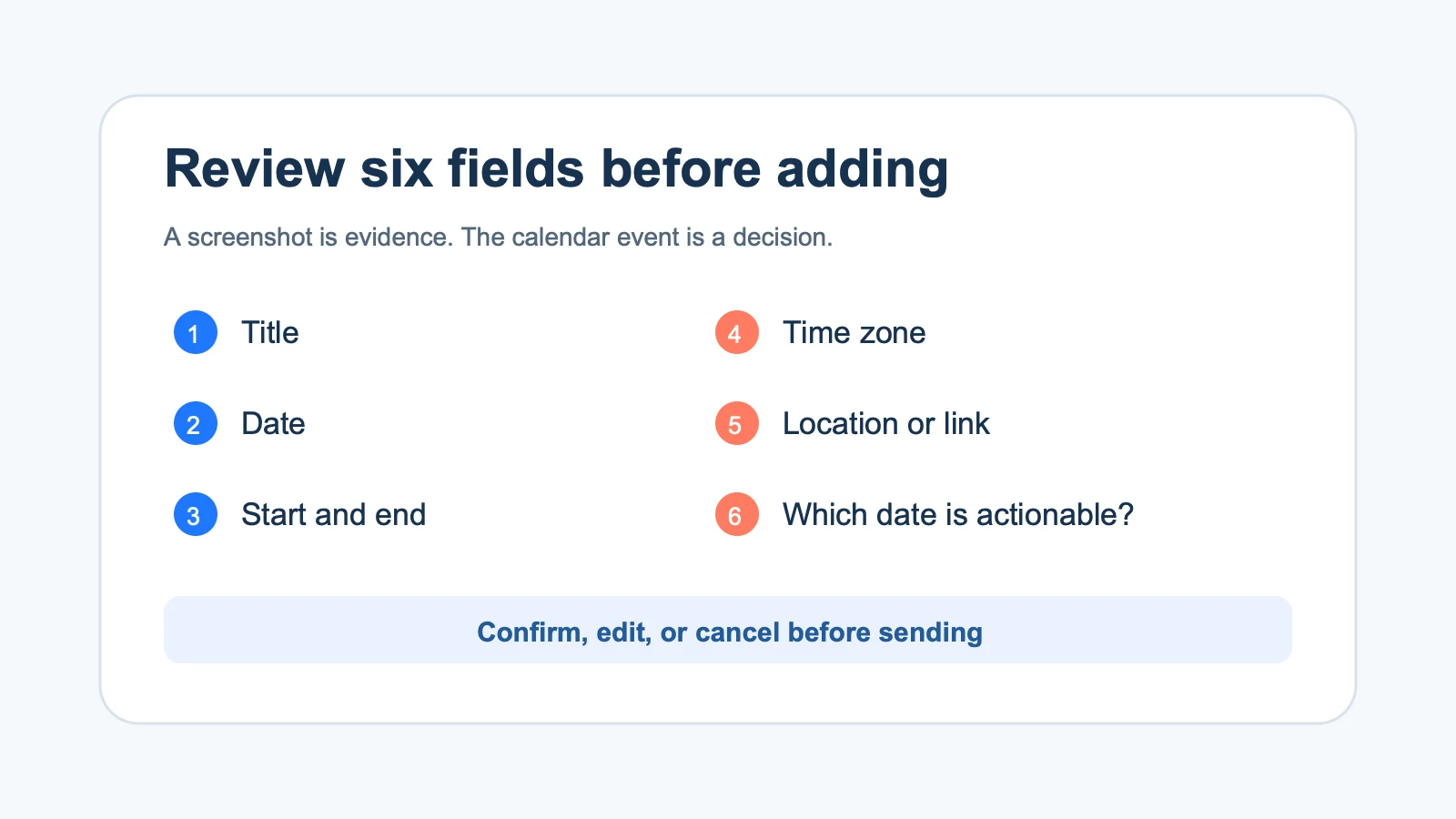
Why copying visible text is not enough
Calendar events are structured records. Google Calendar's event model includes fields such as summary, description, location, start, end, recurrence, attendees, and reminders. Its start and end values can carry a date, date-time, and time-zone context. The Google Calendar Events reference makes the distinction explicit; the screenshot-to-Google-Calendar workflow turns those fields into a practical review checklist. For a field-by-field extraction rubric, see the image-to-calendar event field guide.
A screenshot is not structured in the same way. It might say:
Community repair workshop, Saturday, October 17, 2:00 to 4:30 PM. Doors open at 1:45. Harbor Room, 88 King Street.
That sentence contains at least five possible calendar fields and two different times. A basic text extraction step might find all of them, but it still has to distinguish the workshop start from the door-opening note. The title also needs to be concise enough to scan in a calendar while the supporting detail should remain available in the event description.
This is why a readable intermediate document helps. It gives you a place to judge the extracted facts before they become a calendar entry. Read more about that intermediate result in What Is a Recap Document?.
The six fields to verify
1. Event title
The title should identify the event at a glance. Prefer “Repair Cafe Community Workshop” over a copied marketing headline such as “Bring It Back to Life This Saturday.” Promotional copy belongs in the description, if it belongs anywhere.
When a screenshot contains both a series name and a session name, decide which one will help later. “Design Talks: Accessibility Review” is usually more useful than either fragment alone.
2. Date
Written months are easier to review than numeric dates. 07/11/2026 can mean July 11 or November 7 depending on the source's date convention. Look for the location, organizer, language, and stated day of week. If the evidence remains incomplete, edit the date only after checking the original sender or event page. Use the focused guide to extract a date and time from a screenshot when the source contains numeric dates or several time signals.
The calendar standard in RFC 5545 defines machine-readable date and time values, but the standard cannot resolve uncertainty that already exists in a screenshot. Human confirmation is still needed when the source is ambiguous.
3. Start and end
Do not assume every time on the image belongs in the event fields. A flyer may include doors opening at 6:30 PM, a talk beginning at 7:00 PM, and a venue closing at 9:30 PM. Usually the talk start and expected end belong in the primary fields. The door time can be kept as a relevant detail or used to create a reminder.
If there is a start time but no end time, avoid inventing a duration. Keep the end unset if the destination permits it, or choose a duration only when you can justify it from the source or organizer. The missing-end-time guide shows how to label a personal hold while preserving the unknown source finish.
4. Time zone
Time zones are where a visually correct extraction can become a wrong event. A screenshot might show 2:00 PM BST, 10:00 AM PT, or no zone at all. Remote events and travel plans require extra attention because your device zone may differ from the source zone. Use the calendar event timezone review checklist when source, event, and display zones may differ.
The Google Calendar API accepts explicit time-zone information for timed events, and RFC 5545 defines VTIMEZONE components for calendar interchange. In practice, the safest review is simple: confirm the intended local time and zone before adding the event.
5. Location or meeting link
Keep a physical address together rather than dropping the street line. For online events, put the actual meeting URL in a field where the destination calendar can preserve it. A screenshot can also contain a registration page, a livestream link, and a meeting link. They are not interchangeable. The location and joining-link check separates access from registration, while the event-flyer field map shows how to keep the venue, full address, arrival instructions, and event hours distinct.
6. The actionable date
Many screenshots contain more than one date. A conference notice might list a registration deadline, an early-bird deadline, and the event date. A project update might list a draft deadline and a final review. Decide whether you need one event, several events, or only a reminder.
This decision is more important than perfect optical character recognition. The right words in the wrong calendar field still create a poor result.
A review-first workflow in Recap
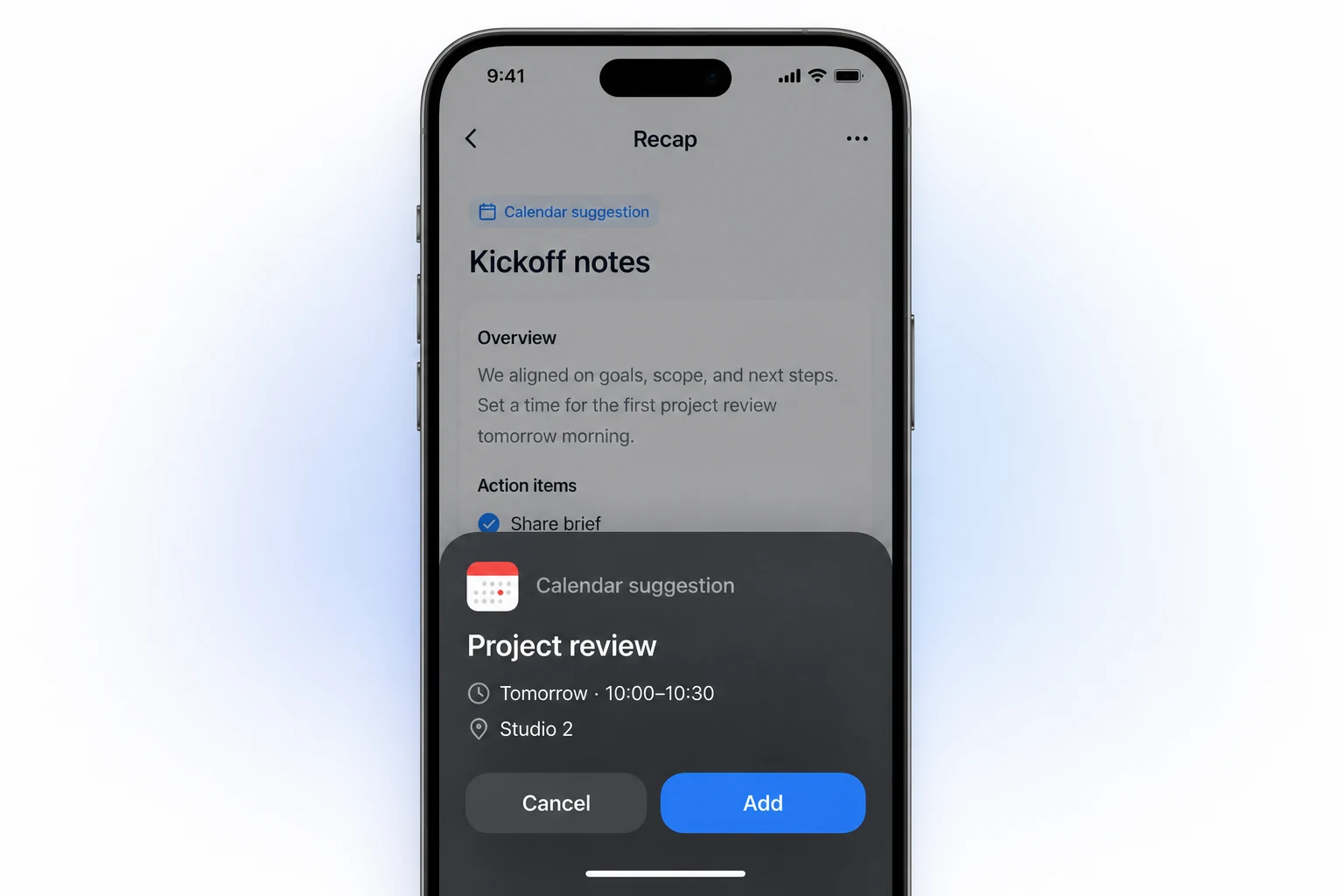
Recap treats the screenshot as a source rather than a disposable prompt. After you add the image, Recap creates a structured readable document. When the source contains a clear time-based action, it can surface a Calendar Sheet with event fields for review.
The current first-party product image below shows the intended interaction: an event suggestion appears with the date and time, and the user can cancel or add it. The image is product evidence, not a promise that every screenshot will be interpreted without correction.
A worked event-flyer example for this guide uses a Repair Cafe workshop on October 17, 2026, from 2:00 to 4:30 PM at Harbor Room, 88 King Street. The separate 1:45 PM door time belongs in the relevant details, not in the event start field. The example preserves the source's intended local time while making the field roles explicit.
The flow is:
- Source: the original screenshot remains the evidence.
- Document: the extracted facts become readable and traceable.
- Calendar Sheet: the event fields can be confirmed, edited, or cancelled.
- Next step: send to Calendar only when the fields are correct.
Calendar is not the only destination. If the screenshot is mainly reference material, export the document to a workspace. If the source deserves deeper understanding, start a question-driven learning session. See Recap pricing for the current plan presentation rather than assuming a feature is available on every plan.
Three common screenshot patterns
Event flyers
Event flyers often contain the clearest title and date but the noisiest hierarchy. Decorative headings, sponsor logos, calls to action, and venue details compete for attention. Check the event name, exact date, event hours, venue, address, registration requirement, and any arrival instruction.
The strongest calendar event is rarely a literal transcription of the flyer. It is a compact record that preserves the useful facts and points back to the source.
Message confirmations
Messages often rely on conversational context. “See you next Thursday at 3” may be perfectly clear to the participants but incomplete when viewed later. Confirm the year, time zone, location, and the identity of the appointment. If the message thread contains a later correction, use the latest confirmed detail. A meeting invitation screenshot checklist covers join links, duplicate invitations, attendees, and organizer context.
Screenshots also cut off context. A visible time might refer to the message timestamp rather than the appointment. Keep the source nearby while reviewing.
When a later notice changes the plan, use the schedule change review template to compare the old and revised details. If the notice cancels an event, check which calendar occurrence a cancellation affects before removing anything.
Notices with several dates
School notices, course announcements, and project updates frequently contain a sequence: submit by Wednesday, review Friday, attend Monday. A single calendar event cannot represent the whole sequence well. Choose the dates that require action, and create separate events or reminders when needed. For a school-specific multi-event example, see how to turn a school notice screenshot into calendar events.
For a chronological overview, keep the information as a document or timeline first. Then send only the actionable items to Calendar.
The same rule applies when the source is a work schedule or a program grid. The work schedule photo guide shows how to split shifts, handle overnight boundaries, and preserve cropped rows. The holiday program photo guide focuses on date headings, venue legends, and choosing only the sessions that need reminders. If the material is spread across a chat, use multiple screenshots to calendar events to reconcile updates. For a sensitive appointment letter with more than one language, use the multilingual appointment review guide and keep translation uncertainty visible.
What the worked examples cover
We created three deterministic screenshot samples for this guide:
- A written-month event flyer with a start time, end time, door time, and physical address.
- A numeric date written as
07/11/2026, deliberately leaving the month and day order ambiguous. - A remote meeting notice with a meeting time in BST plus a separate slides deadline.
The three samples are source and review fixtures, not an accuracy benchmark. They cover written dates, numeric date ambiguity, multiple time signals, physical locations, remote zones, and competing deadlines. The resulting guidance does not claim perfect recognition across devices, languages, handwriting, image quality, or calendar providers. Its purpose is to make the correct field mapping inspectable before an event is added.
A practical review checklist
Before you press Add to Calendar, answer these questions:
- Does the title identify the actual event?
- Is the date written in the intended month-day order?
- Do the start and end describe the event, not doors, registration, or a deadline?
- Is the time zone explicit for remote or travel-related events?
- Does the location include the full address or the correct meeting link?
- Are important instructions preserved without cluttering the title?
- Is the selected destination calendar the one you actually use?
- Can you still return to the original screenshot if something looks wrong?
Apple's EventKit guidance says apps must obtain authorization to access calendar data, and Apple's creating events and reminders documentation describes event properties such as title, start, end, calendar, alarms, and recurrence. Apple also provides system event interfaces through EventKit UI. Those platform controls are necessary, but they do not replace reviewing the content of the event itself.
When not to create a calendar event
Do not turn every date into an event. A date can be historical context, a publication date, a price-validity period, or one point in a longer timeline. If no action belongs at that time, a structured document is often the better result.
Likewise, do not create an event when the source is too uncertain. Ask for clarification, find the original event page, or keep the item as a document until the facts are confirmed. A delayed correct entry is better than an immediate wrong one.
The useful result is not just automation
The useful result is a chain you can inspect: screenshot, readable document, proposed event, confirmed calendar entry. Each step has a distinct job. Extraction reduces typing. Structure makes the source easier to judge. Review catches ambiguity and conversion errors. Calendar stores the action where it belongs.
That is the standard to use when evaluating any screenshot-to-calendar workflow. It should save effort without hiding the evidence or removing your ability to correct the result.
Continue in Recap
Turn this source into a Recap Document
Make it easier to read, then send time-based details to Calendar, export it to Workspace, or start PBL Learning.