

A holiday program photo can contain a full week of activities in a single dense image. One row may show a workshop, another a performance, and a footer may list registration or pickup times. The page may use columns for age groups and abbreviations for venues. Copying the largest date into Calendar turns a multi-event program into one incomplete reminder.
The useful workflow is to read the program as a table, preserve its headers and legend, and choose only the sessions that require action. Create separate calendar events when the sessions have different times, locations, or preparation needs. For a smaller notice with just two sessions, see the two-session review. Keep the source photo near every proposal so an omission or correction can be fixed later.
The short version
For a holiday program image:
- Save the full photo and check whether another page contains the legend or venue key.
- Identify the date range, local time zone, audience, and column headings.
- Read each row and column intersection as one candidate session.
- Separate registration deadlines, pickup windows, and performances from ordinary activities.
- Mark cropped, blurred, or ambiguous cells instead of filling them from a neighboring row.
- Review the selected events together before adding them to the right calendar.
Recap's Screenshot to Calendar tool is useful for a source with clear time-based action. If the program has a dense grid, begin with a structured document and use the school notice screenshot workflow as a related example. The event flyer guide covers a single event card; this page focuses on a program with many cells and deliberate selection.
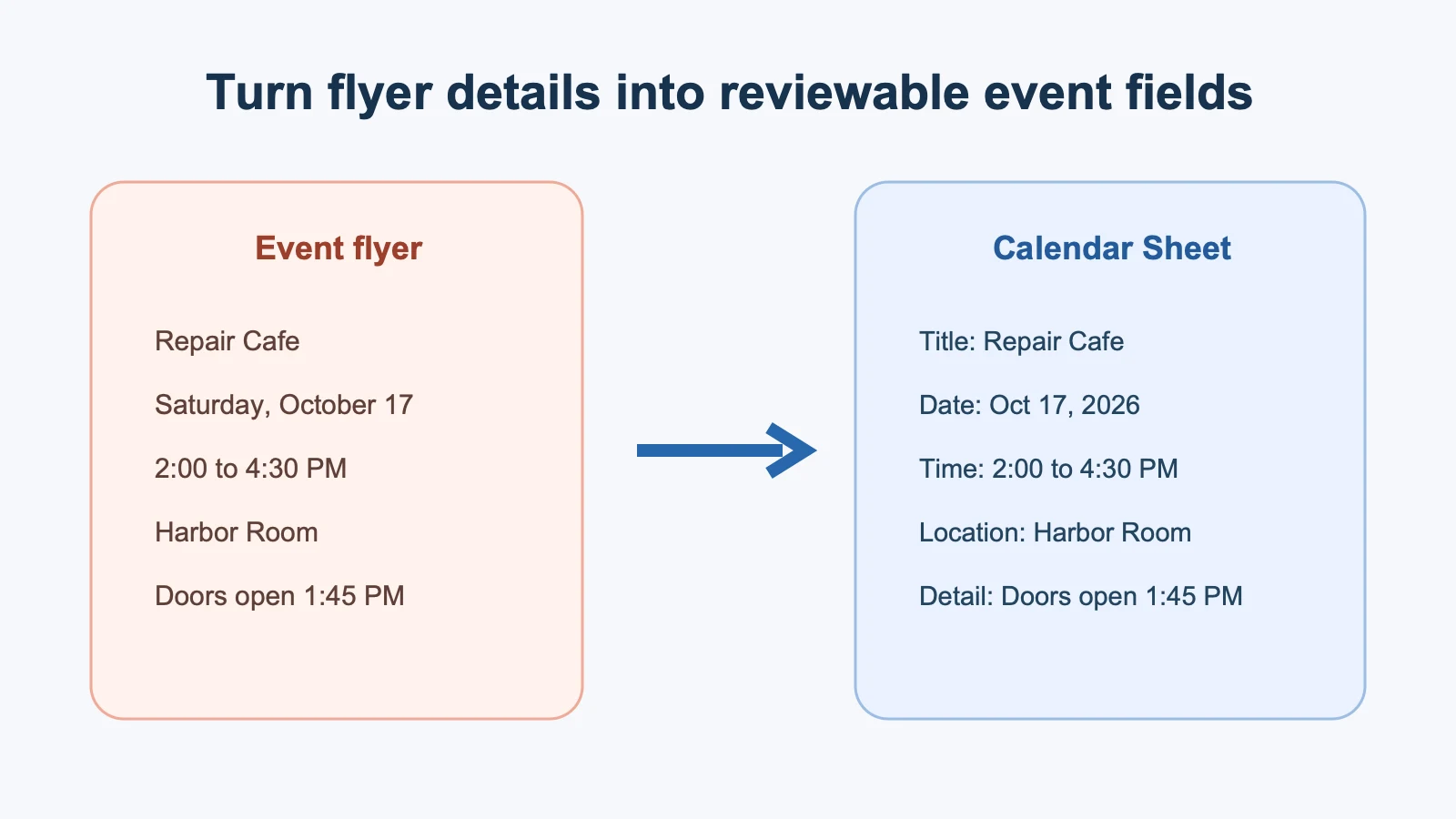
Preserve the grid before extracting
Do not crop the program into one row before you understand its layout. Keep:
- Date and weekday headings
- Time columns and AM or PM markers
- Venue or room legend
- Age group, track, or audience columns
- Symbols for registration, cancellation, or capacity
- Footer notes about pickup, weather, or required materials
A grid is relational. The time in one column may apply to several rows, while a venue abbreviation may be defined only in a legend at the bottom. Write the structure down before copying any event. If the photo came from a chat, retain the message date because “this Saturday” may refer to a different week than the printed program.
Turn a cell into an event candidate
For each session that matters to the user, map the source into a compact record:
- Title: use the plain activity name plus the track or venue when needed.
- Date: use the date heading that intersects the row.
- Start and end: copy the time range from the correct column.
- Location: expand the venue code only when the legend confirms it.
- Audience or constraint: keep age group, registration status, or required equipment in notes.
- Source reference: record the page, row, and column so the candidate can be checked.
Google's Calendar Events API reference separates summary, description, location, start, end, recurrence, attendees, and reminders. That model helps keep program context in notes rather than hiding it in a title that will be hard to scan.
Do not make every cell an event. A canceled session, an optional drop-in, or a background activity may be useful in the document without requiring a calendar alert. Let the person's schedule and the program's action language determine what belongs in Calendar.
Read rows and columns together
Program photos often use a compact notation such as:
| Day | Time | Activity | Venue | Note |
|---|---|---|---|---|
| Mon 21 Dec | 10:00-11:30 | Craft lab | H | Bring a smock |
| Mon 21 Dec | 14:00-15:00 | Story hour | L | Registration required |
| Tue 22 Dec | 09:30-12:00 | Trip | Not listed | Meet at east gate |
The H and L codes are not safe locations until the legend defines them. The Tuesday trip may need an earlier reminder for the meeting point, but its start remains the stated 09:30 unless the program says otherwise. A note such as “registration required” is an action, but not necessarily a second calendar event.
The image-to-calendar field guide explains how to distinguish a source fact from a review decision. Apply that distinction to every row instead of assuming the table is already a calendar.
Handle multi-day programs and date boundaries
A holiday program can span a weekend, a public holiday, or a location with a different local time. Check the year when the photo is saved. If a session runs past midnight, state the end date explicitly. Do not infer that a weekly label means the same calendar year as today's date.
For all-day items, confirm that the program intends a date-long activity rather than an omitted time. A “closed” label is usually a note or a blocked day, not an event that needs an alert. A registration deadline can be a separate reminder when it happens before the activity.
RFC 5545 defines date and date-time values for iCalendar data. It cannot decide whether a blank cell means “no session,” “not applicable,” or “missing from the photo.” Leave that distinction visible until the organizer or a complete source resolves it.
Detect cropped and omitted cells
Before accepting a batch, inspect the edges of the image:
- Is the first date column outside the frame?
- Are times cut off at the right edge?
- Does the legend continue on another page?
- Are row separators hidden by glare or folds?
- Does a footer change the schedule for a particular day?
If a cell is unreadable, mark the candidate as unresolved. Do not copy the time from the row above or assume that a blank means the same as OFF. If another page or current organizer link exists, use it as a supporting source and record the difference.
Choose the events deliberately
The best calendar may contain only the sessions that matter to the person. A parent may need pickup windows and registered workshops, while a volunteer may need setup and closing shifts. An organizer may want the full program but not every optional activity.
Use three questions:
- Does this row require the person to be somewhere at a specific time?
- Does it require preparation, registration, or transport planning?
- Will a reminder help, or would it create calendar noise?
When two sessions overlap, keep both candidates visible and ask which one should be added. Do not silently delete an event because the calendar appears crowded.
Review venue and destination calendar
A venue code can hide important context: one building may have several entrances, and an outdoor activity may move with weather. Preserve the named venue, room, and meeting point when stated. Do not replace a local code with a guessed map result.
Choose the destination calendar intentionally. A family calendar may need pickup and attendance details; a personal calendar may need only the event time; a shared organizer calendar may contain operational notes. A photo with children's names or contact details should stay private. Those names are not attendee invitations.
Recap keeps the original source and a structured Recap Document before a Calendar Sheet is proposed. You can confirm, edit, or cancel each event. Calendar, Workspace, and Learning remain separate next steps, so a program can be saved as a reference document even when only three sessions deserve reminders.
A worked fictional example
Imagine a fictional winter program photo covering 21 to 23 December. It lists a craft lab Monday morning, a story hour Monday afternoon, a Tuesday trip with an east-gate meeting point, and a registration deadline Sunday evening.
The selected calendar could contain four items: a Sunday registration reminder, the Monday craft lab, the Monday story hour, and the Tuesday trip. The trip's meeting point belongs in the location or notes, and an earlier reminder can be added for travel. The program's general “holiday hours” note remains in the document unless it affects attendance.
This example is a mapping fixture, not a recognition benchmark. A real image may use a different language, calendar convention, or venue legend. Keep any missing cell or unclear abbreviation visible.
How to handle changes
Programs change. A later message may cancel one session, move it to another room, or add a weather backup. Keep the image number or source date in the event notes so you can compare a new version. If a correction is authoritative, update the affected event rather than adding a duplicate.
The multiple screenshots to calendar events guide explains how to reconcile a series of images. For an overnight or cross-time-zone activity, use the timezone review checklist as a second pass.
Final checklist
Before adding events from a holiday program photo, confirm:
- The full grid, legend, and footer are available.
- Date and weekday headings match the intended year.
- Each candidate uses the correct row and time column.
- Venue codes are expanded only when the legend supports them.
- Registration, pickup, travel, and preparation instructions are separated.
- Cropped or blank cells are marked instead of guessed.
- Optional activities are not turned into unwanted alerts.
- The destination calendar and sharing level are intentional.
- Later corrections can be compared with the original source.
A program photo is useful because it contains choices, not because every cell must become an event. Preserve the table, select the commitments that matter, review them against the source, and keep the rest available as a readable document.
Continue in Recap
Turn this source into a Recap Document
Make it easier to read, then send time-based details to Calendar, export it to Workspace, or start PBL Learning.