

A meeting invitation screenshot can look complete while hiding the fields most likely to cause trouble. The time may be shown in the organizer's zone. The conference link may be shortened. A registration deadline may appear below the visible fold. The screenshot may also be an update to a meeting already on your calendar.
Before creating a new event, review the invitation as evidence. The screenshot-to-calendar tool can help surface the fields, but the aim is not to copy every word. It is to preserve the details that get you into the right meeting at the right time without sending accidental invitations or creating duplicates.
First, check whether the event already exists
Search your calendar by meeting title, organizer, and date. If the screenshot came from an email invitation, the original event may already have been added or may still be waiting for your response.
Creating a second event can split updates between two records. One may hold the working join link while the other has your alerts. If an existing invitation is present, update or respond to it instead of making a personal duplicate unless you have a specific reason.
Also check whether the screenshot says "updated," "rescheduled," or "new time." An update should not become a second meeting.
Identify the meeting's source of truth
The screenshot is useful evidence, but the original invitation, event page, or organizer message is often better. It provides clickable links, full attendee information, and later updates.
If you can reach the original, compare it with the screenshot. If you cannot, keep the image attached or linked in your notes so that you can revisit the source. A manually typed event should be clearly treated as your copy, not as an invitation controlled by the organizer.
Review the title and organizer
Use a title that identifies the conversation. "Meeting" is not enough. Prefer the invitation's explicit name, such as "Recap onboarding review" or "Q4 research interview."
Keep the organizer's name or company in notes when it helps distinguish similar calls. The person who forwarded the screenshot may not be the organizer. Do not replace an explicit organizer with the sender by assumption.
If the event has a customer, candidate, or project name, include it only if that detail is appropriate for the destination calendar. Shared calendars and lock-screen previews can expose titles.
Check the date, year, and time zone together
Meeting screenshots often omit the year because the app assumes the invitation is current. Verify it before saving, especially when processing an old image.
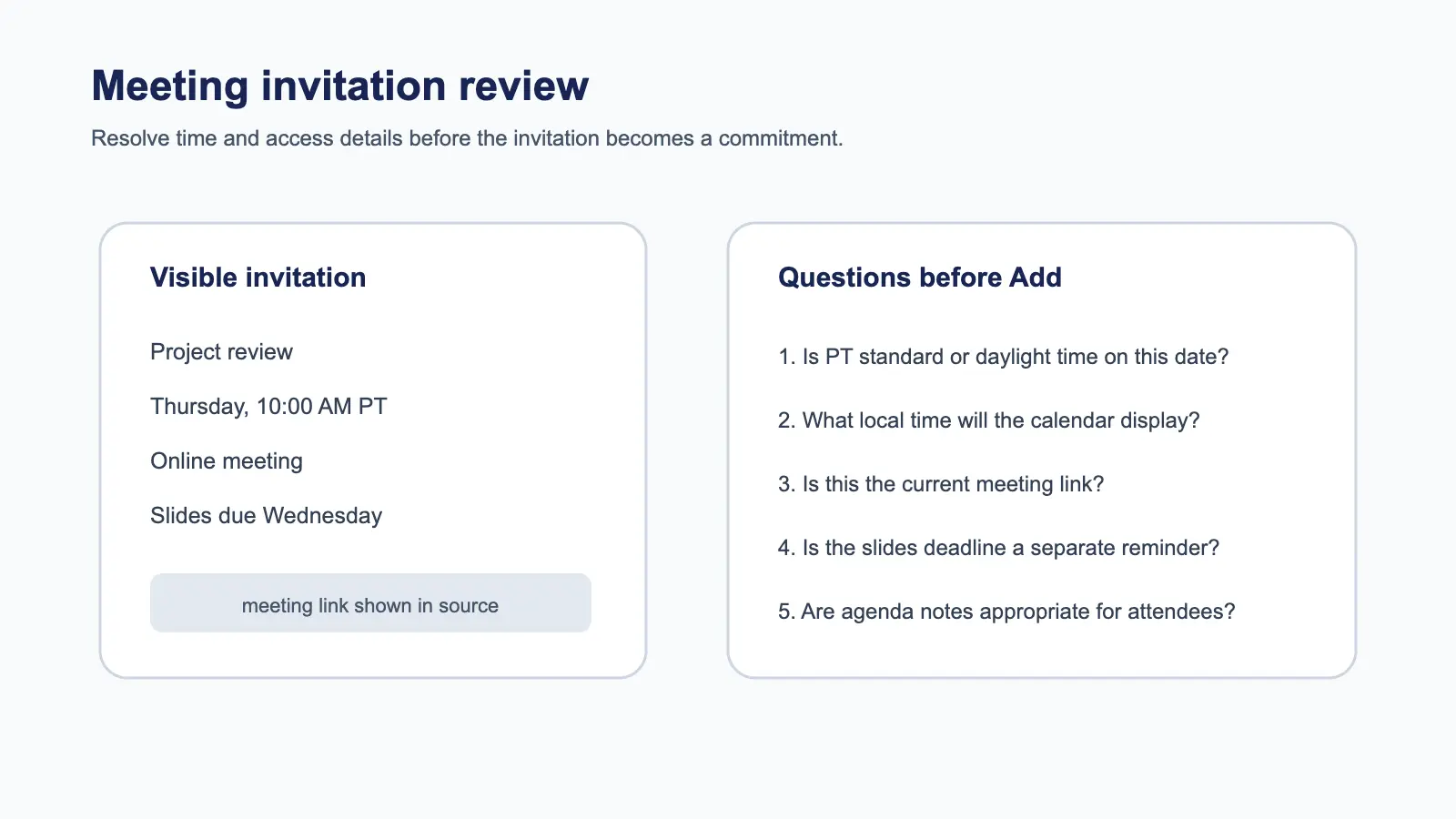
For remote meetings, the time zone is part of the time. Prefer a named region over an abbreviation. "CST" can be ambiguous; "America/Chicago" and "Asia/Shanghai" are not. Microsoft notes that Outlook can show multiple time zones and lets users change how calendar times are displayed (Microsoft Outlook time zone support). Display settings are useful, but they do not tell you which zone the organizer intended.
Compare the saved local time with the source before confirming. If the meeting occurs after a daylight-saving change, verify the date rather than converting from today's offset. Recurring meetings need additional care because the offset between two regions can change during the series.
Use the timezone review checklist when the organizer, attendee, and device are in different regions.
Preserve start, end, and preparation separately
Copy an explicit start and end time. If only the duration is shown, calculate the end and keep the duration visible in notes. If no end or duration is present, do not invent one without recognizing it as a personal placeholder.
A request such as "Please join five minutes early" is an arrival instruction, not the official start. An agenda review due the day before is a preparation task, not an unusually early alert. Keep these distinctions visible.
Google Calendar's event resource represents start and end data separately and can also store attendees, locations, descriptions, and conference data (Google Calendar Events API). Mapping each fact to the right field makes later review easier.
Recover the actual join link
A screenshot may show a button labeled "Join," a shortened URL, or only the meeting ID. Whenever possible, return to the original invitation and copy the clickable join link.
Do not reconstruct a hidden URL from the platform name. A single incorrect character can make the link unusable. If the meeting requires a passcode, keep it with the link in a private notes field, not in a public calendar title.
Separate these common links:
- conference join link;
- registration page;
- agenda or document;
- recording page;
- reschedule or cancellation page.
The join link should be easiest to reach at meeting time. Supporting links can stay in notes with labels.
Be deliberate with attendees
Adding email addresses to a new calendar event may send invitations. A screenshot that lists participants does not authorize you to invite them again.
If you are creating a personal reference copy, omit attendees and record only what you need. If you are responsible for organizing the meeting, use the original invitation system so responses and updates remain connected.
This is also why blindly copying an invitation is risky. Calendar fields are not passive text boxes. Some fields trigger external actions.
Separate registration and follow-up deadlines
A webinar card may say "Register by September 20" and "Live session September 24." Those are two actions. Create a deadline for registration and a meeting event for attendance.
The same applies to submitting questions, completing pre-reading, sending an agenda, or following up after the call. Use separate entries when the action has its own date and consequence. Put the relationship in notes or use consistent titles.
The iCalendar standard supports event relationships and recurring structures, but ordinary calendar interfaces vary in what they expose (RFC 5545). Clear titles and notes remain the most portable way to preserve context.
Use Recap as a review step
Recap keeps the screenshot or invitation as source material and turns it into a structured, readable Recap Document. When strong time signals are present, a Calendar Sheet can surface proposed event fields for review. You can confirm, edit, or cancel before sending anything to a calendar.
That review is where you can catch a duplicate, restore a missing year, distinguish the join link from registration, and decide not to add attendees. Calendar is one possible next step alongside Workspace and Learning. It is not an automatic action caused by adding a source.
For the general mapping rules, read the image-to-calendar field guide. If the invitation is headed to an iPhone, use the Apple Calendar workflow. If the screenshot is really an appointment card, the appointment guide covers arrival and privacy decisions.
If Google Calendar is the destination, the screenshot-to-Google-Calendar guide covers that path directly.
Final meeting checklist
Before saving, confirm:
- No existing event already holds the organizer's updates.
- The title identifies the actual meeting.
- The date includes the correct year.
- The saved time matches the source time zone.
- Start, end, early arrival, and preparation are distinct.
- The join link opens and is not merely a registration link.
- Passcodes and private details are not exposed in the title.
- No one will receive an unintended invitation.
- Deadlines outside the meeting have their own entries.
- The original invitation remains available.
A trustworthy meeting event should still make sense five minutes before the call, when there is no time left to decode the screenshot again.
Continue in Recap
Turn this source into a Recap Document
Make it easier to read, then send time-based details to Calendar, export it to Workspace, or start PBL Learning.