

A schedule change review template helps you answer two questions before touching your calendar: which existing entry does this notice refer to, and exactly what should change? Keep the original details beside the revised details, record the notice that supports the revision, and confirm the affected occurrence before editing or removing anything.
A screenshot that says a workshop has moved to Friday might omit its original date. A cancellation message might apply to one session of a course. A registration extension might change the application deadline while leaving attendance untouched. Extracting a new date gives you a candidate value; comparing the notices tells you where that value belongs.
This guide provides an original worksheet and four fictional worked examples. They demonstrate a review method, not measured extraction accuracy or a completed product test. The calendar instructions refer to actions you take in your own destination app. No example assumes that Recap can match, update, or delete an existing calendar entry automatically.
Copy this change record
Start with one record for the notice you received. A short record is sufficient if the event is clear. Expand it when the notice refers to a series, a shared invitation, or more than one date.
| Field | What to record |
|---|---|
| Event identity | Title, organizer, location, and any booking or session reference |
| Original notice | Source link or saved image, received date, and original event details |
| Revised notice | Source link or saved image, received date, and the exact changed statement |
| Existing entry | Calendar name and the specific entry you inspected |
| Old value | The date, time, location, deadline, or status currently recorded |
| New value | Only the replacement value supported by the revised notice |
| Occurrence scope | One session, this and later sessions, the whole event, or unresolved |
| Unchanged details | Information the revision explicitly preserves |
| Open question | Anything needed to make the edit safely |
| Chosen action | Edit, remove, keep, ask the organizer, or create a genuinely new entry |
| Verification | What the destination calendar shows after the action |
Leave a field unresolved when the evidence is missing. An empty new location is different from an instruction to remove the location. A notice received today is not necessarily a notice for an event today. You can add your own reminder, but label it as your choice rather than a time supplied by the organizer.
Match the notice to the existing entry
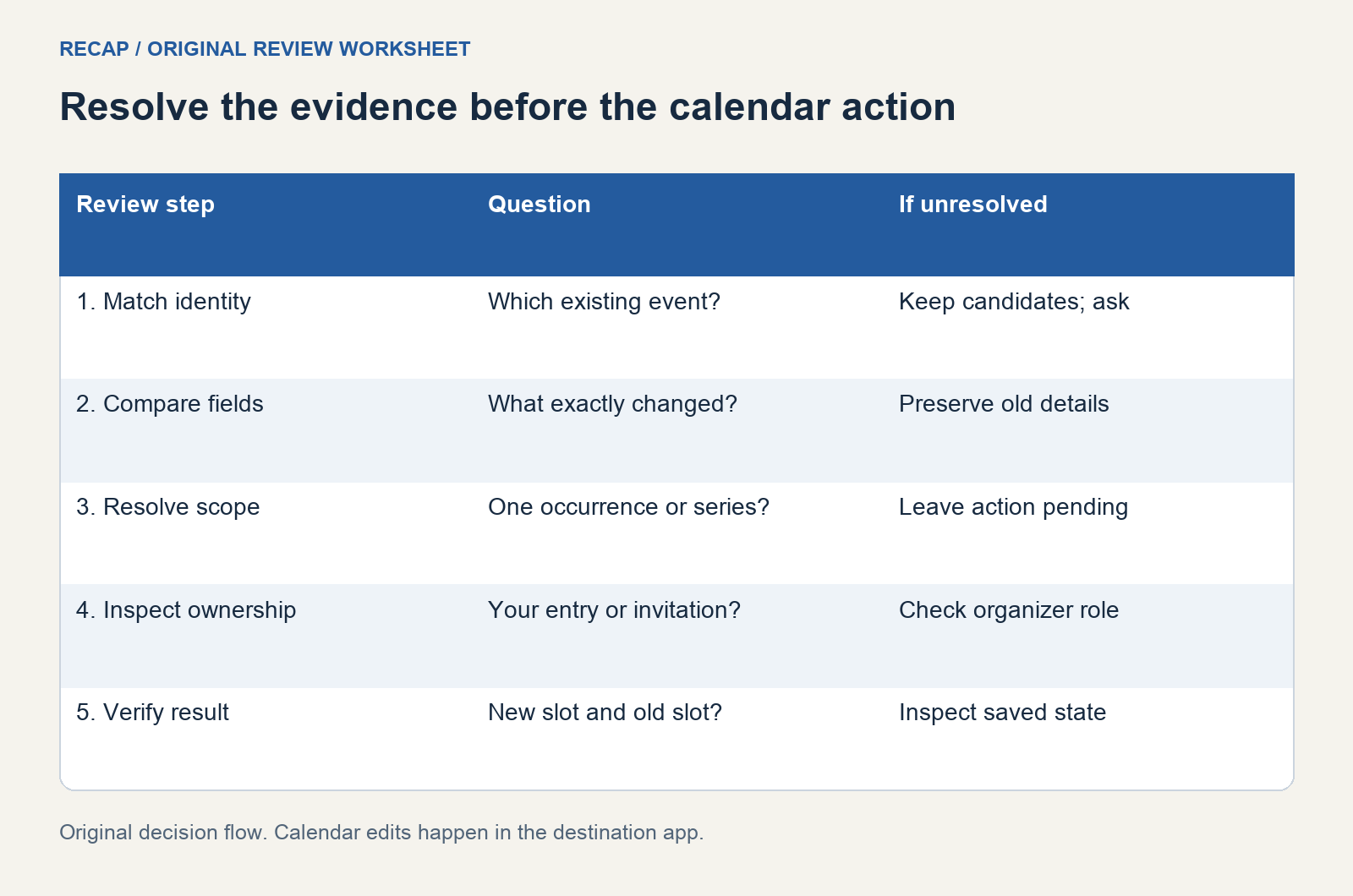
Search by the event title and inspect the details before comparing dates. Similar names are common within a course or a recurring team meeting. Location and organizer can help distinguish them, while a booking reference is useful when it is present in both records. Do not publish a personal booking reference in a shared document.
If two entries look plausible, stop the matching process. Write down the candidates and the missing distinction. A message such as "the afternoon session has moved" cannot select between two afternoon sessions unless other context resolves it. Ask the organizer which original date or session they mean.
Then determine who controls the entry. A personal copy you created from a flyer differs from an invitation managed by an organizer. Editing your private note about a meeting does not reschedule everyone else's meeting. Google's invitation guidance describes proposing a new time as a separate invitation action. Check the permissions and wording in your own calendar before saving a change.
Worked example: a workshop moves to a different day
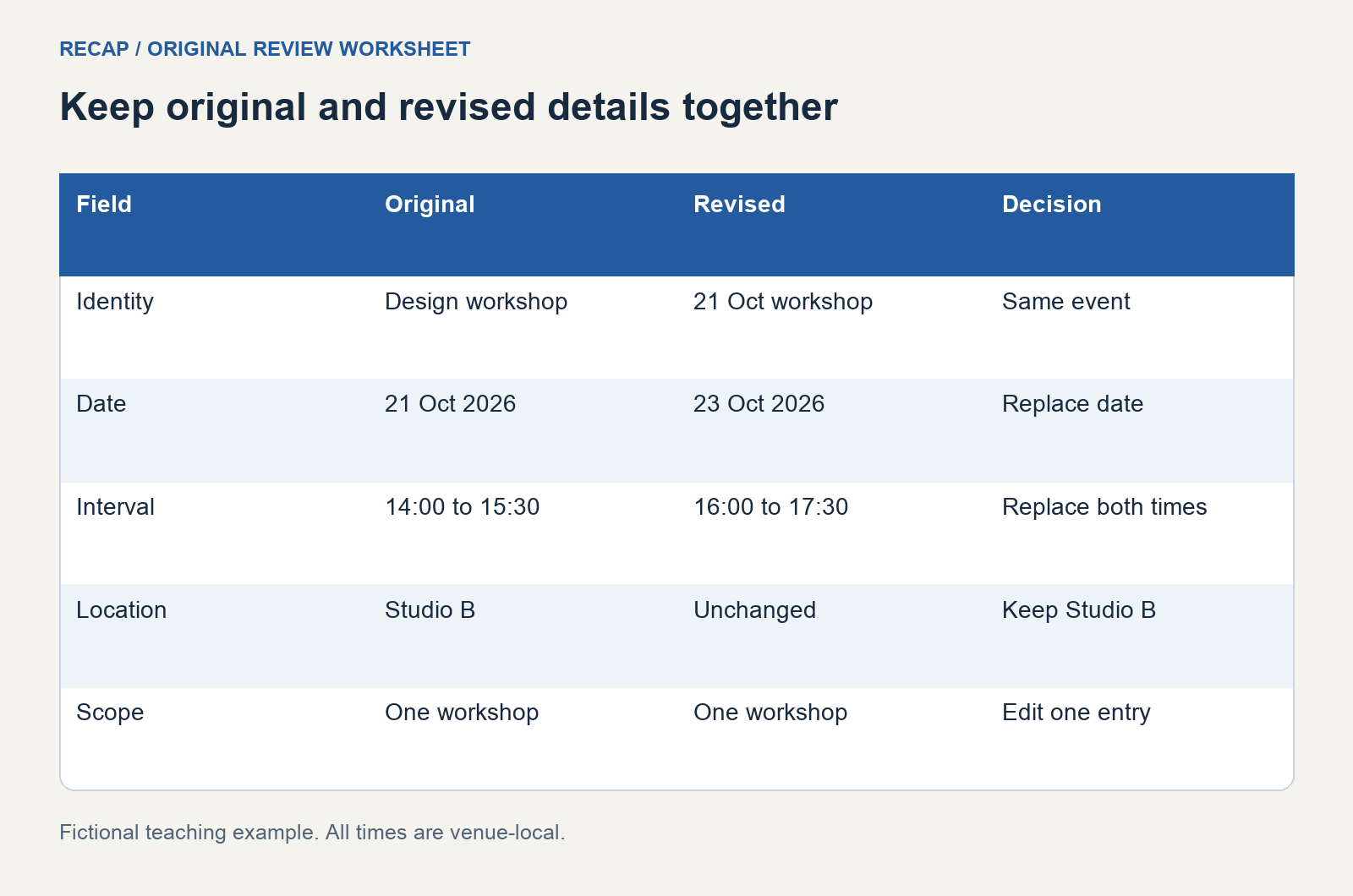
These notices are fictional and use venue-local time. The original says: "Design review workshop, Wednesday 21 October 2026, 14:00 to 15:30, Studio B." The revision says: "The 21 October workshop moves to Friday 23 October, 16:00 to 17:30. Studio B is unchanged."
The record links both notices to the same named workshop. The old start is 21 October at 14:00; the new start is 23 October at 16:00. The revision supplies a new end time and preserves the room. There is no instruction to repeat the workshop or to change another session.
Find the entry for 21 October, check its identity, and edit that entry if it is your personal copy. Creating another workshop on 23 October while keeping the old one would leave two active attendance commitments. If the entry belongs to an organizer, inspect the revised invitation or contact the organizer instead of treating your local edit as a group update.
After saving, inspect the destination on both dates. The original slot should no longer represent an active personal attendance entry, and the new slot should show the reviewed interval. If the calendar still shows an organizer-owned old invitation, investigate its status rather than deleting it blindly. The dedicated rescheduling worksheet develops this matching step further.
Worked example: one class is cancelled
The fictional series is a Thursday drawing class. The notice says: "No class on 29 October 2026. All other Thursday sessions remain as scheduled." The scope is one occurrence. It does not cancel the course or establish a replacement date.
Record 29 October as the affected occurrence, keep the continuing sessions, and leave the replacement field empty. If the class exists as a recurring event, read the calendar's save or delete prompt carefully. Google's recurring-event guidance requires choosing which events a change applies to. A one-session notice does not support a choice that changes the whole series.
The same distinction matters when deleting. Google's deletion documentation distinguishes deleting your event from removing an invitation. Treat the destination action as consequential to the specific entry and its ownership. Do not assume that removing an event is a silent personal housekeeping step.
The cancellation review includes a separate record for an entire event being cancelled. That case needs different scope even when both notices use the same word.
Worked example: registration is extended
The fictional original notice says: "Apply by 20 October 2026 at 17:00 venue-local time. Workshop: 27 October, 10:00 to 12:00." A later notice says: "Registration closes 22 October at 17:00. Workshop details unchanged."
Only the registration cutoff changes. The attendance event remains on 27 October. If you recorded both items, identify the deadline entry before editing. If you recorded only attendance, adding the cutoff can be a new personal planning action, but it should not move the workshop.
Separate the official cutoff from a personal preparation reminder. "Prepare the application on 19 October at 09:00" can be useful, but it is a decision you made. The organizer did not supply it. Record its relationship to the cutoff so a later extension does not automatically imply that every preparation task should move.
When a notice gives a date but no time, preserve that absence. An all-day entry can mark the date while a note records the unresolved cutoff. Google's event creation help describes the all-day option; it does not supply a missing registration hour. Ask the organizer before relying on an assumed end-of-day deadline.
Worked example: one occurrence changes room
The fictional course runs on 15, 22, and 29 October 2026. A notice says: "The 22 October session is in Studio C. All other sessions stay in Studio B. Times unchanged." The new value is a location for one identified date.
Keep the date and time from the existing session. The revised notice does not justify moving the room for 15 or 29 October. If you use a repeating entry, verify the scope prompt. If you use separate entries, inspect the 22 October entry after the edit and compare its neighbors.
This example illustrates why the old/new table includes unchanged details. A room change can arrive beside a familiar date and time; those values are matching evidence, not necessarily new instructions. The finite class occurrence ledger provides a row for each actual session when a course includes skipped dates.
Keep conflicting revisions visible
Two notices can disagree without making either one a clear replacement. A forwarded screenshot may be newer in your chat while showing an older organizer message. Record both the time you received it and any time attached to the original statement. If the origin timestamp is unavailable, leave that uncertainty in the record.
Compare the authority of the sources as well as their timing. A friend's proposed change and an organizer's confirmed update have different roles. Preserve the proposed time as a proposal until the organizer confirms it. Avoid treating a screenshot's visual polish as evidence that its contents are final.
When the conflict affects attendance, write a precise question: "Does the 23 October workshop begin at 16:00 or 17:00? These notices disagree." Keep the calendar action pending until the answer identifies the intended event and time. Add the answer to the same record so the eventual edit remains explainable.
Make the destination edit deliberately
Once the record is clear, use the calendar app where the entry actually lives. Apple documents adding and modifying event details in its Calendar for Mac guide. Follow the instructions for your device and calendar account. A local calendar, a subscribed calendar, and a shared invitation may expose different controls.
Review date, start, end, location, and recurrence together. A changed start can leave an old end behind if you edit only one field. A changed venue may be in a different timezone. A cancelled session may leave a reminder in a separate task app. The worksheet makes these related checks explicit without assuming that one destination edit updates every system you use.
Before confirming, reread the revised notice once. Compare its words to the chosen action and scope. If you cannot point to the sentence that supports the edit, return to the open-question field. Keeping a provisional note is preferable to recording an invented replacement time as a confirmed appointment.
Verify the result, including the old slot
Verify the saved entry after any success banner. Search for the event title again. Check its current date and interval, then look at the previous date. When a series is involved, inspect one unaffected occurrence as well. Record what you actually observed in the final worksheet row.
Keep useful source context in the notes: the organizer's revision, where it came from, and any unresolved arrival instruction. Avoid copying unnecessary personal details into shared calendars. If you control a shared event, consider who will see the changed description or receive an update before adding private context.
The record can be stored with the structured document you prepared from the notice. A Recap Document gives the source a readable structure before you choose a next step. The worksheet here remains your review aid; it is not a claim that an extraction tool has reconciled your calendar for you.
Where this fits in a screenshot workflow
Use the Screenshot to Calendar guide when the starting material is an image, and the field-by-field event guide when you need help deciding what the image actually states. A readable document can also be useful when the notice deserves saving rather than an immediate calendar action.
Keep the three decisions separate: understand the notice, decide whether it changes an existing commitment, and confirm the change in the destination that owns that commitment. A screenshot can support the first two decisions. The saved calendar entry and the reviewed source record provide the evidence that the last decision was carried out.
For a practical stopping rule, leave the action pending whenever event identity, replacement time, or occurrence scope remains unresolved. Write the specific question you will ask, retain the notice, and revisit the same record when the answer arrives. A complete record ends with the calendar state you checked and the uncertainty that still remains.
Continue in Recap
Turn this source into a Recap Document
Make it easier to read, then send time-based details to Calendar, export it to Workspace, or start PBL Learning.