

A school notice rarely describes only one thing. A single screenshot can contain a trip date, an early arrival time, a permission-form deadline, a packing list, and a request to pay online. Treating all of that as one calendar event makes the notice look organized while the important actions remain easy to miss.
The better approach is to keep the notice as the source, identify each dated commitment, and decide whether it belongs in an event, a reminder, or the event notes. The screenshot-to-calendar tool and source-to-structured-document workflow are designed around that separation.

Find every action before creating anything
Read the complete notice and mark each phrase that combines an action with a date or time. For example, imagine a museum-trip notice that says:
- Permission form due Thursday, October 8.
- Trip on Tuesday, October 13.
- Students must meet at school at 8:15 AM.
- Bus departs at 8:30 AM and returns around 3:15 PM.
- Bring a packed lunch and raincoat.
That source contains at least two calendar-worthy items: the permission deadline and the trip. It may also justify an alert the night before to pack lunch and a raincoat. It does not need five separate entries.
The first judgment is about action boundaries, not text extraction.
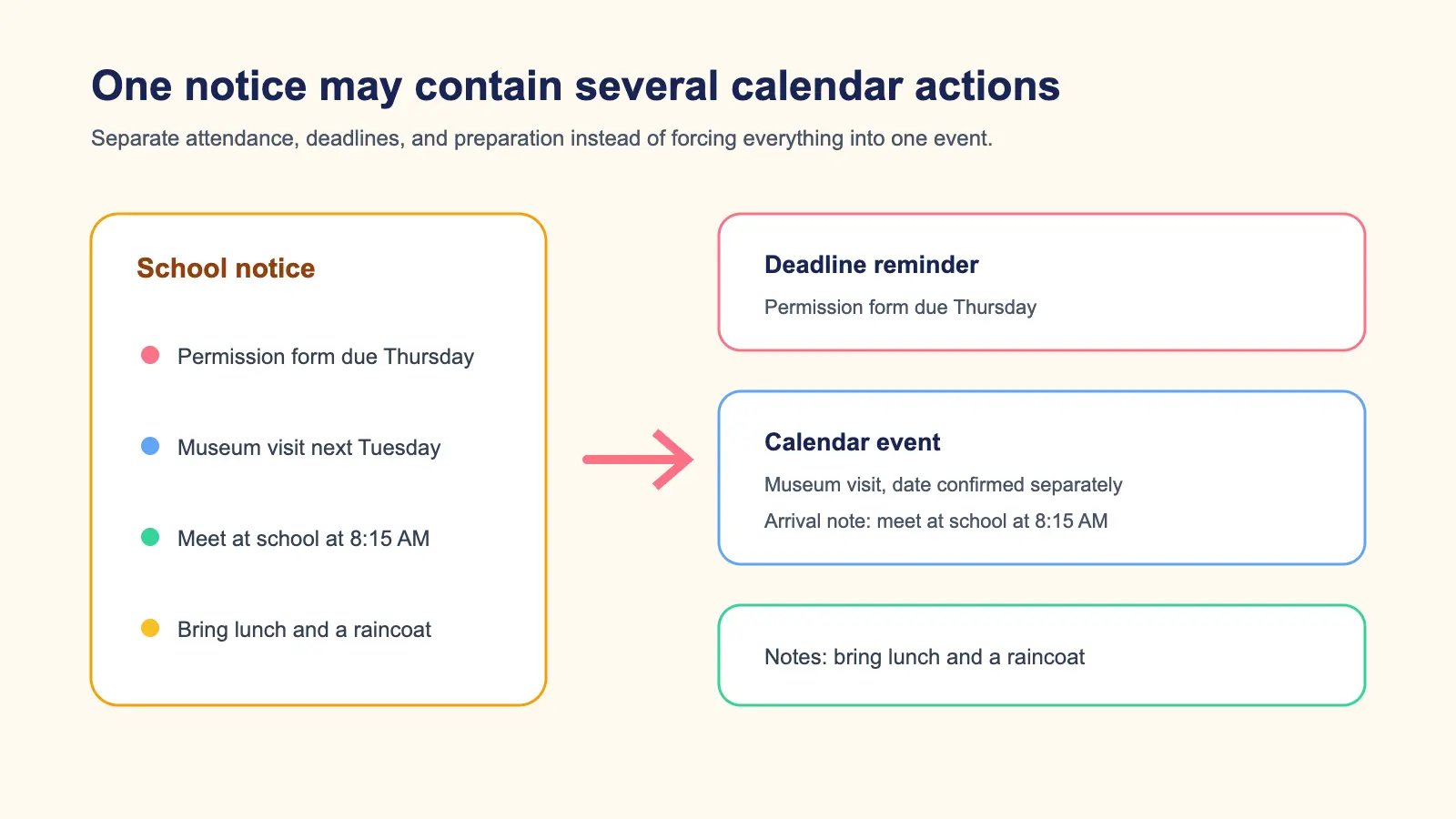
Create a separate deadline
The permission form is due before the trip, so give it its own entry. A useful title might be "Submit museum trip permission form." Include the student or class name if your family manages several school calendars.
If the notice gives only a date, decide whether an all-day reminder is sufficient. If it says "by 4:00 PM," preserve that cutoff. Do not assume midnight just because a digital calendar needs a time.
Put the submission method in notes: return the paper form, use the school portal, or email the teacher. If a payment is also required on the same date, include it in the title or create a checklist in the notes so the event reflects the complete task.
Build the trip event around the real schedule
For the trip itself, distinguish among meet time, departure time, activity time, and return time.
In the example, 8:15 AM is the time the student must be at school. That is the most useful personal start time. The 8:30 AM bus departure belongs in notes. If the museum visit has an official start time, preserve that too, but do not replace the school's arrival instruction with it.
Use the expected return time as the end if the notice frames the event as a school-day trip. Add "around 3:15 PM" to notes because "around" signals uncertainty. A parent planning pickup needs to see that distinction.
Apple's Calendar guide supports start and end times, travel time, alerts, notes, and other event details (Apple iPhone Calendar guide). The form has many fields, but the source should still determine which ones you fill.
Resolve relative dates from the notice date
Schools often write "next Tuesday" or "tomorrow." Those phrases are meaningful only relative to when the notice was issued.
Look for a printed date, message timestamp, newsletter issue date, or school-week heading. If the screenshot omits that context, return to the original message. Do not interpret "next Friday" relative to the day you happen to process an old screenshot.
Check the weekday against the numeric date and year. A mismatch may be a typo in the notice. It is a reason to verify with the school, not a reason to choose whichever value seems more likely.
Put the right place in the right field
The main Location field should help the family act. If students must meet at school, the school address may be more useful than the museum address at 8:15 AM. Add the museum name and address in notes, or use them as the location if a parent is meeting the class there.
Include a room, entrance, parking instruction, or pickup point when the notice gives one. Avoid guessing an address from the school or venue name alone. Organizations can have multiple campuses and entrances.
Turn packing instructions into timely alerts
A packing list hidden in notes will not help if nobody opens the event until departure. Add an alert the evening before when the student needs a lunch, signed form, instrument, costume, raincoat, or medication.
Keep the full list in notes and use the alert as the prompt to act. If an item requires shopping or advance preparation, create an earlier task. A calendar alert is useful for timing; it is not a complete task manager.
Handle privacy and shared calendars
School notices may contain student names, teacher contact details, classroom identifiers, or health instructions. Copy only what the family needs to act. Avoid putting sensitive information in a shared calendar title, where it may appear on lock screens or household devices.
Choose the destination calendar deliberately. A shared family calendar may be right for pickup and trip timing. A private calendar may be better for an appointment with sensitive notes. If another caregiver needs only the schedule, share the minimum useful information.
Recurring clubs and term schedules
A screenshot for "Chess Club every Wednesday" may look like an obvious repeating event, but check the start date, end date, holidays, and exceptions first. Recurrence errors spread across an entire term.
The iCalendar standard distinguishes recurring rules, exception dates, and individual instances (RFC 5545). You do not need to read the specification to use a calendar, but the model explains why a simple weekly rule may not capture school breaks.
If the notice lists every meeting date, creating those dates explicitly can be safer than assuming an uninterrupted weekly series. If one date changes later, update that occurrence and keep the revised notice.
The recurring-class exception review shows how to check skipped dates and the final session. When the notice also sets an application cutoff, use the registration-deadline review to keep it separate from attendance.
Use Recap to keep the notice and decisions together
Recap starts with the source. The screenshot becomes part of a structured, readable Recap Document. When strong time signals are present, a Calendar Sheet can surface likely event details for review. You can confirm, edit, or cancel before sending them to a calendar.
For a school notice, that review is where you decide that the form deadline and the trip are separate. It is also where you can keep a qualified word such as "around" in the notes instead of turning it into false precision.
The general image-to-calendar field guide covers title, date, time, location, links, and notes. If you are saving to an iPhone, the Apple Calendar review-first workflow adds destination-calendar and time-zone checks. For family appointments rather than school events, use the appointment screenshot guide.
Final school-notice checklist
Before saving, confirm:
- Every dated action has been identified.
- Deadlines and attendance events are separate where needed.
- Relative dates were resolved from the notice date.
- Meet, departure, and return times are not confused.
- The location tells the family where to go first.
- Packing and preparation alerts arrive early enough.
- The correct student, class, and destination calendar are clear.
- Sensitive details are limited to what the family needs.
- Recurring dates account for term boundaries and exceptions.
- The original notice remains available for changes.
The goal is not to copy every line. It is to turn one dense notice into a small set of reliable actions, while preserving the source that explains them.
Continue in Recap
Turn this source into a Recap Document
Make it easier to read, then send time-based details to Calendar, export it to Workspace, or start PBL Learning.