

An image can contain everything you need for a calendar event and still leave you with a bad event. The title may be obvious while the end time is missing. A venue name may appear without an address. A meeting link may be buried in a footer. The date might say "next Thursday," which is only useful if you know when the image was sent.
That is why turning an image into a calendar event is not just a text recognition task. It is a field-mapping task followed by a short review. The goal is to preserve what the source actually says, expose what it does not say, and avoid filling gaps with confident guesses.
This guide explains every major calendar field, how to handle uncertainty, and when one image should become more than one event. You can also open the screenshot-to-calendar tool, see how a source becomes a structured document, or read what a Recap Document is.

Start with the source, not the empty calendar form
Before copying anything, identify the kind of image you have. A conference flyer, school notice, appointment card, and meeting screenshot all use different conventions. A flyer may prioritize the event name. An appointment card may emphasize an arrival time. A meeting invitation may contain a time zone and conference URL. A school notice may hide three separate deadlines in one paragraph.
Keep the original image available while you review the event. It is the evidence for every decision that follows. If the image is cropped, blurry, or missing context, find a fuller version before creating a high-stakes event.
Use this first-pass sequence:
- Read the entire image once without editing anything.
- Mark explicit dates, times, time zones, places, links, and contact details.
- Separate facts from interpretations.
- Decide whether the image describes one event or several actions.
- Map the explicit facts into calendar fields.
- Review uncertain fields before saving.
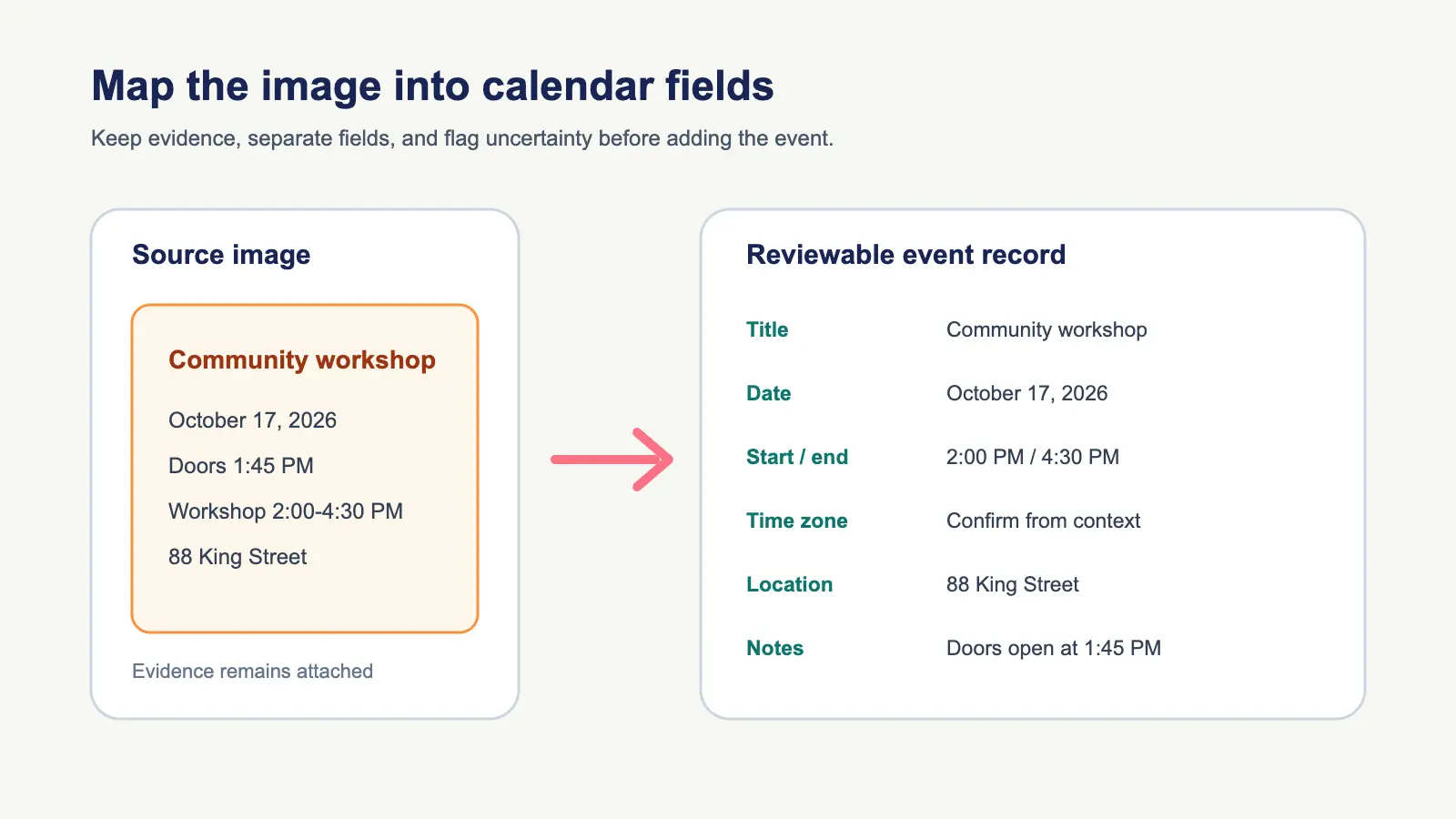
Event title
The title should answer one question at a glance: what is happening? Use the name printed by the organizer when it is clear, such as "Fall Parent Conference" or "Design Systems Office Hours." If the source has only a generic heading like "Reminder," use the actual activity described in the body.
Avoid turning the title into a paragraph. Details such as check-in instructions, what to bring, or a dial-in code belong in notes. Also avoid quietly changing the organizer's wording when the exact name matters for search or check-in.
When two labels compete, favor the one that will help you recognize the event later. A clinic logo is usually less useful than "Dental cleaning with Dr. Lee." A school name is less useful than "Grade 4 museum visit."
Date
Copy a fully stated date exactly, including the year. If the year is absent, use surrounding context before choosing it. A message timestamp, academic term, ticket purchase date, or nearby weekday can help, but each is still evidence that should be checked.
Relative dates require special care. "Tomorrow" and "next Friday" depend on when the message was written, not when you happen to process the screenshot. If you cannot establish that reference date, leave the event unsaved or add a visible note that the date needs confirmation.
Check that the weekday and numeric date agree. If a notice says "Friday, October 8" but October 8 falls on another weekday in the relevant year, do not silently pick one. Return to the organizer or source.
Start time and arrival time
The start time is when the event begins. An arrival time is an instruction about when you should be there. They are not interchangeable.
For a ticket with several time labels, use the doors-open and event-start review to preserve arrival instructions without changing the official start.
For an appointment that begins at 2:00 PM with "arrive 15 minutes early," keep 2:00 PM as the event start and use an alert or a note for the earlier arrival. For a flight, performance, or exam, the same distinction prevents the calendar from showing a false official start.
If the image uses a 12-hour clock, preserve AM or PM. If it uses a 24-hour clock, do not convert from memory without checking. A missing AM or PM is a genuine ambiguity, especially for times such as 7:00.
End time and duration
Use an explicit end time when one is present. If the source gives a duration instead, calculate the end time and note the basis for the calculation when the event is important. Google Calendar's event model supports both timed events and all-day events, with separate start and end values in the event resource (Google Calendar Events API).
Do not invent a duration because a calendar form expects one. If a poster says a talk starts at 6:30 PM but gives no finish time, you have three honest options:
- Create it with your own clearly understood placeholder duration.
- Use a calendar default and keep the missing end time visible in notes.
- Wait for confirmation before saving.
The best option depends on the cost of being wrong. A community talk is different from a medical procedure or airport transfer.
All-day status
Dates without times are not automatically all-day events. "Applications due October 10" is often better represented as a reminder or a timed deadline if a cutoff is known. "School closed October 10" is a stronger all-day event.
Use all-day status for events that occupy or label a date rather than a specific hour. Be careful with multi-day events: calendar formats commonly treat the end boundary as non-inclusive, so a careless end date can make an event appear one day too long or too short. The iCalendar specification defines date and date-time values as distinct types and describes how event end boundaries work (RFC 5545).
Time zone
A time without a time zone is only safe when everyone and everything is local. Online meetings, travel, remote interviews, and recurring international events need an explicit zone.
Prefer a named region such as America/Los_Angeles over an abbreviation such as PST. Regional identifiers can follow daylight-saving changes; abbreviations are often ambiguous and may describe only one seasonal offset. Google Calendar distinguishes event time zones from calendar time zones, and recurring events need a time zone so future instances can be expanded correctly (Google Calendar concepts).
If the image shows "10 AM PT," confirm the date and organizer location before converting it. Then check the saved event in your destination calendar. Our timezone review checklist gives you a compact process for this step.
Location
Keep a venue name and street address together when both are present. The name helps recognition; the address helps navigation. Add a room, floor, entrance, or building code if the image includes it.
For online events, the meeting URL is usually more useful than the word "Online." Put the actual URL in the appropriate conferencing or notes field. If an image contains both a physical venue and a video link, preserve both rather than deciding which one the organizer intended you to use.
Do not guess an address from a brand name alone. Chains, schools, clinics, and coworking spaces often have multiple locations.
Organizer and contact
The person who sent the image is not always the organizer. A parent may forward a school notice. A colleague may share a vendor invitation. A ticketing service may send a receipt on behalf of a venue.
Record the named organizer when it helps with follow-up. Put a phone number, email address, or confirmation number in notes only when you actually need it. Sensitive contact details should not be copied into a broadly shared calendar.
Attendees
An attendee list changes the event from a private record into a coordination surface. Add people only when the source clearly indicates that they should be invited and you intend to send invitations. A screenshot containing email addresses is not permission to invite everyone.
For a personal copy of an existing invitation, it may be safer to keep the organizer and meeting link in notes instead of creating a second invitation. This avoids duplicate notifications and conflicting updates.
Conference link and supporting URL
Copy the full link, not just the visible label "Join meeting." If the screenshot truncates the URL, return to the original message or page. Manually reconstructing a meeting link is risky because a single missing character can send you to the wrong place.
Distinguish the join link from a registration page, agenda, map, or shared document. Each can be useful, but they serve different moments. Put the join link where it is immediately accessible and keep supporting links in notes.
Notes
Notes are where source context remains useful after the structured fields are filled. Good notes may include:
- what to bring;
- arrival or check-in instructions;
- a confirmation number;
- cancellation terms;
- an agenda or preparation task;
- the source URL;
- a brief statement of any unresolved ambiguity.
Do not dump every visible word into notes. Remove navigation labels, promotional copy, tracking parameters, and repeated boilerplate. Preserve the parts that will help you act.
Alerts
Alerts are personal decisions unless the source explicitly gives a deadline or arrival instruction. Choose them based on travel, preparation, and consequence.
Apple Calendar exposes alerts alongside other editable event details such as location, repeat rules, invitees, attachments, and notes (Apple iPhone Calendar guide). The available field is only the container; the source and your real preparation needs should determine the reminder.
A ten-minute alert may be enough for an online call. A school trip may need one alert the night before for packing and another before departure. An appointment with paperwork may need a preparation reminder several days earlier.
Do not treat an alert as a substitute for the correct event time. If you must arrive at 1:45 PM for a 2:00 PM appointment, keep both facts visible.
Recurrence
Only create a repeating event when the source actually defines a pattern. "Every other Tuesday through December 15" contains a frequency and an end boundary. "Tuesdays" in a cropped image may not.
Check exceptions such as holidays, school breaks, or a different final meeting. Recurrence errors multiply. A wrong single event is inconvenient; a wrong recurring series can quietly fill months of a calendar.
One image can contain several events
A notice might announce a field trip, set a permission-form deadline, and request an early school arrival. Those are three different actions. Forcing them into one event makes at least two of them hard to find.
Split the source when the actions have different dates, different locations, or different preparation needs. Link them with consistent titles or a shared note. The school notice workflow shows how to do this without losing the original context.
Meeting screenshots can have the same problem. The live call, registration deadline, and preparation session may each deserve their own entry. See the meeting invitation checklist for that case.
A practical confidence rubric
Not every field deserves the same treatment. Use three simple confidence levels:
- Confirmed: The value is explicit and readable in the source.
- Supported: The value follows from clear context, such as a duration added to a start time.
- Unresolved: The value is missing, contradictory, cropped, or dependent on an unknown reference date.
Save confirmed fields directly. Review supported fields. Stop on unresolved fields that could make you miss, duplicate, or attend the wrong event.
This rubric is more useful than asking whether extraction was "accurate." One image can produce a perfectly read title and a dangerously uncertain time zone. Confidence belongs to each field.
How Recap fits into the workflow
Recap is source-first. You add the image or other source material, then work from a structured, readable Recap Document instead of jumping straight from pixels to a calendar entry. When the source has strong time signals, a Calendar Sheet can surface the likely event details for review. You can confirm, edit, or cancel before sending anything to a calendar.
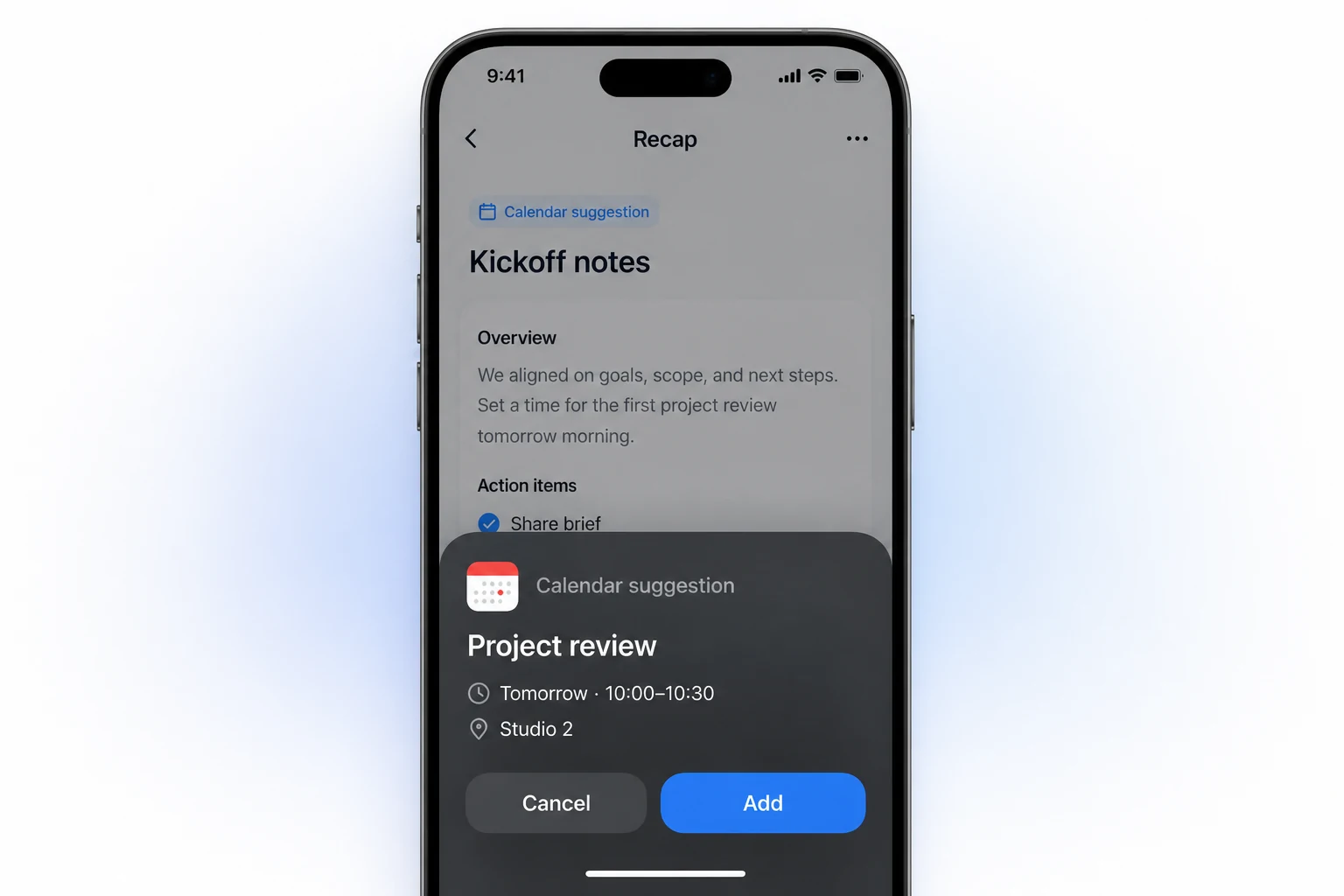
That review boundary matters. The source remains available, the proposed fields are visible, and the final action stays under your control. Calendar is one possible next step alongside Workspace and Learning, not an automatic consequence of uploading an image.
For appointment-specific privacy and arrival-time decisions, use the appointment screenshot guide. If your destination is Apple's Calendar app, continue with the Apple Calendar review-first workflow.
Final review before save
Read the finished event as if the image were no longer available.
- Can you tell what is happening from the title?
- Is the date tied to the correct year?
- Are start, arrival, and end times clearly distinguished?
- Is the time zone explicit where it matters?
- Will the location or join link get you to the right place?
- Are preparation steps visible early enough to act on?
- Did one source need to become several events?
- Did you avoid adding people or sensitive details without a reason?
- Can you return to the original source if something changes?
An image-to-calendar workflow is successful when the saved event remains trustworthy later. Extracting text is only the first half. The review is what turns that text into a useful commitment.
If your source presents a case this guide does not cover, contact the Recap team with the non-sensitive details.
Continue in Recap
Turn this source into a Recap Document
Make it easier to read, then send time-based details to Calendar, export it to Workspace, or start PBL Learning.