

A cancelled event screenshot needs a scope check before a calendar deletion. Determine whether the notice cancels one occurrence, an entire event, or a booking that has been replaced. Match it to the entry you actually saved, then inspect what removing that entry will do in your calendar account.
"No class this Thursday" and "the course is cancelled" can refer to the same series while requiring different actions. A short message may also omit the date, leaving you to ask which Thursday the sender means. The goal is to preserve the cancellation's meaning without deleting commitments it never mentioned.
The notices in this article are fictional. They illustrate a manual review method, not a product accuracy test. Any deletion takes place in the user's calendar app after confirmation; no example assumes that Recap removes existing events.
Read the cancellation as a change statement
Record the exact subject, affected date, sender context, and cancellation wording. Keep the notice or its source link beside the calendar record. If the screenshot is cropped, find enough of the original message to determine whether a qualifying sentence is missing.
Separate three questions: what is cancelled, which occurrence it refers to, and what should happen to your personal record. A cancelled registration may concern your booking without cancelling the organizer's event. A cancelled venue may lead to relocation rather than cancellation of attendance. The nouns in the notice matter.
Use the schedule change review template to preserve old and revised details. For a cancellation, the replacement time can remain absent. Do not fill it with the next regular session unless the organizer explicitly says the missed session has moved there.
Compare two fictional notices
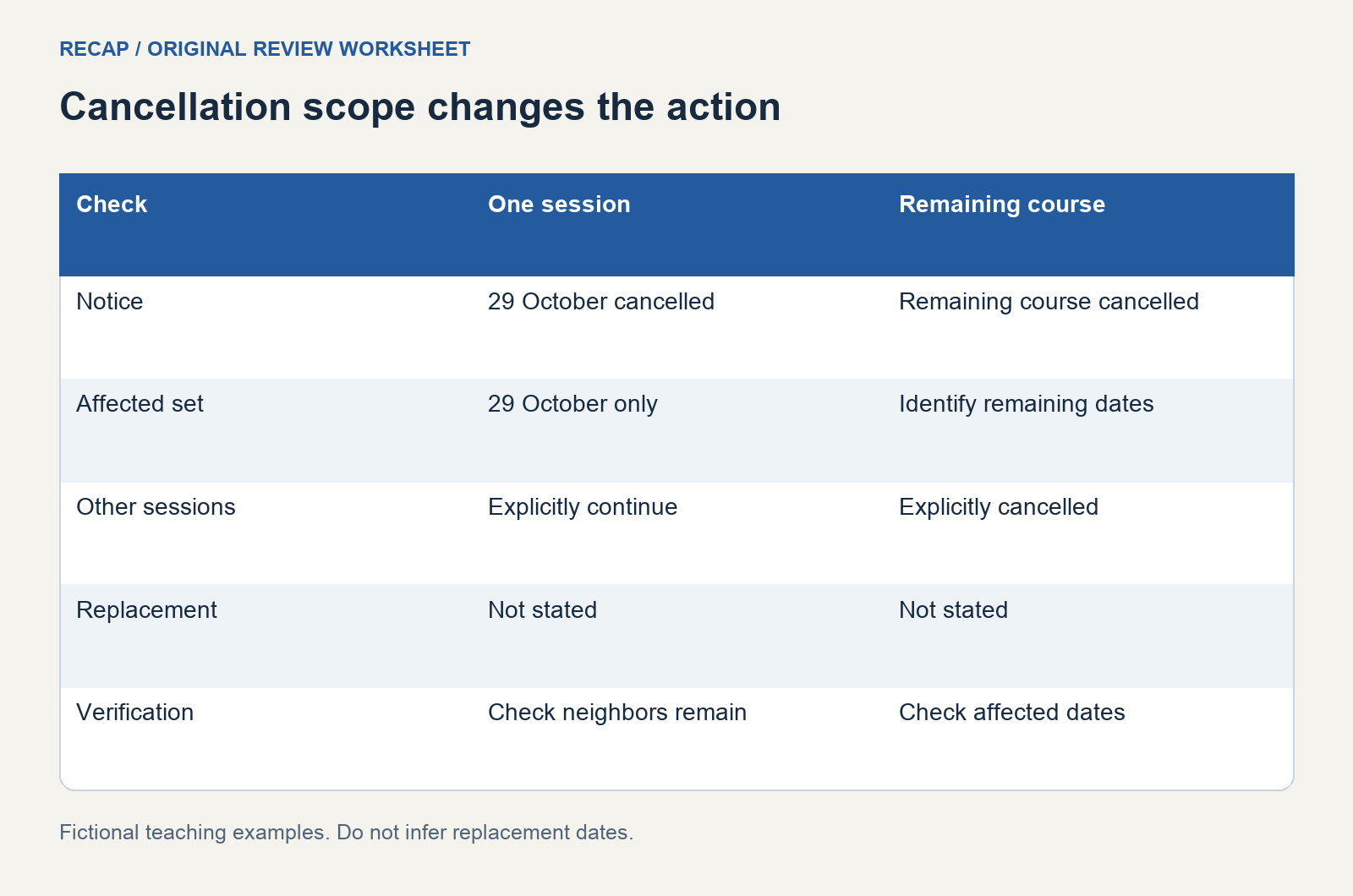
Notice A says: "Drawing class on Thursday 29 October 2026 is cancelled. Other Thursday classes continue." Notice B says: "The October drawing course is cancelled. None of its remaining sessions will take place."
| Question | Notice A | Notice B |
|---|---|---|
| Object | One drawing class session | October drawing course |
| Scope | 29 October only | Remaining course sessions |
| Future sessions | Explicitly continue | Explicitly cancelled |
| Replacement | Not stated | Not stated |
| Review action | Inspect the one occurrence | Identify all remaining affected entries |
Both notices use cancellation language, but the affected entries differ. The course-level notice still requires a check of which dates belong to that course. It is not permission to remove unrelated drawing classes or older records you want to retain.
Match the cancelled item to your calendar
Find the relevant entry by title and original date. Check organizer and location when similar entries exist. If the notice concerns a booking, compare its reference privately. A screenshot with your name and "cancelled" may need booking context before you can tell whether the event itself is affected.
Suppose a fictional notice says: "Your Saturday pottery booking is cancelled." Your calendar contains a Saturday pottery class and a pottery exhibition. The phrase points toward the booking, but the missing date and organizer prevent a reliable match. Record the candidates and ask which booking was cancelled.
Do not treat the screenshot's received date as the event date. A Friday cancellation can concern a later Saturday. If the message says "tomorrow," preserve its sending context and verify the intended date. When that context cannot be recovered, leave the deletion pending.
Check ownership and consequences
Inspect whether you created a personal entry or received an invitation. Google's event deletion help distinguishes deleting an event you created from removing an invited event. Removing an invitation can notify the organizer that you declined. Read the destination action rather than assuming it is private cleanup.
For an organizer-owned cancellation, inspect the invitation's updated state. If it has already been cancelled through the calendar service, you may not need to create another change. Keep a source note if it helps explain why the commitment disappeared, but do not send another response solely to make the record look tidy.
If you control a shared event, confirm that you intend the broader effect before deleting it. A personal cancellation notice does not authorize you to cancel everyone else's attendance. Where your permissions or role are unclear, ask the organizer or calendar owner.
Read recurring-event scope carefully
A recurring entry can represent many actual sessions. Google's recurring-event guidance describes choosing which occurrences an edit affects. Use the same discipline when your app offers deletion scope: the notice should support the set of occurrences you choose.
For Notice A, identify 29 October and preserve the later sessions. For Notice B, list the remaining October course dates first. An option that also removes future months may exceed the notice's scope. If the app cannot express the required change clearly, inspect individual entries or ask for help before confirming.
A subscribed calendar is another case. You may not be able to edit the publisher's entries. A personal note about cancellation can preserve context while you wait for the publisher to update its calendar. Do not unsubscribe from a whole calendar to deal with one cancelled session unless that broader decision is what you intended.
Keep cancellation separate from rescheduling
A notice can contain both statements: "Saturday's class is cancelled; a replacement date will follow." The existing occurrence is cancelled, but the new date is still unknown. Record both facts. You can keep a separate personal task to check for the replacement notice without inventing an event time.
If the notice gives a replacement date, use the rescheduled-event review to compare it with the old entry. Retain the original cancellation language so you can tell whether the replacement applies to everyone or only to a particular booking.
Related items may also need attention. A travel reminder or materials task can remain in another app after the calendar occurrence is removed. Inspect it separately. Changing one system does not establish that every dependent reminder has been handled.
Verify the affected and unaffected dates
After the destination action, inspect the cancelled date and one nearby unaffected session. Record what the calendar shows. Search for the title to find personal duplicates, but examine each result before removing it. A course can legitimately have several future entries with the same name.
Keep the cancellation notice accessible long enough to explain the change. If it contains personal details, save it privately rather than pasting the full screenshot into a shared calendar. A brief source note can be enough for future reference.
Use the event field guide when the image's subject or date is unclear, and the Screenshot to Calendar page for the source-processing context. The practical endpoint is a verified calendar state with a documented cancellation scope, not an empty calendar or an assumed replacement appointment.
Continue in Recap
Turn this source into a Recap Document
Make it easier to read, then send time-based details to Calendar, export it to Workspace, or start PBL Learning.