

Several screenshots can describe one plan, but they do not automatically make one calendar event. A chat may contain a booking confirmation, a pickup deadline, a venue change, and a follow-up reminder in separate images. Treating the set as a single block loses the dates. Treating every visible time as an event creates duplicates and noise.
A reliable multiple-screenshot workflow preserves the image set, orders the sources, extracts event candidates, and reviews each candidate before anything is added. The right output might be several events, one event plus reminders, or a readable document with no calendar action yet. The choice should follow the source, not the number of images.
The short version
Use this sequence when a schedule arrives across screenshots:
- Save every image and keep the surrounding message context.
- Number the screenshots in the order they were sent or updated.
- Build a source table with dates, times, locations, and stated relationships.
- Merge only details that clearly refer to the same event.
- Split separate commitments into separate reviewable events.
- Resolve duplicates, corrections, and missing fields before sending the batch.
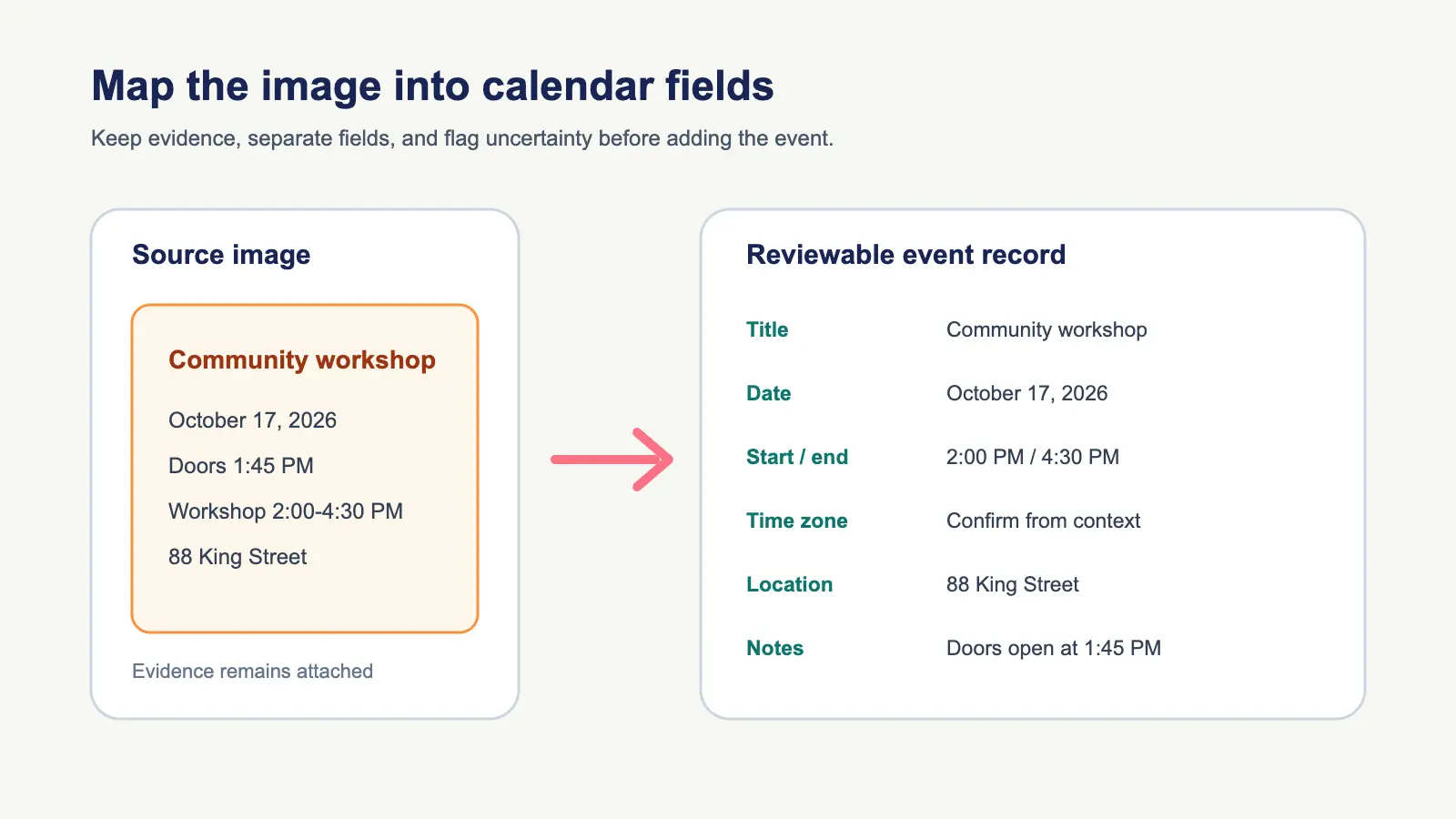
Recap's Screenshot to Calendar tool can be the focused entry point when a source contains a strong time signal. When the set contains substantial context, start with the Source to Structured Document tool. The image-to-calendar field guide explains how each date, time, location, link, and note should be mapped once the sources are organized.
Create a source inventory first
Before reading numbers, create one row per screenshot. Record:
- Filename or screenshot number
- Sender, channel, or page where it came from
- Message date and time, if visible
- Event date and time stated inside the image
- Time zone or venue
- The image's role, such as invitation, correction, deadline, or reminder
This inventory prevents a message timestamp from being mistaken for an event time. It also makes corrections visible. If image 1 says 3:00 PM and image 3 says the meeting moved to 4:00 PM, the later source should be treated as a possible update, not a second meeting.
Do not discard the original order. A screenshot may use words such as “tomorrow,” “next Friday,” or “same place as before.” Those phrases can be resolved only with message context or a current organizer source.
Decide whether images belong together
Several screenshots belong to one event when they share a clear identity and the later image only adds detail. For example, an invitation image with a second image showing the full address can produce one event with a complete location.
Keep images separate when they represent different commitments:
- Registration closes Tuesday and the event runs Friday
- A travel departure and a hotel check-in happen at different times
- A class schedule and a project deadline belong to separate calendars
- A meeting invitation is followed by a preparation session
The complete screenshot-to-calendar guide describes when several dates should become several events and when a timeline or document is better. The decision is about action, not about whether the text happens to be in one image.
Extract facts without flattening corrections
For each candidate event, preserve the exact source phrase next to the normalized value. A simple review table can look like this:
| Candidate | Source phrase | Proposed field | Confidence |
|---|---|---|---|
| Planning call | “Wed 21, 10 AM” | Start: Wednesday at 10:00 AM | Needs year check |
| Registration | “Submit by Tuesday 5 PM” | Separate deadline event | Clear |
| Updated venue | “Now in Room 4” | Location: Room 4 | Later correction |
This format exposes the difference between what the screenshot says and what the calendar needs. It also makes it easier to explain why one image overrides another.
Google's Calendar Events API reference separates summary, description, location, start, end, recurrence, attendees, and reminders. Use the same separation in a manual review. Put the source wording and correction history in notes rather than hiding them inside an overlong title.
Detect duplicates before adding anything
Duplicates often appear when the same invitation is captured in a chat, email, and confirmation page. Compare candidates by:
- Event identity and organizer
- Date and start time
- Location or meeting link
- Attendee or booking reference
- Source order and correction language
Two events with the same title but different times may be a reschedule, a first and second session, or a time-zone display. Do not merge them solely because their titles match. Conversely, do not create two events merely because one image contains a shortened title.
If the source includes a unique confirmation number, keep it in notes, not in the title. It can help reconcile updates later without making the calendar hard to scan.
For a later image that moves an existing event, follow the rescheduled-event review to match the notice to the original entry before creating a replacement.
Resolve time zones across the set
Multiple screenshots can show different zones. A conference invitation might use New York time, a travel confirmation might use the departure airport's local time, and your calendar may display the destination zone.
Record the source zone explicitly when present. If one image says 10:00 AM ET and another says 3:00 PM London, check whether they describe the same instant before creating two candidates. Named regions such as America/New_York are easier to reason about than unexplained abbreviations.
The calendar event timezone review checklist covers source, event, and display zones. For a schedule delivered as multiple images, apply the check to every candidate, not just the first screenshot in the set.
Handle missing and cropped screenshots
A batch can look complete while a critical image is absent. Look for:
- A message that says “see the next slide” with no next slide
- A table whose date column is outside the frame
- A link or address hidden below the crop
- A reply that refers to a correction not included in the saved images
- A row that starts with an ellipsis or ends mid-sentence
Mark the missing field. Do not infer an end time, venue, or date from a nearby event. If the original page or message is available, return to it. If it is not, keep the candidate in the document as unresolved and ask before creating an event.
A worked example
Imagine four fictional screenshots from a group chat:
- An invitation: “Design review, Friday 2 PM, video call.”
- A reply: “Please send the draft by Thursday 5 PM.”
- A correction: “Friday review moved to 3 PM.”
- A final message: “Use the link in the original invite.”
The correct result is a Thursday deadline and a Friday review at 3:00 PM. The fourth image does not create a new event because it adds no independent time. The first time is superseded by the correction. The meeting link should be copied from the original source rather than reconstructed from a cropped label.
This example is a deterministic mapping exercise, not a claim of universal recognition. A real set may contain conflicting dates, multiple time zones, or a correction from an unverified sender. Keep those limits visible.
Review each event in its destination calendar
A batch can contain events for different purposes. Before sending, choose the destination for each one:
- Personal calendar for private reminders
- Work calendar for shared coverage or meetings
- Family or school calendar for commitments other people need to see
- Workspace document when the source is mainly reference material
The correct event in the wrong calendar still causes missed work. A screenshot with email addresses is not permission to invite everyone. Confirm attendees and sharing separately from the content extraction.
Recap keeps the source-grounded document before the Calendar Sheet. You can edit, cancel, or accept each proposed event. It does not silently write a batch because multiple images were uploaded. That review boundary is especially important when one screenshot contains a sensitive appointment and another contains a public event.
When an iCalendar file is involved
If one screenshot contains an .ics download link, prefer the original file when its sender and date are trusted, then compare its fields with the images. RFC 5545 defines the iCalendar format, including event date-time and time-zone properties. It does not decide which screenshot is current or whether an invitation should be sent.
Do not import both an ICS file and a manually extracted event until you compare their identity, start, end, and organizer. An import can create a duplicate that looks legitimate.
Final batch checklist
Before adding events from multiple screenshots, confirm:
- Every image is saved and ordered with its message context.
- Each candidate has a source phrase and a confidence note.
- Corrections override earlier details only when their authority is clear.
- Deadlines, sessions, and travel legs are split when they are separate actions.
- Duplicates are merged deliberately, not by title alone.
- Date order, overnight boundaries, and time zones are resolved.
- Cropped or missing fields remain visible as unresolved.
- The destination calendar, attendees, and sharing are intentional.
- Every proposed event was compared with the complete source set.
The fastest trustworthy workflow is not “add every screenshot.” It is “inventory, relate, extract, reconcile, review, then add.” That sequence keeps the evidence close to the event and makes a correction possible when a later message changes the plan.
Continue in Recap
Turn this source into a Recap Document
Make it easier to read, then send time-based details to Calendar, export it to Workspace, or start PBL Learning.