

Time-zone mistakes are unusually quiet. A calendar event can look tidy, sync correctly, and alert you exactly on schedule while still being one hour or half a day wrong. Screenshots make this more likely because they often show a friendly abbreviation, a converted local time, or no zone at all.
Use this checklist before saving a remote meeting, travel event, international appointment, or recurring series. The screenshot-to-calendar tool can surface candidate fields, while the review tells you whether the zone evidence is actually clear.
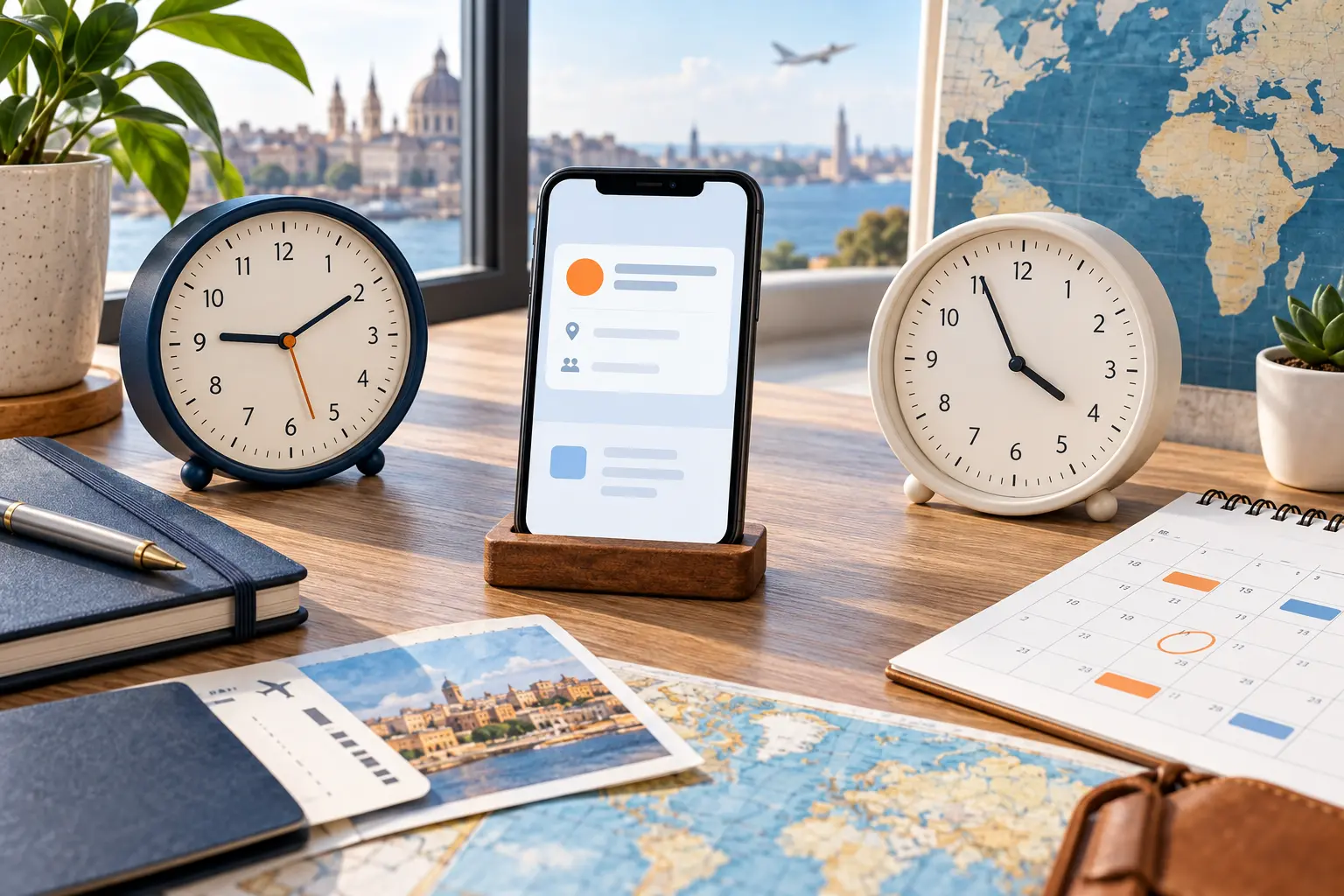
Identify the three time zones in play
People often ask, "What time zone is this event in?" There can be three relevant answers:
- Source time zone: The zone used by the organizer or printed in the screenshot.
- Event time zone: The zone stored with the calendar event.
- Display time zone: The zone your calendar currently uses to show the event.
These may be the same for a local event. They can differ when you travel or coordinate across regions. A correct event can display at a different clock time after you change zones. A wrong event can display consistently while preserving the original mistake.
Google Calendar distinguishes an individual event's time zone from the calendar time zone used for queries and display behavior (Google Calendar concepts). Apple Calendar also lets iPhone users override the time zone used to display events (Apple time zone guide). Know which layer you are changing.
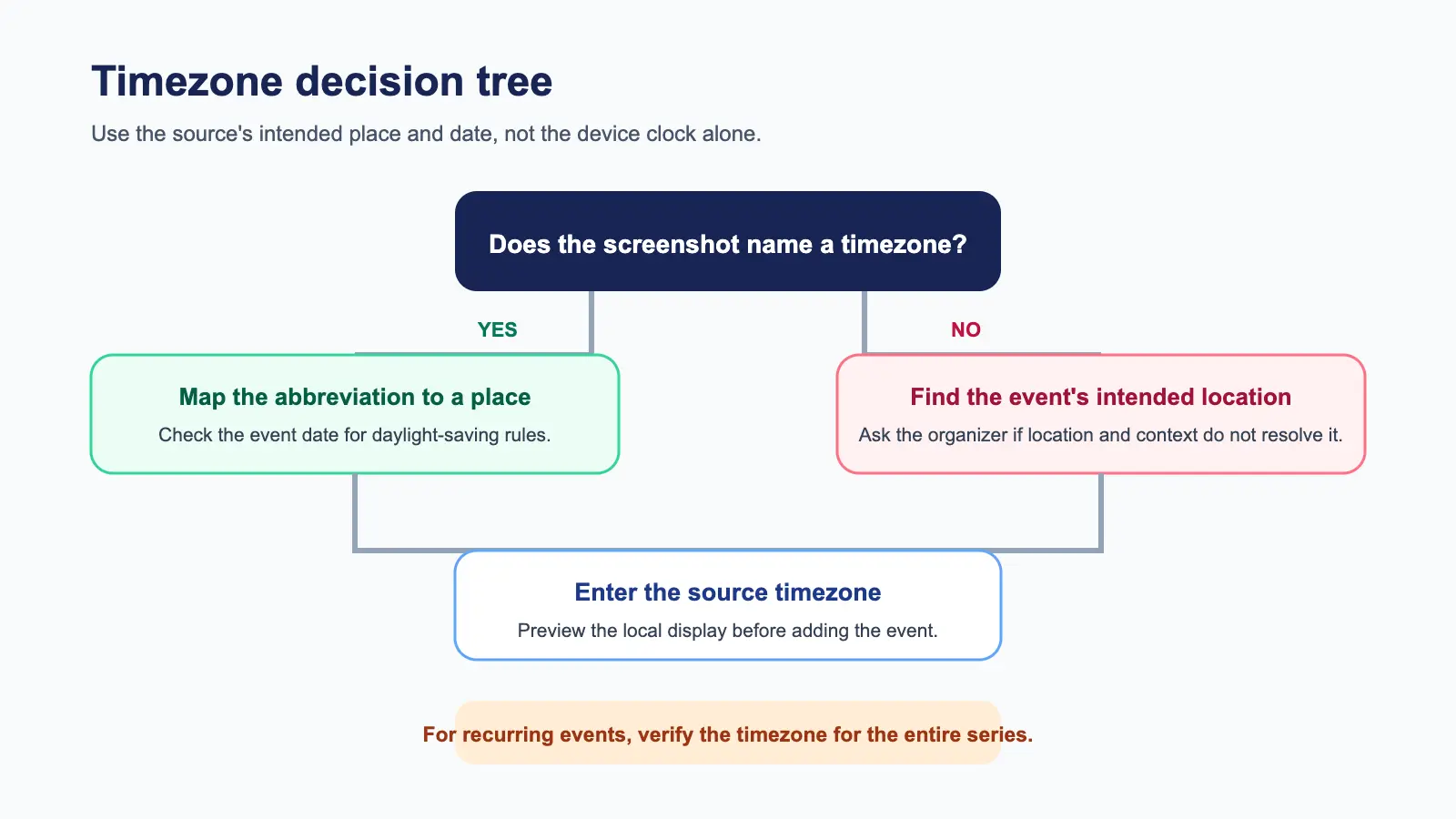
Step 1: Find explicit zone evidence
Look across the whole screenshot for:
- a named region, such as Europe/London;
- a city, such as "10:00 AM New York";
- a UTC offset, such as UTC+8;
- an abbreviation, such as PT, EST, or CST;
- a second converted time for another region;
- organizer or venue location.
A named region is strongest because it can account for daylight-saving rules on the event date. A city is often useful but may still need confirmation. A fixed UTC offset is exact for that moment but does not describe future daylight-saving changes. An abbreviation is the weakest because several regions can share it.
If the screenshot shows no zone, do not immediately use your device zone. First ask whether the event is clearly local, whether the venue establishes the region, and whether the original message provides more context.
Step 2: Confirm the event date before converting
Time-zone offsets can change with daylight-saving rules. The conversion for September may not match the conversion for November.
Confirm the full date and year first. Then convert the source time for that date. Avoid using the current offset from memory. This is especially important during the weeks when different countries change clocks on different dates.
The iCalendar specification supports date-time values tied to UTC or a time-zone identifier, and it defines recurring-event structures that rely on those values (RFC 5545). The practical lesson is simple: date and zone belong together.
Step 3: Expand ambiguous abbreviations
Abbreviations such as CST, IST, and BST can describe different regions. Even familiar labels such as PST may be used casually when the correct seasonal label is PDT.
Use organizer location, venue, original URL, phone country code, or surrounding text to identify the intended region. If the evidence still supports more than one answer, ask the organizer. Do not hide the ambiguity inside a precise-looking converted time.
When possible, store a named regional zone. It communicates the underlying place and lets calendar software apply the rules for the event date.
Step 4: Check whether the source already converted the time
Event platforms often display times in the viewer's local zone. A screenshot taken by a colleague may therefore show their local conversion rather than the organizer's original time.
Look for phrases such as "your time," a small globe icon, a selectable zone label, or two side-by-side times. If the screenshot came from someone else, ask which zone their device or browser used when it was captured.
Do not convert an already converted value a second time. Keep the organizer's original time and one verified local conversion in notes when the distinction matters.
Step 5: Save, then compare both clock times
After entering the event, compare:
- the source date, time, and zone;
- the calendar's stored zone, if the interface exposes it;
- the displayed local time;
- the UTC offset on the event date.
The original and local clock times may differ, but they must represent the same instant. If the calendar silently assigns your device zone to a source time from another region, edit it before saving.
Microsoft Outlook can display multiple time zones in Calendar and allows users to change their primary zone (Microsoft Outlook time zone support). A second zone is a useful review aid, not a replacement for correctly storing the event.
Step 6: Test the travel case
Ask what should happen if you open the calendar in another city.
For an online meeting, you usually want the event to represent one fixed instant and display at the correct local time wherever you are. For a dinner reservation in Paris, you want 7:00 PM Paris time even if you created the event in Shanghai. For a medication or personal routine, the intended behavior may be tied to local clock time instead.
Write the source-zone time in notes for high-consequence travel events. For example: "Venue time: 19:00 Europe/Paris." That gives you an independent check if display settings change.
Step 7: Review recurring events across clock changes
Recurring events are the hardest case. A weekly New York meeting at 10:00 AM should usually remain at 10:00 AM New York time through daylight-saving changes. The attendee's local time may shift when their region changes clocks on a different date.
Confirm that the series is anchored to the organizer's named zone, not to a fixed offset copied from one occurrence. Check one instance before and one after the next clock change. Also confirm the series end date and any exceptions.
If the screenshot lists each occurrence separately, explicit events may be safer than inventing a recurrence rule. The source should determine the structure.
Two quick examples
Remote interview
A screenshot says "October 20, 10:00 AM PT" and the organizer is in San Francisco. Expand PT to America/Los_Angeles for that date. Save the event in that zone, then verify the time displayed on your device. Keep the original "10:00 AM America/Los_Angeles" in notes.
Hotel breakfast while traveling
A booking image says breakfast is served "07:00 to 10:30" at a hotel in Tokyo. The venue establishes the local region. Store the meal window or reminder in Asia/Tokyo, even if you create it before leaving home. Do not convert 07:00 as if it were written in your current device zone.
Use Recap to keep the source visible
Recap turns source material into a structured, readable Recap Document. When an image contains strong time signals, a Calendar Sheet can surface proposed event details for review. You can confirm, edit, or cancel before sending anything to a calendar.
For time zones, the important part is that the screenshot and the proposed fields remain available at the same decision point. You can compare the printed time with the stored zone instead of trusting a detached calendar form.
The image-to-calendar field guide covers the rest of the event model. The meeting invitation checklist applies this review to conference links and attendees. For iPhone display settings, continue with the Apple Calendar workflow.
For OCR-specific date parsing, see how to extract date and time from a screenshot.
Compact timezone checklist
Before confirming the event:
- Identify the source, event, and display zones.
- Confirm the full date and year before converting.
- Expand ambiguous abbreviations to a named region.
- Check whether the screenshot already shows a local conversion.
- Compare the source time with the calendar's displayed time.
- Decide how the event should behave when you travel.
- For recurring events, test dates across clock changes.
- Preserve the original zone and time in notes when consequences are high.
- Ask the organizer when more than one interpretation remains plausible.
The safest timezone workflow does not require you to memorize global offsets. It requires you to keep the source, date, region, and displayed result connected long enough to verify that they describe the same moment.
Continue in Recap
Turn this source into a Recap Document
Make it easier to read, then send time-based details to Calendar, export it to Workspace, or start PBL Learning.