

A photographed work schedule is usually a grid, not a single event. It may contain a week of shifts, a split shift, an overnight handoff, a break, a location code, and a last-minute note in the margin. Copying the most visible time into a calendar creates a record that looks tidy but misses the work the schedule was meant to organize.
The safer approach is to keep the photo as evidence, read the schedule row by row, and review each proposed shift before adding it. A schedule photo should become several calendar events only when the source supports several distinct commitments. If a row is cropped, blurred, or missing a date, leave that part unresolved instead of filling it with a guess.
The short version
Use this sequence for a photo work schedule:
- Keep the original photo and any message that explains its date range.
- Identify the schedule's week, location, employee or team label, and time convention.
- Read every row and preserve the wording attached to each shift.
- Convert each confirmed shift into a separate event with the correct date boundary.
- Mark breaks, on-call windows, and unavailable periods as notes or separate items only when they need an alert.
- Review the complete batch before sending anything to a calendar.
Recap's Screenshot to Calendar tool is a focused starting point when the source contains clear time-based action. For a wider explanation of the intermediate document and review step, use the complete screenshot-to-calendar guide. The goal is not to make the photo disappear. The goal is to make every calendar decision traceable to the photo.
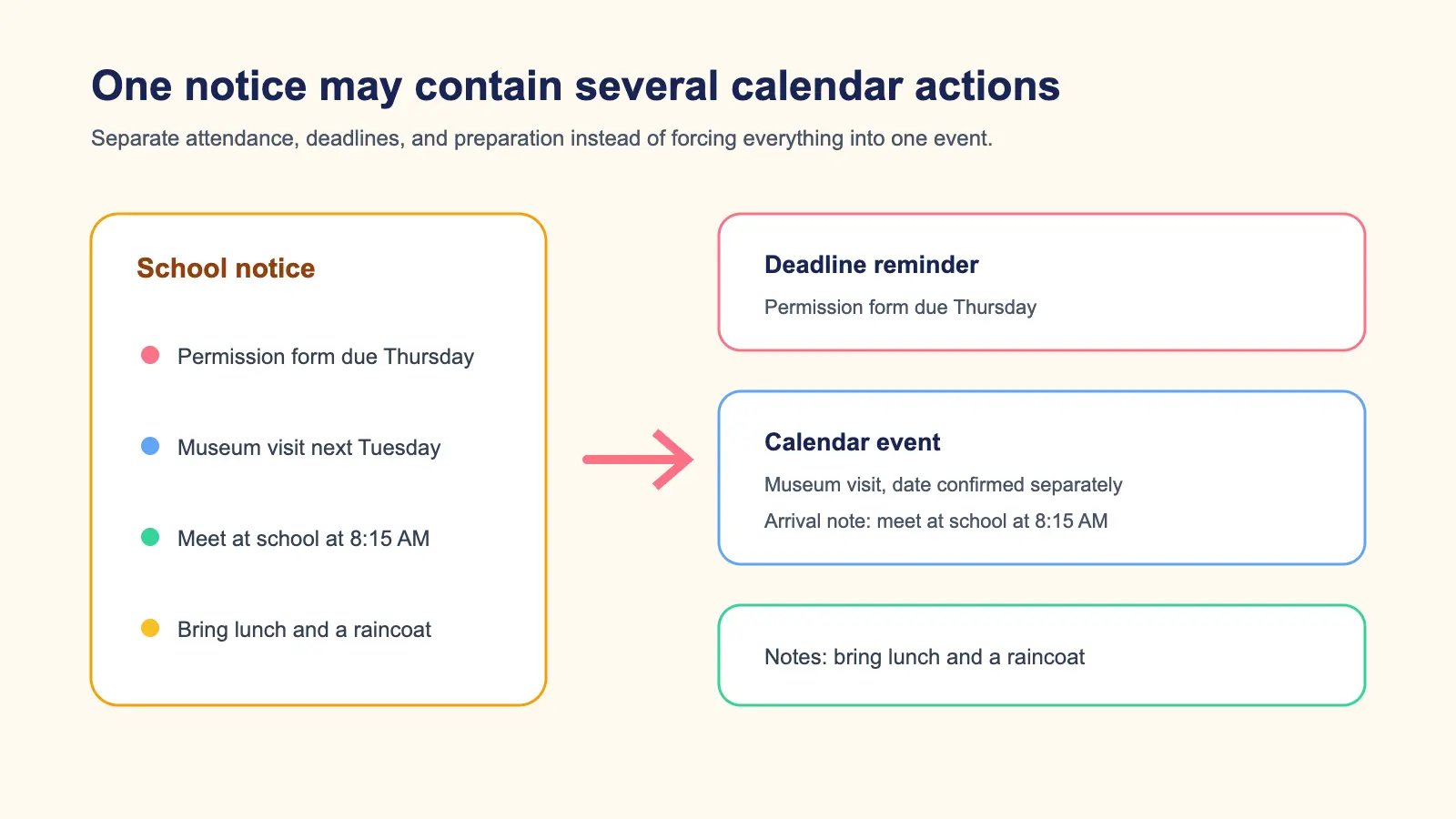
Read the schedule as a grid
Start by finding the schedule's coordinate system. Most grids use a date in the column header and a person, role, or shift type in the row. Some use weekdays across the top and locations down the side. Others list a date once and place several time ranges underneath it.
Before copying any time, write down:
- The first and last date covered by the schedule
- The local time zone or the location that implies it
- The person, role, or team represented by the row
- Codes such as
OFF,ON CALL,TRN, orCLOSE - Notes that change where or how the shift happens
This context prevents a common mistake: treating a column label as part of the time range or assigning another employee's row to your own calendar. If the photo is a screenshot of a message, keep the sender's text because it may say “next week,” which cannot be interpreted without the message date.
Map one row into one event
For a confirmed shift, map the source into a compact event record:
- Title: include the role or location if it distinguishes the shift, such as “Front desk shift, North clinic.”
- Date: use the date heading above the row, not the date the photo was saved.
- Start and end: copy the stated times and preserve AM or PM notation.
- Time zone: use the schedule's location or an explicit zone. Do not use your device zone just because it is convenient.
- Location: retain the site, department, floor, or room when it affects arrival.
- Notes: keep handoff instructions, uniform details, contact rules, and the source label.
Google's Calendar Events API reference lists the structured fields that a calendar event can carry, including summary, description, location, start, end, recurrence, and reminders. The reference is useful even when you add events manually because it makes the distinction between a title, a time range, and supporting notes explicit.
Do not use a recurring event simply because the schedule looks repetitive. A posted schedule can include exceptions, holidays, training, or a different closing time. Keep each row tied to the source until you know that recurrence is intended.
Handle overnight shifts explicitly
An overnight shift is the easiest way to create a calendar event on the wrong day. A row that says 22:00-06:00 usually starts on the date in the row and ends the following morning. A row that says 00:00-06:00 may belong entirely to the next calendar date, even if the schedule places it beside the previous evening.
Use a written explanation while reviewing:
Tuesday shift: 10:00 PM Tuesday to 6:00 AM Wednesday, local time.
Then compare the explanation with the proposed event. If the schedule uses a code such as N for night, find the legend before deciding which date the shift crosses. If the end date is not clear, create a draft note or ask the schedule owner rather than silently choosing.
The calendar event timezone review checklist covers the related problem of converting a stated time into the intended instant. For an overnight shift, date boundary and time zone must be checked together.
Separate shifts, breaks, and handoffs
A row can contain several times with different jobs. For example:
08:00-16:00, break 12:00-12:30, handoff at 15:45.
The primary calendar event is normally 08:00-16:00. Put the break and handoff in notes or reminders when they require action. Do not shorten the shift to the break-free duration unless the schedule clearly defines start and end that way.
Create separate events when an item has its own commitment, such as a mandatory training session before the shift or a handoff that another person must attend. If the source only gives a break as information, keeping it in the description is less noisy than filling the calendar with an event for every pause.
Review a whole batch, not just the first event
The value of a schedule photo is usually the batch. Review all proposed events in date order and check for:
- A missing day or duplicate row
- A cropped time range or unreadable suffix
- A shift assigned to the wrong person or location
- An overnight event ending on the wrong date
- A time zone that changes the displayed hour
- A note that should be an alert rather than a description
- A destination calendar that coworkers or family members will not see
The multiple screenshots to calendar events guide applies the same review discipline when a schedule arrives as several images. The image-to-calendar field guide gives a field-by-field rubric when one image mixes titles, dates, locations, and instructions.
What to do when the photo is cropped
Do not treat a clean-looking crop as a complete schedule. Look for signs that information is missing:
- The first or last column is cut off
- A date header is partly outside the frame
- The legend is in another image
- A row ends without an end time
- A note refers to “the usual site” without naming it
If another image contains the missing header, keep the images together and review them as one source. If the missing information cannot be recovered, record the unresolved field and create no event for that row. A partial calendar is easier to correct than a confident entry on the wrong date.
A worked example
Imagine a fictional schedule photo for a community clinic. The header says 14 to 20 September 2026, local time. One row reads:
| Date | Shift | Note |
|---|---|---|
| Tue 15 Sep | 22:00-06:00 | closing handoff, North clinic |
| Thu 17 Sep | 08:30-12:30 | training room B |
| Sat 19 Sep | OFF | no shift |
The first event should start at 10:00 PM on Tuesday and end at 6:00 AM on Wednesday. The second event is a four-hour Thursday training shift at North clinic, with room B in the location or notes. OFF is not an event unless the person needs a visible block to explain unavailability. The schedule itself remains the source for later changes.
This example is a mapping exercise, not a claim that every schedule layout will be interpreted correctly. Handwriting, low resolution, local abbreviations, and hidden legends can change the result.
Keep privacy and destination in view
Work schedules can reveal names, locations, patient-facing departments, or security-sensitive routines. Use fictional or redacted examples when sharing a screenshot. Avoid copying a coworker's phone number or private note into a shared calendar unless the source and your purpose justify it.
Choose the destination calendar deliberately. A personal calendar may be right for reminders, while a shared work calendar may be required for coverage. The calendar that receives the event controls who can see later edits. A correct shift in a private calendar can still fail the operational task.
Recap keeps the source and a structured document available before the Calendar Sheet is sent. You can confirm, edit, or cancel the proposed event. It does not turn a photographed schedule into a silent batch write. The review is the boundary that protects both the time and the people named in the source.
When an ICS file is useful
An iCalendar file can be a convenient interchange format when a schedule owner intentionally provides one. RFC 5545 defines date, date-time, time-zone, and event properties for calendar data. It does not resolve an ambiguous photo, decide whether an overnight shift crosses midnight, or grant permission to invite attendees.
If you receive an ICS file and a photo, compare the structured event with the source before importing. If they disagree, ask which is current. Do not generate a recurring ICS series from a photo until exceptions and date boundaries have been confirmed.
Final checklist
Before adding events from a work schedule photo, confirm:
- The schedule date range and message context are known.
- Every event belongs to the intended person or role.
- Overnight shifts have the correct start and end dates.
- AM and PM markers and the local time zone are explicit.
- Cropped rows, legends, and unreadable fields are flagged.
- Breaks and handoffs are placed in the right role: event, reminder, or note.
- The location and destination calendar are correct.
- The complete batch has been reviewed against the original photo.
The useful result is not a calendar filled as quickly as possible. It is a set of shifts that remains understandable when the photo is no longer open. Keep the evidence, expose uncertainty, review every event, and only then send the confirmed work to Calendar.
Continue in Recap
Turn this source into a Recap Document
Make it easier to read, then send time-based details to Calendar, export it to Workspace, or start PBL Learning.