

A screenshot can show a date clearly and still leave the calendar meaning unclear. 07/11/2026 at 18:30 is easy to read, but it could mean July 11 or November 7. A flyer can show 6:30 PM for doors and 7:00 PM for the event. A remote meeting can list a presentation deadline and a meeting time in different zones.
Good date extraction is therefore not just character recognition. It is a short reasoning process: find the time signals, identify their roles, preserve the source context, and ask the user to review anything uncertain.
When the source is a grid or a set of images, date extraction needs one more layer: keep the row and column that gave the date. The work schedule photo guide covers overnight shifts and missing rows, while the holiday program photo guide shows how a date heading can apply to several sessions.
What to extract
Start with six fields:
- Event title
- Calendar date
- Start time
- End time or stated duration
- Time zone
- Location or meeting link
Then keep any secondary time signals as notes. Examples include doors opening, check-in beginning, a submission deadline, or a reminder to arrive early.
The Screenshot to Calendar tool is designed for sources with a clear time-based action. If the image contains several sections or a longer notice, use the Source to Structured Document tool first so the full context stays readable.
Resolve numeric date ambiguity
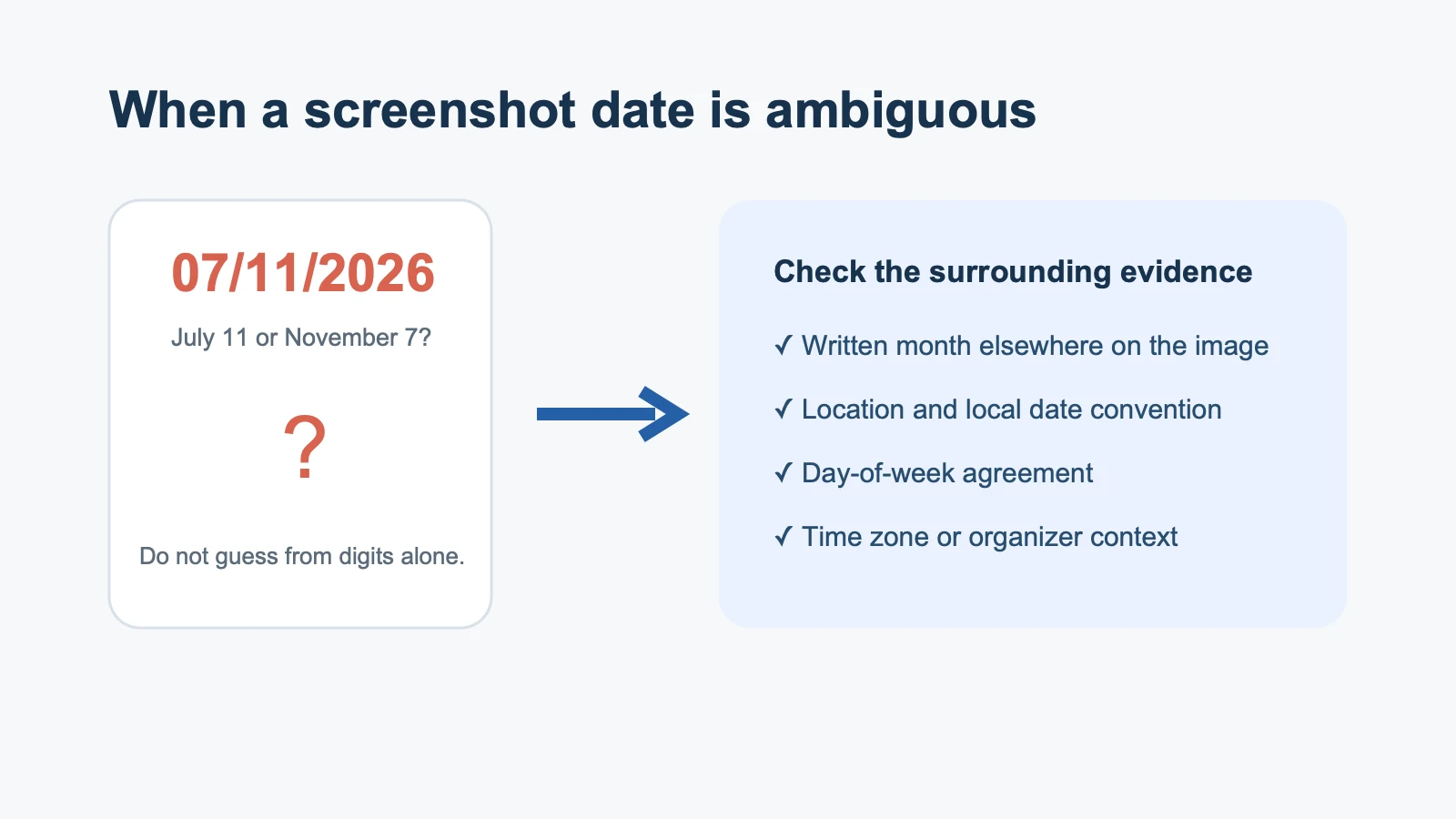
Do not silently choose a month-day order. Check the surrounding evidence:
- Is a month written elsewhere on the image?
- Does the stated day of week agree with only one interpretation?
- Is the organizer or venue in a region with a known date convention?
- Does a linked page repeat the date in words?
- Did the sender clarify the date later?
If none of those checks resolves the date, the correct output is “needs confirmation.” It is not a confident-looking guess.
RFC 5545 defines unambiguous formats for calendar data, but a calendar standard cannot recover context that the screenshot never supplied. The uncertainty has to be resolved before encoding the event.
Separate the event time from nearby times
Read labels and layout, not only numbers. “Doors 6:30, show 7:00” contains two valid times with different jobs. The calendar start is normally 7:00 PM. The door time can become a note or alert.
A project screenshot may say “slides due Wednesday 5 PM” and “review Friday 2 PM BST.” Those are two actions. Depending on the user's intent, they may deserve two events, one event plus a reminder, or a document that keeps both until the plan is confirmed.
The complete screenshot-to-calendar guide covers the broader review workflow and the six event fields in more detail.
Treat time zones as fields, not decoration
For a local poster, the venue often implies the zone. For remote events, the source should ideally state it. 2:00 PM BST is not the same instant as 2:00 PM in Shanghai or California.
Google Calendar's official Events API reference represents timed starts and ends with date-time values and time-zone context. That model is a useful checklist even when you are adding the event through a user interface.
A worked sample for this guide states 2:00 to 4:30 PM for a local workshop and 1:45 PM for doors. The correct mapping keeps 2:00 to 4:30 PM as the event range and moves the door time into relevant details. If the source does not state a zone, the reviewer should confirm the venue's local zone before sending the event.
Do not invent an end time
If the screenshot gives only a start, record only what you know. Some calendar tools require an end. In that case, choose a duration only if another source supports it, or clearly treat the duration as a user decision.
The same rule applies to all-day events. A date with no time is not automatically an all-day event. It might be a deadline whose exact time was omitted. Confirm the organizer's intention before changing the event type.
A two-pass extraction method
Pass one: collect the visible facts
Transcribe dates, times, zones, duration words, addresses, links, and the phrases attached to them. Preserve wording such as “by,” “doors,” “starts,” “check-in,” and “due.” Those small words determine the role of a time.
Pass two: map facts to calendar fields
Choose the title, primary date, start, end, zone, and location. Move secondary facts into the description. Flag unresolved items. Then compare the structured result with the screenshot once more.
This two-pass method is slower than copying the largest date on the image, but it is far faster than repairing a missed appointment.
How Recap handles the intermediate step
Recap turns the source into a structured readable document before presenting next steps. When time matters, it can surface a Calendar Sheet. The user can confirm, edit, or cancel before sending the event. Calendar, Workspace, and Learning remain separate choices.
That product shape is useful for date extraction because it keeps the surrounding statements visible. You are not forced to trust a detached title and timestamp. You can read why the date matters, compare it with the source, and decide where the result belongs.
For several screenshots, preserve the order and correction history before normalizing dates. The multiple screenshots to calendar events guide shows how to distinguish a rescheduled event from a duplicate. If an appointment letter uses more than one language, the multilingual appointment guide adds a privacy and translation review before Calendar.
Evidence limits for this guide
We prepared two focused source formats for date extraction: a written-month event flyer and an image with 07/11/2026 at 18:30. These fixtures support the field-review examples, not a product-wide accuracy claim.
This guide does not claim perfect recognition for handwriting, low-resolution images, uncommon calendars, or every locale. Image quality and missing context can change the result.
Final check before adding
Read the proposed event as if the screenshot were no longer available:
- Would the title make sense next week?
- Is the date order certain?
- Is the primary time the event, not a nearby instruction?
- Is the zone explicit or safely inferred from a local venue?
- Is the end time supported?
- Are other actionable dates preserved?
If any answer is no, edit or cancel. Extraction should reduce typing. It should not remove judgment.
One final habit helps: read the proposed event aloud in a full sentence. “Prototype critique is on November 7, 2026 at 6:30 PM in Room B” exposes uncertainty that a row of form fields can hide. If you cannot say the sentence confidently from the source, leave the proposal unadded and return to the organizer's current information. This is especially useful when the screenshot was forwarded, cropped, or captured in another locale. The extra check takes less time than correcting an event after other people have planned around it.
Continue in Recap
Turn this source into a Recap Document
Make it easier to read, then send time-based details to Calendar, export it to Workspace, or start PBL Learning.