

An event notice can be clear enough to read and still leave you unable to schedule it safely. A start time might have no end. A deadline might name a day without a cutoff. An online session might use an ambiguous time zone abbreviation. Before creating an entry, keep the notice beside a short review record that separates what the organizer stated from what you choose for your own calendar.
The calendar review template below is an original worksheet for that job. Copy it into a note or document and use one record per source. It works with a screenshot, a forwarded message, a flyer, or a text notice. The worked notices are fictional examples written for this guide; they do not measure extraction accuracy or describe real events.
Copy the review template
Start with the source reference. Use an original link when one exists, or record a file name and the part of the image you read. Keep enough of the original notice to check the wording later, subject to your permission to store it.
| Field | What the source states | My interpretation or choice | Unresolved question |
|---|---|---|---|
| Event identity | Exact title and organizer | Short calendar title | Is this the event I intend to attend? |
| Date | Date as printed, including year if present | Full date after checking context | Is the year or month unclear? |
| Start | Printed start time | Reviewed start in the event zone | Does this mean doors, arrival, or program start? |
| End | Printed finish time, if any | Personal planning block, if needed | Has the organizer given a duration? |
| Time zone | Full wording from the notice | Confirmed city or named zone | Could the abbreviation mean another region? |
| Place or access | Venue, room, address, or joining instructions | The details needed to arrive or connect | Is a registration link being mistaken for access? |
| Attendance scope | One session, selected dates, or a stated series | The session or sessions I will attend | Is attendance at every session required? |
| Alert | Any organizer instruction | My chosen notification | Does this allow enough preparation time? |
| Decision | Source revision and time checked | Save, hold, ask, or cancel | What must be answered before saving? |
Leave an unresolved field visibly unresolved. A calendar app may offer a default duration, but that default does not become the organizer's finish time. A reminder you choose is your planning decision. Keeping those distinctions in the note prevents a convenient value from acquiring a false source.
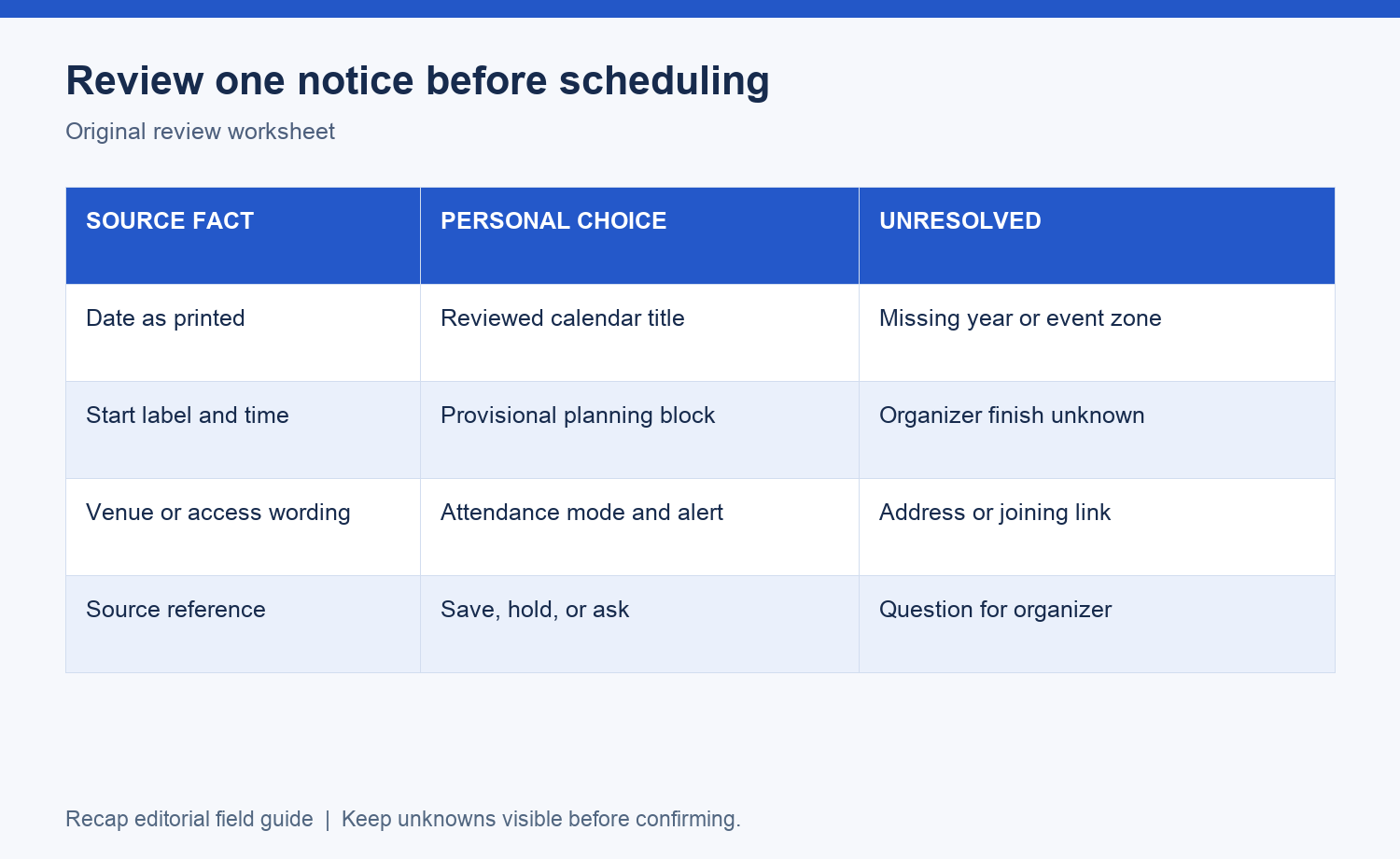
Read the source before normalizing it
Copy the small passage containing the date and time before rewriting it into calendar fields. This catches cases where two nearby times have different meanings. "Doors 6:30; talk 7:00" contains an arrival detail and a program start. Moving both into a single start field loses a useful distinction.
The same applies to dates. A notice might give an application deadline and a later event date. Record both with their labels. Do not put the attendance date in the deadline field simply because it appears in larger type. If the year is absent, inspect the surrounding page or ask the organizer. Your own download date can help you investigate, but it cannot prove the event year.
For the wider source workflow, use the image-to-calendar field guide. This worksheet concentrates on the decisions that remain after you can read the text. The structured document tool covers preparing a readable document when the source also contains instructions, background, or material worth keeping.
Worked example: a talk without a finish
Fictional notice A reads: "Harbor design talk. November 18, 2026. Program starts at 18:30. Room B, Harbor Center. Finish time to be confirmed." The notice gives no city or time zone. It also does not state a street address. Those omissions remain in the record even if you recognize the venue name.
The review produces these values:
- Title: Harbor design talk.
- Date: November 18, 2026.
- Source start: 18:30, with the event zone still requiring confirmation.
- Source end: unknown.
- Source location: Room B, Harbor Center; full address unknown.
- Next action: ask for the city, time zone, address, and expected finish.
Suppose you choose to reserve an hour while waiting for an answer. Write "Personal hold: one hour, duration unconfirmed" beside the block. Do not change the source end to 19:30. If the event is important enough that the uncertainty affects travel or another appointment, wait for clarification before treating the hold as an attendance commitment.
This example has a useful stopping point: you can understand the notice without being ready to save a dependable event. The question to the organizer is specific: "For the November 18 design talk, which city/time zone applies to 18:30, and what are the address and expected finish?" A precise question is easier to answer than "Can you send more details?"
Worked example: a deadline without a clock time
Fictional notice B reads: "Workshop registration closes November 20, 2026. Workshop takes place December 3, 2026. Joining instructions will be emailed after registration." There is no cutoff hour, time zone, workshop start, or joining URL in this source.
Create separate rows for registration and attendance. The registration row has a known date and an unknown cutoff. The workshop row has a known date but no confirmed start. The instruction about a future email is useful access context; it is not a joining link.
You might choose a reminder on November 18 to complete registration early. Record that as a personal reminder date. An all-day entry on November 20 can keep the deadline visible while the cutoff remains unknown. It does not establish that registration stays open until the end of that day.
If the registration could close before you act, ask for the cutoff and zone. A calendar entry is useful only if its meaning survives a later glance. "Register for workshop; cutoff time unconfirmed" is more honest than a precise time invented to fill a field. See the date-only deadline guide for the separate treatment of visibility, alerts, and actual cutoff.
Choose the calendar representation after review
Once you have reviewed the source, choose the representation that supports your purpose. A timed session belongs in a reviewed start/end block. A date-only notice may be represented as an all-day entry with an explicit uncertainty note. A task may belong in your existing task system instead. A reference document can stay in your notes until it needs a date.
Calendar providers expose their own controls for these decisions. Apple's event guide documents editing duration, location, notes, and URLs. Google's event guide documents event creation and its all-day option. Use those destination controls when entering an event manually; they do not determine the meaning of an incomplete notice.
The reference to Google here describes a manual destination workflow. It does not promise a direct Google Calendar handoff from Recap. A provider may offer a feature that a separate product has not enabled. Check the available destination in the client you are using before relying on it.
Resolve the zone before converting the time
A clock time is not enough to identify an instant when the source could refer to different regions. IANA's time zone reference explains that letter abbreviations can be ambiguous. Ask for the city or named event zone, together with the date, before converting the organizer's time to your own display zone.
Google's time zone guidance explains how an event can have a selected zone while appearing in the viewer's local zone. Keep the organizer's wording in the review record so you can tell a display conversion from a changed source time. If a later notice changes the zone, check the entire event again.
Avoid making a zone choice from a sender's email address or your computer setting. A sender can travel, and a device setting describes the device. When the event zone is uncertain, the correct worksheet value is "unconfirmed." The abbreviation check gives a worked question and a repeatable comparison method.
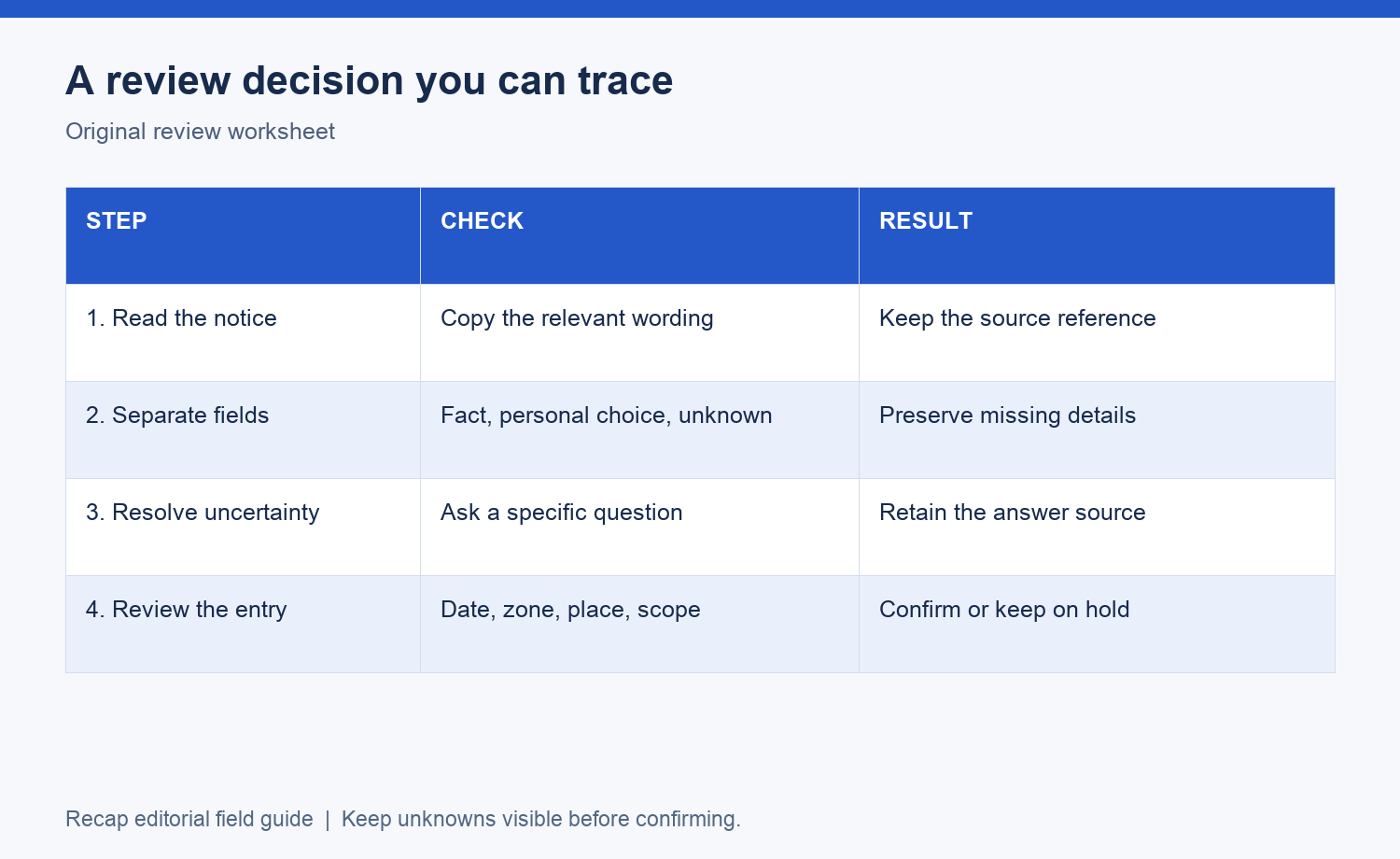
Use Recap as the readable source layer
Recap starts with a source and produces a structured, readable Recap Document. Calendar, Workspace, and Learning are parallel next steps from that document. A source can contain a schedule and still have context worth exporting or questions worth exploring. The Recap Document guide explains that foundation.
The screenshot below shows the current local Web Calendar Sheet component with built-in demo data. It shows review fields and the Cancel and Add to Calendar controls. The displayed planning example is separate from the fictional notices in this article. It is a screenshot of the implemented component, not evidence of Production extraction, calendar delivery, or support for every visible provider.
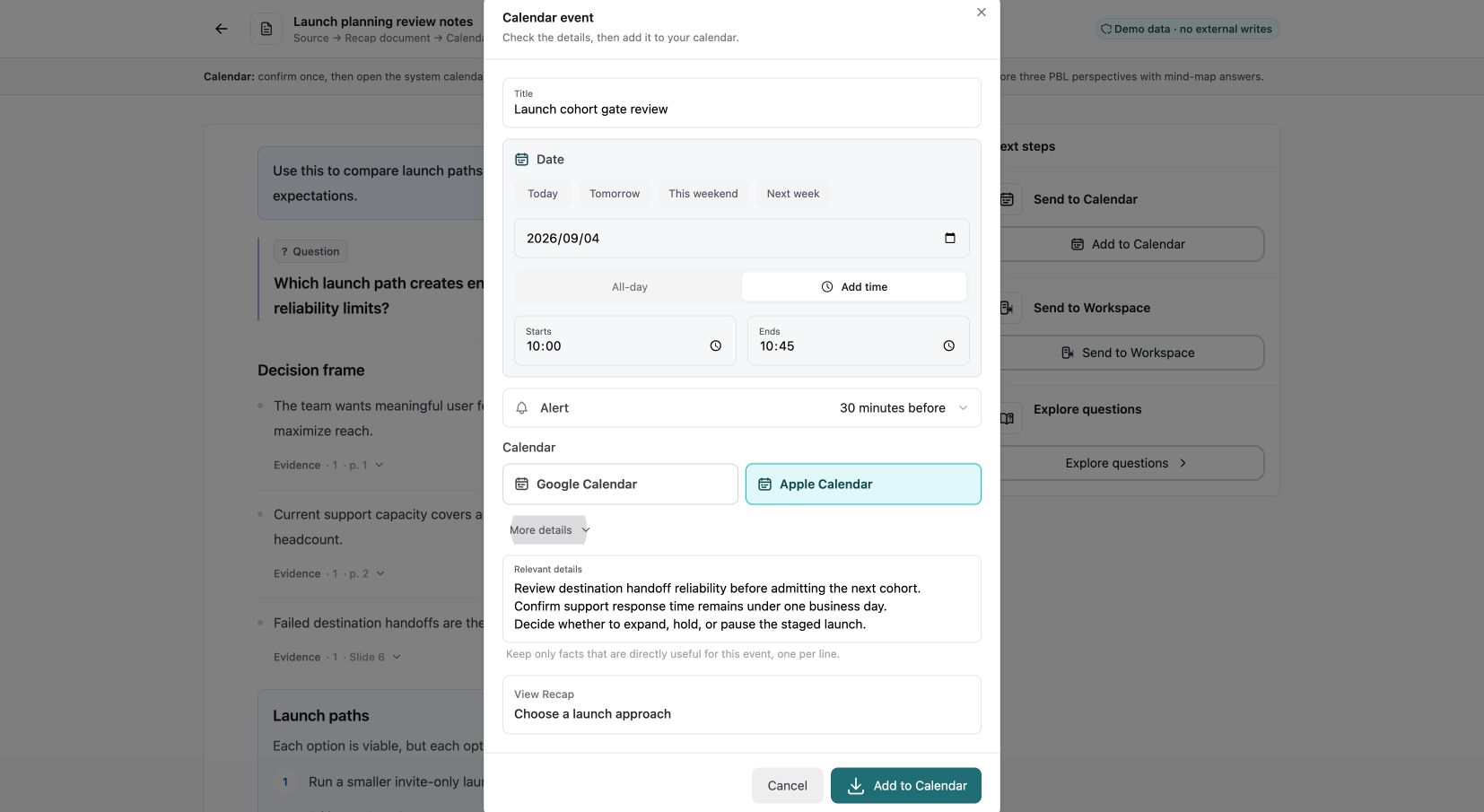
Use the screenshot-to-calendar page when you want a source-oriented starting point. Review the prepared details before confirming a calendar action. If the source needs more work first, exporting the document to Workspace preserves another useful route. Learning remains available for deeper understanding.
Keep your worksheet beside the prepared fields during review. Check whether a value came from the source, your own choice, or a default. If an entry proposes an end that the source never stated, preserve that distinction in your notes and decide whether a personal hold is appropriate. Do not describe a prepared draft as a saved event.
Check the result where you will use it
After saving an entry yourself, open the destination and read it as if you were about to attend. Confirm the date, displayed zone, title, location, joining instructions, and your own alert. Look at the day before and after if the session crosses midnight in your local zone. A successful button click alone does not tell you that these details are correct.
For a date-only deadline, check that the entry still says the cutoff is unconfirmed. For a provisional duration, check that a later reader can see it is a hold. For two sessions, inspect both dates separately. A clean calendar appearance should not hide a decision that still needs an answer.
If an event with the same identity already exists, inspect it before adding another. Keep the old and new source references together and compare their dates. This worksheet does not automatically match or update existing events. The destination's own editing and invitation rules govern what you can change.
Keep a short correction record
When the organizer answers a question, add the answer and its source reference to the original record. Preserve the earlier unknown long enough to explain the correction. "End confirmed as 20:00 in organizer reply" tells you why the event changed; replacing an empty field with a time loses that trail.
If the answer conflicts with the original notice, retain both statements and ask which applies. Do not use the later message automatically unless you can identify the same event and affected session. A forward may concern another location or another date with a similar title.
You can reuse the worksheet without turning it into a large tracking system. Keep the original notice, the reviewed values, the remaining question, and the action you took. The next time you open the calendar, the entry should tell you where to go, when to act, and which details still depend on the organizer.
Continue in Recap
Turn this source into a Recap Document
Make it easier to read, then send time-based details to Calendar, export it to Workspace, or start PBL Learning.