

Moving an event screenshot into Google Calendar sounds like a transcription task. In practice, it is a field-mapping task with one essential safety step: review the proposed event before it reaches the calendar.
A screenshot may contain a title, several dates, a time zone, a room, a meeting link, and instructions. Google Calendar needs those details in distinct fields. A reliable workflow keeps the image as evidence, creates a readable intermediate record, and sends the event only after the user confirms the mapping.
If you searched for a Google Calendar screenshot workflow because the source contains several images, start with the multiple screenshots to calendar events guide. If the images are a photographed shift plan, the work schedule photo guide covers overnight boundaries, missing rows, and destination-calendar choices.
A review-first workflow
Use four stages:
- Add the screenshot as a source.
- Organize its facts into a readable document.
- Review the proposed title, date, time, zone, location, and notes.
- Send the confirmed event to Google Calendar.
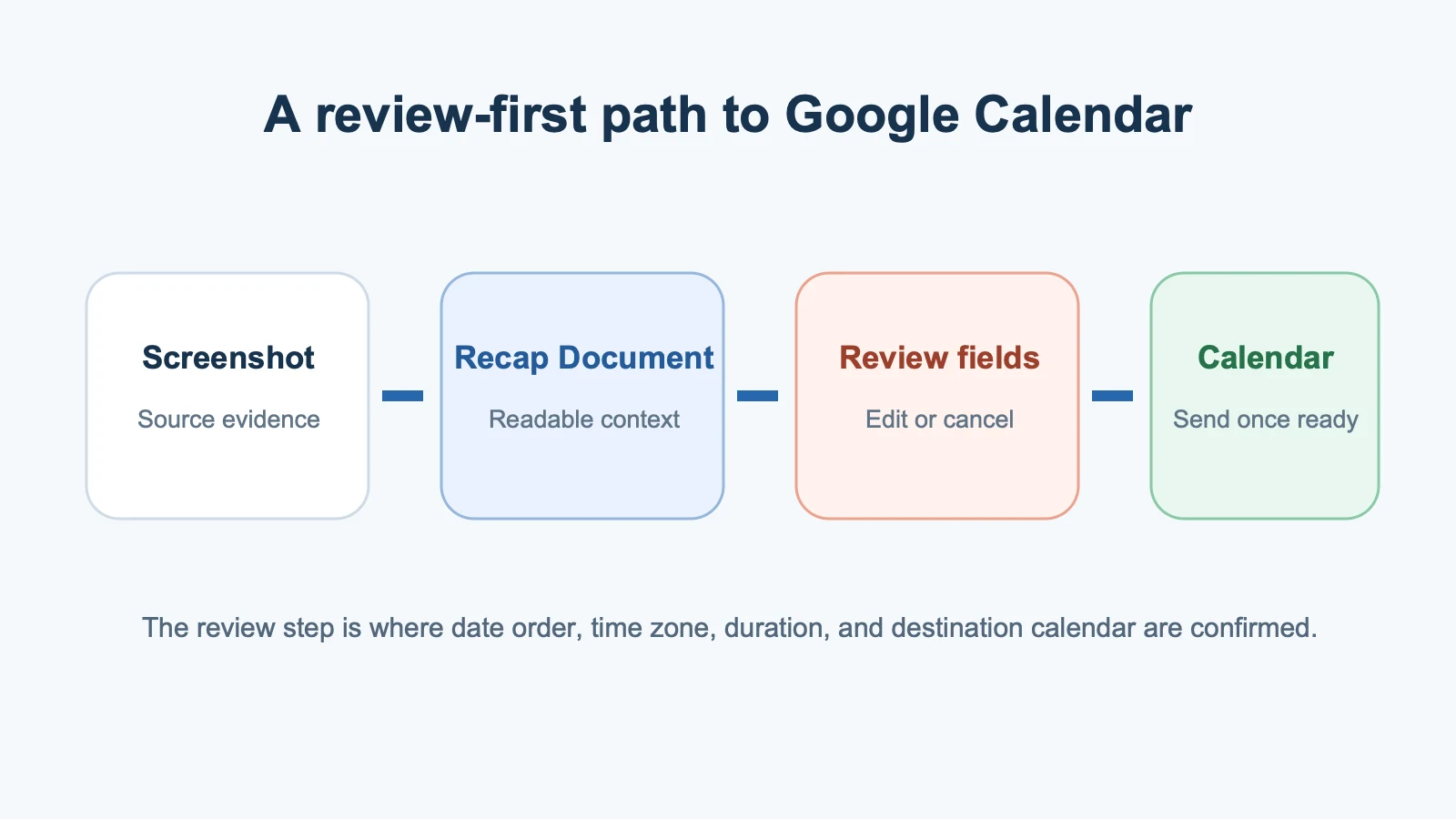
Recap follows this source-first shape. The image becomes a structured readable Recap Document. When the source contains strong time-based action, Recap can surface a Calendar Sheet. The user can edit, cancel, or add the event. Start with the Screenshot to Calendar tool for the focused path.
What Google Calendar expects
Google's official Events API reference is useful even for people who never call the API. It shows the structure behind an event: summary, description, location, start, end, recurrence, attendees, reminders, and more.
For screenshot conversion, the critical fields are:
- Summary: the event title you want to scan later.
- Start and end: date-time values or all-day dates.
- Time zone: especially important for remote and travel events.
- Location: a physical place or useful destination detail.
- Description: instructions that should not clutter the title.
The screenshot may not supply all of them. Missing information should stay visibly unresolved rather than being presented as certain.
Check the date format
If the screenshot says “October 17, 2026,” the date is easy to review. If it says 07/11/2026, look for context before choosing July 11 or November 7. The organizer's location, written month elsewhere, and stated day of week can help.
The focused guide on how to extract a date and time from a screenshot explains this ambiguity check in detail.
Calendar formats can encode a resolved date precisely. RFC 5545 defines the iCalendar data format used for exchanging calendar information. It does not decide what an ambiguous source meant. That decision must happen first.
Check every time signal
A flyer can show doors at 6:30 PM and a program at 7:00 PM. A remote-work screenshot can show slides due Wednesday and a review meeting Friday. Do not map the first visible time automatically to the event start.
Ask three questions:
- Which time represents the event itself?
- Does the source state an end or duration?
- Are other times separate actions or only supporting notes?
If the event has no stated end, avoid claiming that a guessed duration came from the source.
Treat the time zone as a first-class field
Google Calendar can represent a timed event with an explicit time zone. The screenshot might state 2:00 PM BST, or the zone might be implied by a physical venue. If the event is remote, travelling, or near a daylight-saving change, confirm the intended instant before adding it.
A worked sample for this guide says 2:00 to 4:30 PM for a local workshop and gives no explicit zone. The correct event keeps that range in the venue's local time. For a remote event, the Calendar Sheet should retain the stated zone or ask the user to resolve it before sending.
This example is a field-mapping fixture, not a broad accuracy benchmark. It illustrates why the confirmation step should make the intended instant clear.
Keep the title short and the evidence available
Calendar titles should be recognizable in week and month views. Put arrival instructions, preparation notes, and context into the description. Keep the source or readable document available so you can resolve a question later.
For example:
- Title: Repair Cafe Community Workshop
- Start: October 17, 2026 at 2:00 PM
- End: October 17, 2026 at 4:30 PM
- Location: Harbor Room, 88 King Street
- Notes: Doors open at 1:45 PM. Bring one small household item.
That structure is easier to use than a literal dump of every word on the flyer.
Calendar is one next step, not the whole product
Some screenshots contain a date but are mainly reference material. A course notice might be better saved to a workspace. A dense talk slide might deserve a learning session. Recap keeps Calendar, Workspace, and Learning available after the document is created.
The complete screenshot-to-calendar guide explains when to create several events, when to preserve a timeline, and when not to create an event at all.
When the source is a schedule rather than one invitation
Google Calendar can hold several events from one source, but the source still determines how they relate. A work schedule may need a separate event for every confirmed shift. A program photo may need only the sessions that require attendance. A chat may contain a deadline and a meeting that should not be merged. Review the set in source order, reconcile later corrections, and keep unresolved rows out of the final batch.
For a dense program grid, see how to turn a holiday program photo into calendar events. For a bilingual or multilingual appointment letter, use the multilingual appointment review guide and keep the original wording beside the proposed fields.
What to review in the Calendar Sheet
Before choosing Google Calendar, confirm:
- The title identifies the real event.
- The date order and year are correct.
- Start and end match the event, not nearby instructions.
- The zone represents the intended local time.
- The location includes the full address or correct meeting link.
- Useful notes remain concise and factual.
- Google Calendar is the intended destination calendar.
The final point matters for people who maintain work, personal, shared, or family calendars. A correct event in the wrong calendar still creates cleanup.
Evidence limits
This guide relies on Google's current Events API reference, the iCalendar standard, Recap's current product definition, a current first-party Calendar Sheet image used in the larger guide, and three deterministic source fixtures covering a flyer, an ambiguous numeric date, and multiple time signals.
In the flyer fixture, the reviewed Google Calendar fields would be: October 17, 2026; 2:00 PM start; 4:30 PM end; Harbor Room, 88 King Street; and a note that doors open at 1:45 PM. The example intentionally keeps the arrival time out of the primary event range.
We also did not add a live Google Calendar event during the check. That would have changed an external calendar and was unnecessary to verify the review interface. The evidence boundary stops at the proposed Calendar Sheet.
Use automation to reduce typing, not scrutiny
The best screenshot-to-Google-Calendar flow is easy to audit. You should be able to see the source, understand the extracted document, inspect the event fields, and cancel if anything looks wrong.
That extra review takes seconds. It protects the details that determine whether the event helps or misleads: date order, time zone, duration, location, and destination calendar.
Continue in Recap
Turn this source into a Recap Document
Make it easier to read, then send time-based details to Calendar, export it to Workspace, or start PBL Learning.