

An event flyer is built to attract attention, not to behave like a calendar record. The event name may be decorative, the date may sit in a badge, the venue may be split across two lines, and an arrival time may appear beside the actual start. Turning that image into a useful event requires more than copying its largest text.
The goal is a reviewable record with a clear title, date, start and end, location, and only the instructions you will need later.
Start with the original flyer
Keep the image as evidence. Cropping can improve readability, but do not crop away the organizer, address, time zone, registration link, or footnotes. If the flyer came from a message, also keep the message context in case the sender later corrects a detail.
For a direct workflow, use Recap's Screenshot to Calendar tool. Recap treats the image as a source, creates a structured readable Recap Document, and can surface a Calendar Sheet when the date represents a strong time-based action.
For the full six-field method, including time-zone and competing-date checks, use the complete screenshot-to-calendar guide.
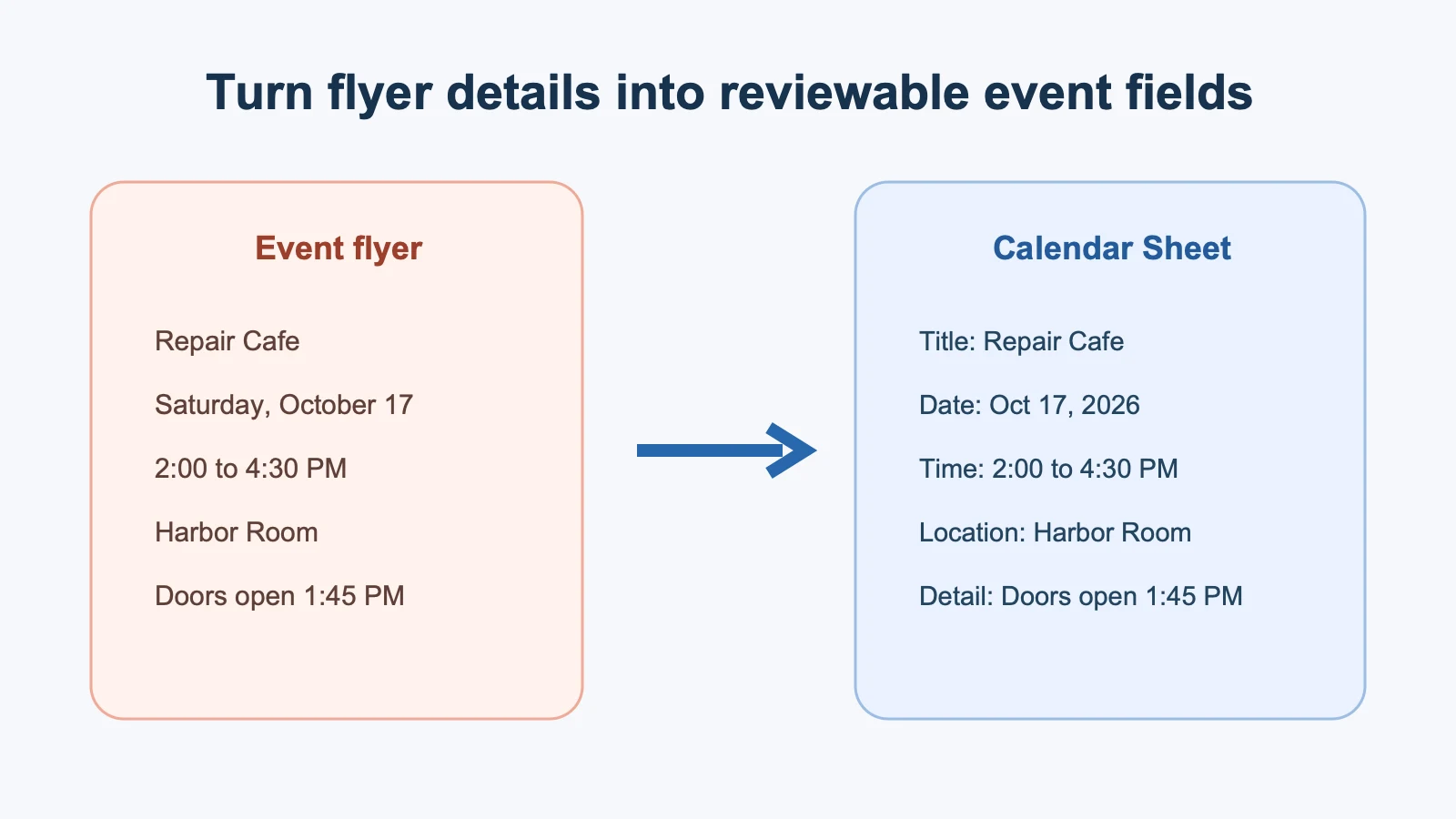
Map the flyer into event fields
Title
Use the event's plain name. Remove slogans that will not help when the event appears in a small calendar cell. Keep a series name when it distinguishes the event, such as “Repair Cafe: Community Workshop.”
Date
Prefer a written month when reviewing. If the flyer shows a numeric date, check the organizer's region and the day of week. Do not choose between July 11 and November 7 from 07/11 without supporting context.
Start and end
Separate the event hours from other times. “Doors open 1:45 PM” is useful, but it does not replace a 2:00 PM workshop start. If the event has no stated end, do not present an invented duration as source fact.
Location
Keep the room, building, and street address together. “Harbor Room” alone may be insufficient. For virtual events, distinguish the registration page from the actual meeting link.
Relevant details
Preserve instructions that affect attendance: bring an item, show identification, register first, arrive early, or use a specific entrance. Marketing copy and long sponsor lists usually do not belong in the event description.
The Google Calendar Events API documents the structured fields that a calendar event can carry, including summary, description, location, start, end, recurrence, and reminders. That list is a practical review model even if you add the event manually.
A worked flyer example
We created a deterministic sample flyer for a “Repair Cafe Community Workshop” on Saturday, October 17, 2026, from 2:00 to 4:30 PM. It listed Harbor Room, 88 King Street, and a separate 1:45 PM door time.
The correct field mapping uses “Repair Cafe Community Workshop” as the title, October 17 as the date, 2:00 to 4:30 PM as the event range, and Harbor Room, 88 King Street as the location. The 1:45 PM door time and instruction to bring one small household item remain relevant details.
This mapping keeps the event itself separate from arrival guidance. It also shows why document extraction and calendar-field review are related but distinct steps.
Review the event before sending it
Compare the proposal with the flyer in this order:
- Title and event identity
- Date, including year
- Start and end
- Time zone
- Venue and full address
- Relevant attendance instructions
- Destination calendar
If one field is uncertain, edit it or cancel. Recap's intended flow keeps that decision with the user. It does not position the Calendar Sheet as an irreversible automatic write.
Apple's EventKit documentation for creating events and reminders describes event details such as title, start, end, calendar, alarms, and recurrence. It also sits within the platform's permission model. Permission controls access; the content review still determines whether the event is accurate.
Flyers with several dates
Some flyers advertise a series, not one event. Others contain a registration deadline, an event date, and a follow-up session. Decide what the user needs:
- One event for the main session
- Several events for a series
- A deadline plus an event
- A structured document without any calendar action yet
Do not compress several independent dates into one vague description. If chronology is the main value, a timeline is a better first representation. The refreshed timeline examples guide shows how project, history, release, learning, and event timelines differ.
Some images are not single flyers at all. A holiday program or festival schedule may use a grid with several sessions, a venue legend, and a registration deadline. Use how to turn a holiday program photo into calendar events for that pattern. If the program arrived as a sequence of screenshots, use multiple screenshots to calendar events to reconcile corrections before you create a batch.
When the flyer needs more context
A flyer may omit the year, use a venue nickname, or include a QR code with the actual terms. Check the organizer's official page before filling the gap. Do not use a social repost as the only source when a current event page exists.
Likewise, do not infer recurrence from wording such as “weekly community night” unless the specific screenshot makes the schedule clear. A recurring calendar series is harder to repair than a single draft event.
Keep the other next steps visible
An event flyer can be useful beyond the date. It may contain speaker context, workshop requirements, or a program worth saving. In Recap, Calendar is one next step after the document. Export to Workspace and Start Learning remain available in parallel.
That matters because not every useful flyer should disappear into a calendar. The Recap Document can stay readable and reusable, while only the time-sensitive part moves into the user's calendar.
A compact flyer checklist
Before adding the event, confirm:
- The calendar title is plain and recognizable.
- The event date is not a registration deadline.
- The start is not the door-opening time.
- The end or duration comes from the source.
- The time zone matches the venue or remote session.
- The full address or correct meeting link is present.
- Necessary instructions survive the conversion.
- The proposed fields match the original image.
The safest workflow is not “scan and forget.” It is “scan, structure, review, then send.”
After adding a confirmed event, keep the flyer until registration, venue access, and organizer details are no longer needed. A calendar entry is a compact action record, not a complete replacement for its source. If the organizer issues a correction, compare it with the saved source and update the event deliberately.
Continue in Recap
Turn this source into a Recap Document
Make it easier to read, then send time-based details to Calendar, export it to Workspace, or start PBL Learning.