

Before putting an event location into your calendar, separate the venue, room, street address, registration page, and joining link. Each answers a different question. A registration URL can help you sign up without giving you access to the session, and a venue name can be correct while still leaving you unable to find the entrance.
Review the source as an attendee: where would you go, which room would you look for, or what would you open at the start? Preserve anything that remains unknown. Do not turn a map suggestion or a familiar meeting service into an organizer-confirmed destination.
Work through one notice
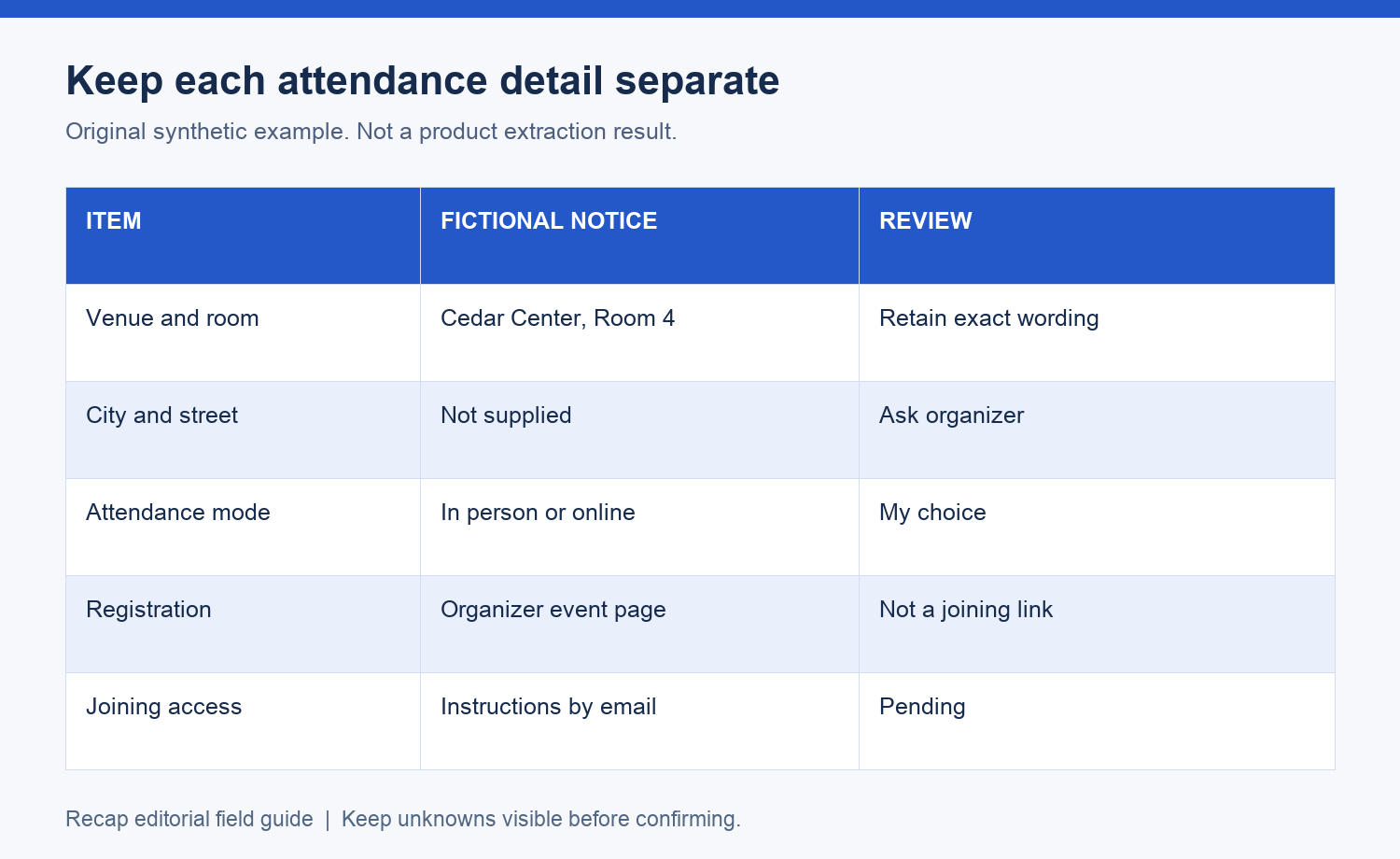
This fictional notice says: "Design clinic, November 24, 2026, 14:00. Cedar Center, Room 4. Attend in person or online. Register on the organizer's event page. Online joining instructions will follow by email." It supplies a venue name and room, but no city, street address, time zone, or joining URL.
A useful review keeps the information in distinct rows:
| Item | Source value | Review result |
|---|---|---|
| Venue | Cedar Center | Exact name retained |
| Room | Room 4 | Retained with venue |
| City and address | Not supplied | Ask organizer |
| Attendance mode | In person or online | My choice still needed |
| Registration | Organizer's event page | Find the original page |
| Joining access | Instructions later by email | No joining URL yet |
| Start | November 24 at 14:00 | Time zone unconfirmed |
All names and details in this example are invented for the worksheet. No real venue, access link, or product-generated result is being represented. The calendar review template lets you record the same distinctions for a source of your own.
Check a physical destination before accepting a suggestion
A calendar or map app may suggest an address when you type the venue. Compare it with the organizer's source. If several venues share the name, the first suggestion is not enough to identify the right one.
Apple's event editing guide documents location entry and separate notes and URL fields. Use the fields to preserve the details you have, then review the result. If the source gives a room without a building or an address without an entrance, keep the unresolved part in the notes.
Ask a concrete question: "For the November 24 design clinic, which city and street address is Cedar Center in, and is Room 4 reached through the main entrance?" That gives the organizer a clear gap to fill. If accessibility or arrival instructions matter to you, ask the organizer directly. Keep their answer with the venue reference so you can find it when planning your route.
Choose your attendance mode
A hybrid notice offers more than one route to attendance. Decide which route you intend to use before filling the calendar entry. Keeping both routes in the notes can be useful, but the title or location should make your current plan clear.
For in-person attendance, keep the confirmed address, room, and any entry instruction together. For online attendance, check whether registration is required and when joining information will arrive. A plan to attend online does not mean you can use a link meant for another attendee.
If you change attendance mode later, review the whole entry. Remove or relabel stale arrival instructions so you do not travel to a venue after deciding to join online. Check the start and zone again if different sessions or formats have different schedules.
Treat registration and joining as separate steps
The fictional notice promises instructions by email after registration. Until that email arrives, "joining link pending" is the truthful value. The event page can be stored as a source or registration reference, but should not be labeled "Join meeting."
When instructions arrive, verify the event title, date, and attendee context. A message from the organizer might include a registration receipt, a ticket, or actual session access. Read the labels before replacing the pending field.
If the message contains a private access link, keep it in a destination appropriate for your own use. Do not place it in a shared worksheet or public note by default. Share the organizer's public registration route when other people need to register separately.
Avoid adding a new meeting room accidentally
Some calendar products can generate video meetings for events you create. Google's event guide documents video meeting options. That capability does not turn a new room you create into the organizer's existing session.
When making a personal calendar reminder for someone else's event, inspect whether the editor added conference details. Keep the organizer's actual joining instructions distinguishable from any meeting room associated with your own entry. Creating an invite for yourself should not become an accidental competing event.
This is guidance for manual work in the destination calendar. It does not assert that Recap creates conferencing links or sends directly to every calendar provider. Review the enabled client destination and prepared content before confirming a handoff.
If the source includes a shortened link, check its destination through the organizer's normal page before treating the label as proof of its purpose. A page titled registration may lead to instructions after you sign up, but that later step remains pending until you actually receive it.
Make arrival planning a separate choice
Travel time, a personal arrival buffer, and the event's published start describe different things. If you choose to arrive early, label that as your own plan. Keep the organizer's start in its original form so another attendee can understand the schedule.
The image-to-calendar field guide covers related timing checks. If the notice has a check-in time and a program start, preserve both. If it has no finish, keep the missing duration visible before planning what follows.
Recap can prepare a readable document from the source while Calendar, Workspace, and Learning remain parallel next steps. Start with the screenshot-to-calendar page for an image notice. The document gives you a place to retain access questions while you decide whether the event is ready for a calendar action.
After saving an entry yourself, open it as an attendee would. Can you identify your attendance mode, the confirmed destination, the correct source, and anything still pending? Recheck the note when joining instructions arrive. Keep the correction with its source so an old registration page does not remain mislabeled as session access.
Continue in Recap
Turn this source into a Recap Document
Make it easier to read, then send time-based details to Calendar, export it to Workspace, or start PBL Learning.