

A notice that gives an event's start without its finish leaves the duration unknown. You can still keep the invitation and plan your day, but any block you choose needs a label that makes the uncertainty visible. A default end time in a calendar editor is a suggested value, not evidence of when the organizer intends to finish.
Use a short review record before saving. Keep the printed start, the missing end, and your own planning duration in separate fields. That makes it easier to revise the event when the organizer answers, especially if travel or another appointment depends on the finish.
Read exactly what the notice provides
Consider this fictional source: "Harbor design talk. November 18, 2026. Program starts at 18:30. Room B, Harbor Center. Finish time to be confirmed." It supplies a date, a start, and a room at a named venue. It gives no end, city, time zone, or street address.
Do not infer a one-hour talk from the format or venue. A previous event may have lasted an hour, but this source does not say the current one will. If the finish affects whether you can attend, ask the organizer before making a firm commitment. The calendar review template provides space for that question beside the known fields.
Also check what "start" describes. A notice may list doors opening, check-in, a reception, or the beginning of the program. Preserve those labels in your note. Arriving for a reception is a different choice from arriving when the talk begins, and the difference should survive the move into your calendar.
Keep the source and the hold separate
For the fictional talk, a reviewed record could look like this:
| Item | Reviewed value | Status |
|---|---|---|
| Date | November 18, 2026 | Stated |
| Program start | 18:30 | Stated; event zone unconfirmed |
| Organizer finish | Unknown | Explicitly awaiting confirmation |
| Personal reservation | One hour, if I choose it | My provisional planning choice |
| Location | Room B, Harbor Center | City and full address missing |
| Question | What are the zone, address, and expected finish? | Awaiting organizer |
If you create a temporary calendar block, put "Provisional duration" in the title or notes where you will notice it. Keep the original wording nearby. Do not rewrite the row for organizer finish after choosing a personal hold.
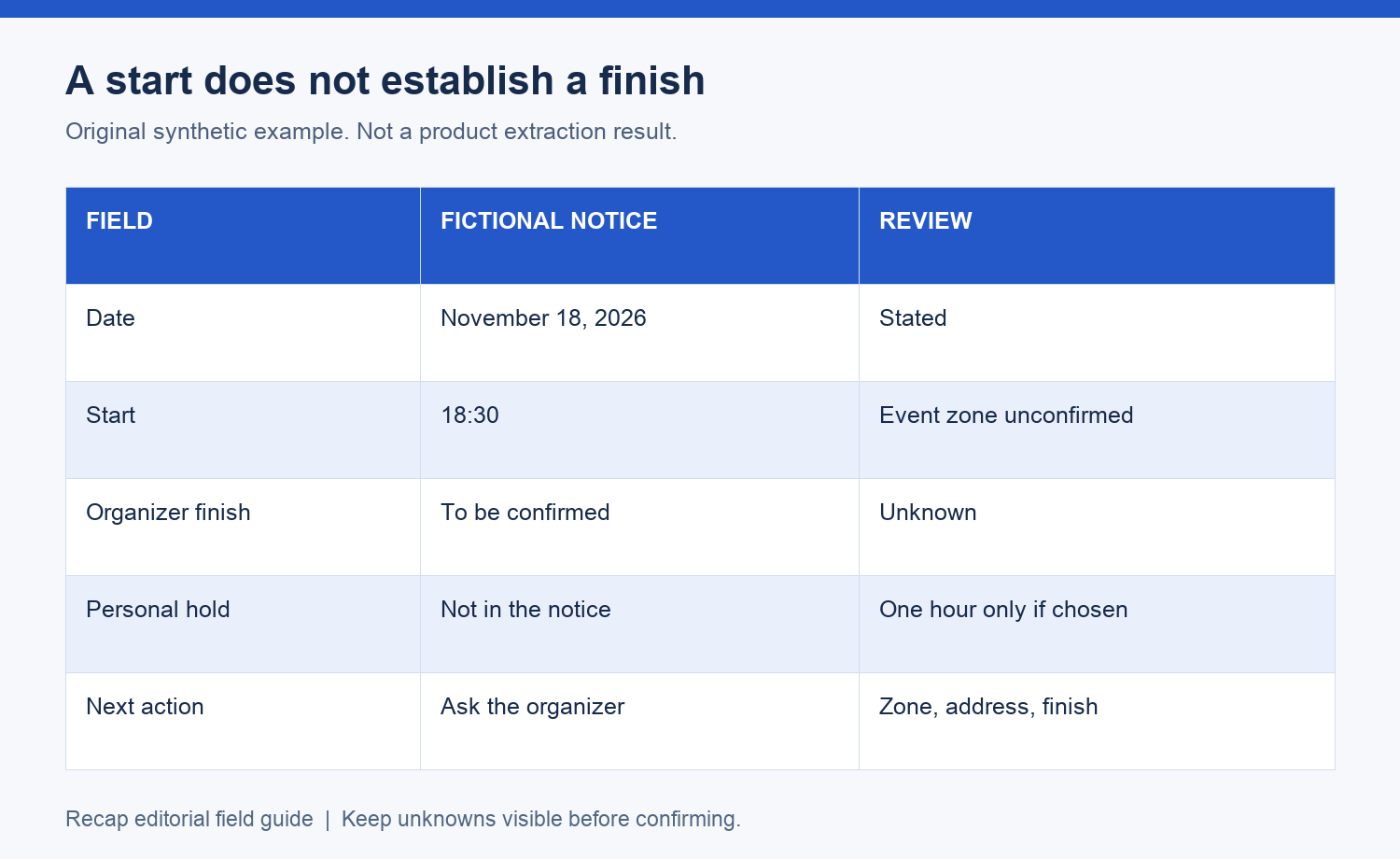
The diagram is a review example. It does not depict a product-generated result. You can apply the record manually to a source you already have, without uploading it anywhere or granting another app access to your calendar.
Decide whether to hold time or wait
A provisional hold can be useful when you want to avoid forgetting a likely commitment. It is less useful when an uncertain finish creates a conflict you cannot resolve. If you must leave for a train or collect a child afterward, ask about the finish and any exit restrictions before relying on the block.
Write down your actual constraint. "Need to leave by 19:15" is a personal requirement. It does not change the organizer's schedule, and you should not present it to another attendee as the advertised finish. The organizer may be able to say whether leaving early is practical.
You can also postpone the calendar decision while keeping the readable notice in your notes. This preserves the information without creating the impression that attendance is settled. Add a follow-up in the task system you already use if you need to ask a question later.
Use destination controls deliberately
When entering the event manually, inspect the editor's start and end fields before saving. Apple's Calendar guide documents duration editing. In Google Calendar's event creation guide, the event details are entered before Save. These are destination-native operations; neither guide supplies the missing finish for your notice.
If the editor prepopulates an end, decide whether it represents a personal reservation you want to make. If it does, label that choice in the notes. If the app requires fields you cannot fill truthfully, keep the source outside the calendar until you can make an explicit, useful choice.
Do not turn a timed event into an all-day event merely to avoid its missing finish. An all-day label can hide the known start when you later scan your calendar. A date-only reminder can be useful for another purpose, but its title should explain that purpose. Choose the representation based on what you need to remember.
Travel and preparation can require their own time even after the organizer confirms a finish. Keep those personal buffers separate from the program duration. Otherwise a later correction to the event can leave your departure plan based on an assumption you no longer remember making.
Ask a question the organizer can answer
Include the event title and date in your question. "For the Harbor design talk on November 18, what is the expected program finish, and which city/time zone applies to 18:30?" gives the organizer enough context to identify the session. Ask for the address separately if the venue name is not sufficient.
Avoid treating a vague response as a precise duration. "Usually about an hour" remains an estimate. Preserve the qualifier, especially if your next commitment has a hard start. If the answer names a different session or date, clarify that mismatch before editing anything.
Keep the answer with its date and source reference. If an event already exists, review and edit that entry yourself after checking its identity. Creating a second entry for every clarification can leave you with two versions of the same plan.
Prepare the source in Recap
Recap turns a source into a structured, readable document and keeps Calendar, Workspace, and Learning as parallel next steps. The screenshot-to-calendar page introduces that source-oriented workflow. Review any prepared calendar values against the notice before confirming an action.
A readable document can be useful while the scheduling question remains open. Keep the organizer's statement and your unresolved question together. The field-by-field image guide explains the wider review, including dates and locations that need a separate check.
After you save a provisional entry, open it in the calendar where you will use it. Read the notes and confirm that the missing finish is still obvious. When the organizer supplies a finish, update the existing entry and retain a short note explaining the correction. Your chosen planning block and the confirmed event duration can then be distinguished by anyone who reads the record.
Continue in Recap
Turn this source into a Recap Document
Make it easier to read, then send time-based details to Calendar, export it to Workspace, or start PBL Learning.