

A notice can contain several dates: when it was published, when registration closes, and when an event takes place. They have different jobs. Before copying a date into your calendar, identify the words attached to it and keep the publication date separate from the event date.
This distinction is useful for a screenshot because the page header, message timestamp, or social post date may appear closer to the top than the actual event details. A calendar entry made from the wrong date can look complete while pointing to the wrong day. Keep the source visible and label each date before choosing an action.
Ask which date controls the action
If a notice says only "by Friday," ask whether Friday is the registration cutoff, the event day, or both. Request a full date, cutoff time, and time zone. Include the title or registration link in the question so the organizer can identify the right notice. Keep any answer with the source, and note whether it applies to a single session or the whole program.
Label each date by its role
| Date in the source | What it may describe | What to check |
|---|---|---|
| Published or sent | When the notice was issued or shared | Whether it is the original notice or a later repost. |
| Updated | When a page or notice was revised | Whether the update changes this event or another detail. |
| Registration deadline | When an application or booking closes | The cutoff date, time, and time zone if stated. |
| Event start | When the session begins | The full date, time, zone, and session identity. |
| Event end | When the session finishes | Whether the end is on the same or following date. |
An event can need more than one calendar action. You might decide to add a registration deadline and the event itself as separate entries. That is your choice; keep the organizer's wording and any personal reminder separate so a reminder is not mistaken for an official deadline.
Example: an announcement before the event
The following example is fictional:
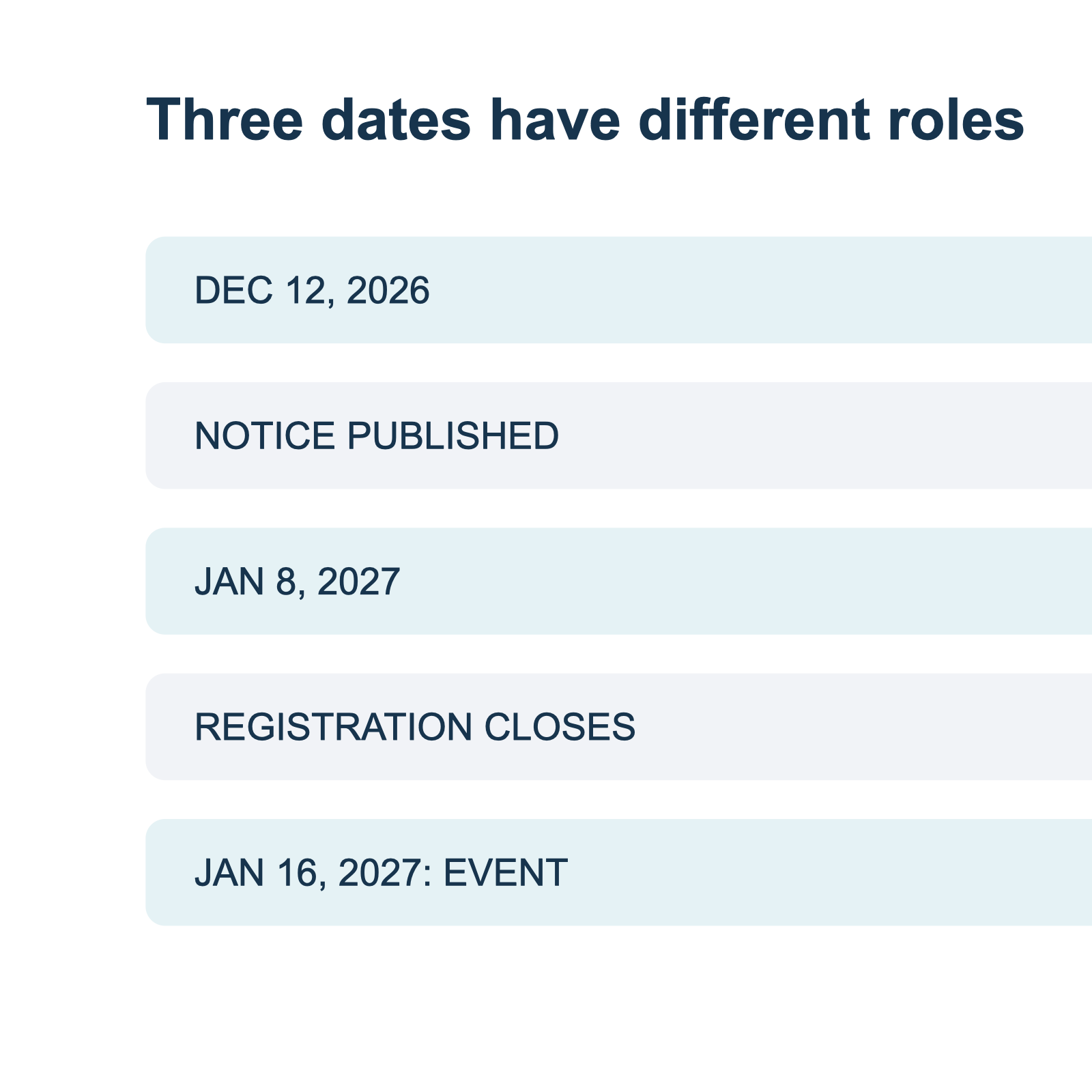
Posted: December 12, 2026. Registration closes: January 8, 2027 at 5:00 PM, America/New_York. Workshop: January 16, 2027, 2:00 to 4:30 PM, America/New_York. Venue: Harbor Room.
The publication date is December 12. The registration cutoff is January 8. The workshop is January 16. A record for the workshop should use January 16 as the event date, with the workshop hours as its time range. If you also need the registration cutoff, create or record it separately and retain the stated zone. Do not use the publication date as the workshop date simply because it appears first.
The example also crosses a calendar year. The year in the publication date does not apply automatically to the workshop. Here the event's year is explicit; without it, it would remain an open question. The missing-year check explains how to record that uncertainty.
Look for labels, not visual prominence
A large date on a promotional image can be an early-bird deadline, the opening of registration, or a date for one session in a series. Read the nearby label and compare it with the full schedule. If the image says "registration opens" next to the date, preserve that role in the record. Do not relabel it as the event date.
A page may have a timestamp above the headline and a different date in the body. Record both with their labels. If a screenshot cuts off a heading, return to the original source when available or ask the person who sent it. A clipped image may not contain enough information to determine which date belongs to which action.
The Office for National Statistics guidance on dates recommends writing the month in full in its content. Using a spelled-out month in your notes helps you compare the dates without introducing a day/month ordering ambiguity. It does not determine which date is the event date.
Check whether an update changed the event
An updated notice can correct a typo, change a venue, or reschedule an event. The update timestamp alone does not say which detail changed. Read the change notice and compare the original and current event details. If the organizer has not identified the scope of a change, ask which session is affected.
For a recurring event, confirm whether a change applies to one occurrence or the series. If you already have the event in a calendar, check its identity before editing. A new notice may describe an additional session rather than replacing an existing one. The earlier schedule change review template provides a record for comparing the old and new notices.
Do not treat an old notice as a current schedule merely because it is still accessible. Check the year, the organizer, and the event page. A social repost's timestamp can establish when it was shared, but not necessarily when the original notice was issued or whether the event has been rescheduled.
Time zones and cross-day events
Check the time zone for each time-sensitive item independently. A registration system can use a different zone from the event venue, and the source may not say so. If the source gives no zone, record that gap and ask. Do not infer an offset from the reader's device.
Apple Calendar's time-zone guidance explains the difference between an event's time zone and the calendar's display zone. Google Calendar's guidance describes its own UTC conversion. A date displayed differently in another zone may refer to the same instant; check the original zone and the destination before changing the entry.
When an event starts on one date and ends after midnight, confirm the end date as well as the start. The overnight-event guide has a separate example. If a numeric date can be read in more than one order, use the numeric-date check.
Keep the source and your decision together
A short review record can include the original text, publication date, registration cutoff, event date, and unanswered questions. The event-date review template keeps source facts separate from your decision. For field-by-field checks, use the image-to-calendar guide.
Recap's documented flow starts with a readable source document and offers Calendar, Workspace, and Learning as parallel next steps. A screenshot-to-calendar workflow can help organize the information, but review the proposed date and time before confirming. A structured document also lets you retain the source alongside the decision.
Continue in Recap
Turn this source into a Recap Document
Make it easier to read, then send time-based details to Calendar, export it to Workspace, or start PBL Learning.