

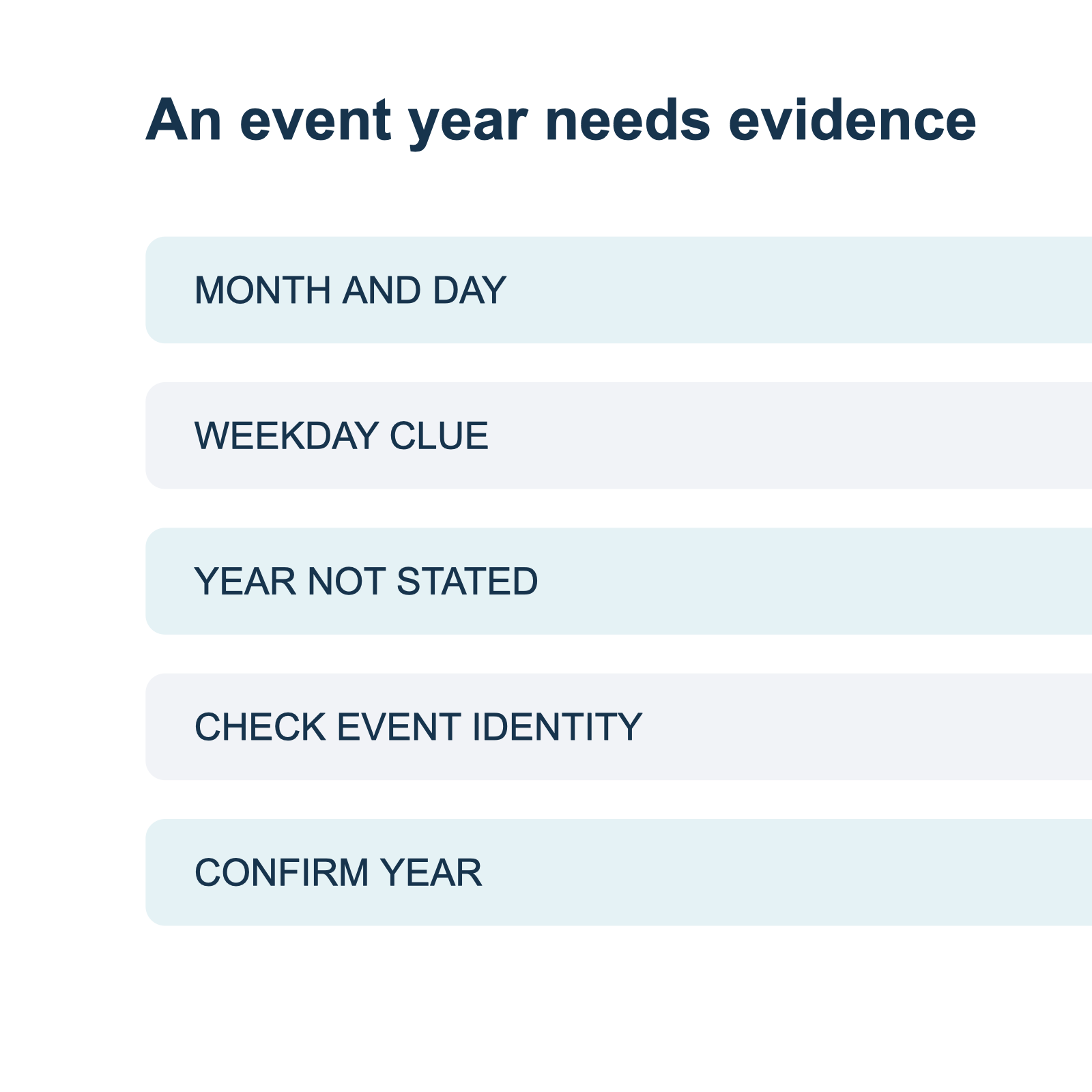
A flyer says "Saturday, October 17" but leaves out the year. Before adding it to your calendar, find evidence that identifies the event occurrence. A month and day alone may fit an old flyer, an upcoming event, or an annual program. The year printed on a website footer is not enough to settle the question.
Keep the notice, the event title, organizer, location, and any link together. Then look for an explicit year attached to the same event. If you cannot find one, ask the organizer and leave the year unresolved in your notes. A calendar can fill a year automatically, but its default is a suggestion, not a statement from the organizer.
When the organizer cannot confirm
Keep the record incomplete if the event is no longer listed and no responsible contact can confirm the occurrence. You can save the image and its source for later, but a guessed year should not be presented as a confirmed calendar date. If the event is time-sensitive, look for an official registration or ticket record tied to that specific session.
A five-field year check
| Record | Question to answer |
|---|---|
| Event identity | Which title, organizer, location, and session does the notice describe? |
| Source date | When was this particular notice published, sent, or updated? |
| Event date | Which month and day are attached to the event itself? |
| Evidence for the year | Does a current event page, ticket, or organizer confirm the year? |
| Remaining question | What needs confirmation before the date can be used? |
Write down the original wording as well as the source of any later clarification. If a confirmation refers to another location or a different event title, do not merge the two records until the match is clear. The date review template gives you a place to retain both the initial notice and the answer.
Example: a flyer with no year
The following is a fictional example:
Community repair workshop. Saturday, October 17, 2:00 to 4:30 PM. Harbor Room. Contact the organizer to register.
The notice provides a month, day, weekday, time, and location. It does not provide a year. In 2026, October 17 falls on a Saturday. That makes 2026 a plausible interpretation, but a weekday match alone does not prove the intended year. The flyer could be old or contain a weekday error. In another year the same month and day can also fall on a Saturday.
A careful note would read: "October 17; year not stated. Saturday matches 2026. Confirm year with organizer." If the organizer replies that this is the 2026 workshop at Harbor Room, record that reply and date. If the reply instead describes a different workshop or venue, ask whether it is the same session before creating an entry.
Use the surrounding page as evidence, not a shortcut
A page's publication timestamp can help establish when the page appeared. It does not automatically establish the event year. A notice published in December might announce an event the following January. A page may also remain online long after the event. Look for a date in the event details, ticket, schedule, or explicit organizer confirmation.
A site's copyright year is especially weak evidence for a specific occurrence. It can describe the site, not the event. Likewise, a search snippet may show text from an older version of a page. Open the source and check the event details rather than treating the snippet as the full record.
If a page says it was updated, preserve the update date separately from the event date. A correction may clarify an event year, but the date of correction is still not necessarily the date of the event. The notice-date guide walks through that distinction.
Annual programs need an occurrence check
An annual festival may reuse its name and visual design from year to year. A poster shared without its original caption can therefore look current even when the organizer has published a newer schedule. Find the current occurrence on the organizer's own site and compare dates, location, and program details. If the listing has been removed, an archived page can help identify what the old notice described, but it does not establish a future occurrence.
For an event with several sessions, confirmation of the festival year still leaves the individual session date to check. Record the specific performance or appointment, not just the name of the broader program.
Match the event before accepting a confirmation
Compare at least the organizer, title, venue or online location, and stated time. When events repeat, include the session name or ticket identifier. Two listings can share a title and location but describe different years or performances.
Ask a narrow question: "Does the October 17 Community repair workshop at Harbor Room take place in 2026?" A clear answer can resolve the year. If the organizer gives a different day or time, record that discrepancy as well. Avoid treating a partial answer as confirmation of every field on the flyer.
The Office for National Statistics guidance on dates uses a spelled-out month and year in its content. Writing the full date in your clarification request makes it easier for the recipient to spot a mistake. It is a communication convention, not proof that the flyer used the same format.
Check calendar settings and the rest of the event
After the year is confirmed, verify the time and time zone independently. An event year does not determine whether a time is local to the venue or a remote attendee. Apple explains that Calendar on iPhone can use a separate event time zone. Check the destination you actually use and compare its displayed date and time with the organizer's confirmed values.
Do not invent an end time if the notice omits one. A calendar may ask for a duration, but a default duration is not evidence about the event. Clarify the time or label your own temporary assumption in your notes before sending the event.
Keep the source with the decision
A structured document can keep the original notice and your clarification together. Recap's product contract describes a readable document followed by Calendar, Workspace, and Learning options; presentation and destination availability depend on the client. Before sending a date to your calendar, compare it with the source and the organizer's confirmation.
If the notice also contains a numeric date that can be read in two orders, use the numeric-date check. If it runs past midnight, check the overnight date boundary as a separate decision. The year, date order, and end date each need their own evidence.
For the calendar fields to review, see the screenshot-to-calendar workflow and image-to-calendar field guide.
Continue in Recap
Turn this source into a Recap Document
Make it easier to read, then send time-based details to Calendar, export it to Workspace, or start PBL Learning.