

A notice can give a date and a local clock time yet still leave the exact instant unclear. During a daylight saving time change, some local times are skipped and others occur twice. Before creating an event near a clock change, confirm the location, date, and the organizer's intended time zone. A calendar can convert a confirmed instant, but it cannot tell you which of two possible instants the organizer meant.
The rules vary by jurisdiction and can change. Do not assume that every region changes clocks on the same date or at all. NIST's daylight saving time guidance describes the current United States rules and identifies places that do not observe the change. Use the appropriate local authority for an event elsewhere.
Ask for a precise answer
A useful request names the session and offers the ambiguity plainly: "Does 1:30 AM refer to the first or second occurrence after the clocks change? Please include the zone or UTC offset." If the organizer answers with a different date, confirm that it applies to the same session. Record the answer as a clarification, not as wording that appeared on the original notice.
Record the source before converting
Keep these fields together:
| Field | Question |
|---|---|
| Source wording | What exact date, clock time, and zone did the organizer publish? |
| Event location | Which city or named time zone governs the event? |
| Clock change | Is there a transition at that location on that date? |
| Ambiguity | Is the stated local time skipped or repeated? |
| Confirmation | Has the organizer supplied a zone, offset, or corrected time? |
| Display | Which zone is your calendar using to show the result? |
If the notice omits a zone, record it as missing. The organizer's country or an attendee's location may not establish the zone for a remote event. A city can help identify a zone for an in-person event, but confirm the specific location and rules before choosing a value.
Spring example: a missing local time
This fictional notice uses a US location that observes daylight saving time:
Overnight maintenance briefing. March 8, 2026, 2:30 AM in New York. A remote link will be sent to registered attendees.
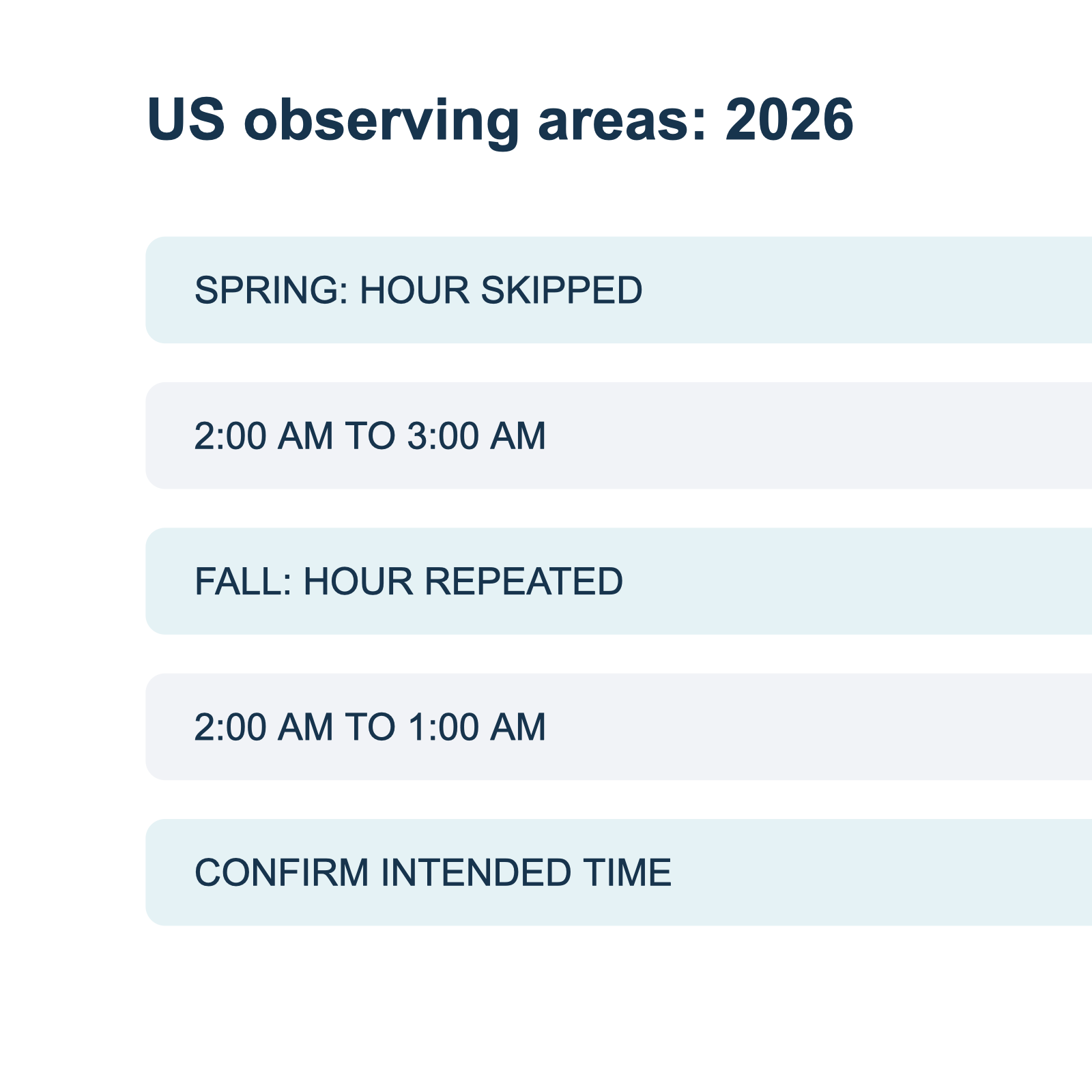
NIST states that, under the US rule for 2026, the spring transition occurs on March 8 at 2:00 AM local time, when clocks move forward to 3:00 AM. A local 2:30 AM in New York is therefore within the skipped hour. The notice does not tell us whether the organizer intended 1:30 AM, 3:30 AM, or another time. Ask for a corrected date and time; do not choose one on their behalf.
A calendar interface may adjust or reject a nonexistent local time. Its behavior is a feature of the destination, not evidence of the organizer's intention. A complete-looking entry should not replace a response from the organizer.
Fall example: a repeated local time
Consider another fictional notice:
Online workshop. November 1, 2026, 1:30 AM in New York. Please join ten minutes early.
NIST describes the US fall transition on November 1, 2026: clocks move from 2:00 AM back to 1:00 AM. The local clock shows 1:30 AM twice. Ask the organizer which occurrence is intended and request a named zone plus an offset or a corresponding UTC time. Keep the answer next to the notice.
The ten-minute arrival instruction is a separate detail. It does not identify which 1:30 AM occurrence the workshop uses. Nor does a calendar's default choice establish the right occurrence. When the organizer confirms, record both the local representation and the corresponding instant so that a later display-zone change can be checked.
Distinguish a zone from an offset
A named zone describes a region with rules that may vary by date. An offset states a relationship to UTC for a particular time. If an organizer gives an explicit offset for one event, retain it; if they give a named zone, check the rules for the event date. Do not silently replace one with a guessed value for the other.
An abbreviation such as "CST" may be ambiguous outside its context. Ask for a city or IANA time-zone name when possible. If the organizer supplies a UTC time, compare it with the local time using a calendar or an authoritative time-zone source, then check that the dates also align. A late event in one zone can appear on the next date in another.
Apple's Calendar guidance explains how the Mac app can display events in different zones. Google Calendar's time-zone guidance explains UTC conversion and cautions that changes to regional rules can affect events. These documents describe their respective destinations; neither can confirm the organizer's intent from an ambiguous notice.
Recurring events need another check
A weekly meeting can retain the same local clock time while its UTC offset changes. Confirm whether the organizer intends a fixed local time or a fixed UTC instant; the two can diverge after a transition. Review at least one occurrence on each side of the change in the destination calendar. Do not infer that a single screenshot authorizes a recurrence rule or its exceptions.
Review the calendar entry
Before saving an event near a transition, compare the whole entry with the confirmed source:
- Verify the event name, date, and location or meeting link.
- Check the organizer's named zone or explicit offset.
- Confirm whether the local time is missing, repeated, or unambiguous on that date.
- Check start and end dates separately if the event crosses midnight.
- Compare the same instant in your display zone and in the organizer's zone.
- Keep reminders and arrival instructions distinct from the event start.
For a simple overnight event, use the date boundary guide. When the date itself is unclear, the event date review template and image-to-calendar field guide provide separate checks for source wording and calendar fields.
Keep the original notice accessible
A structured document can hold the source's wording, a clarification, and the chosen event details together. Recap's documented model begins with a readable document and offers Calendar, Workspace, and Learning as parallel next steps; the client determines the available controls. With a screenshot-to-calendar workflow, review the proposed values against the original before confirming any handoff.
A missing zone is a reason to ask, not a reason to assign the reader's zone to the organizer. Once the organizer answers, retain the response with the event record so you can understand the conversion later.
Continue in Recap
Turn this source into a Recap Document
Make it easier to read, then send time-based details to Calendar, export it to Workspace, or start PBL Learning.