

An event that starts late on one date and ends after midnight needs two calendar dates. If a poster says "Friday, 10:30 PM to 12:30 AM," the end is usually on the following date, but the wording alone may not tell you whether the stated Friday names the start or end. Keep the source open and check what the organizer means before sending an entry.
A calendar can store both dates and times. Your task is to make sure they describe the same occurrence as the notice. Review the event's name, the date attached to the start, the end date, the time zone, and any door or check-in time. If a field remains uncertain, ask the organizer instead of allowing a calendar default to become an apparent fact.
Start with a small boundary record
Write the following beside the source:
| Field | Record |
|---|---|
| Source wording | The exact date and time phrase, including AM or PM. |
| Start | The stated start date and time, with the month written out. |
| End | The stated end time and a separate end date if supported. |
| Time zone | The zone stated by the organizer, or "not stated." |
| Other times | Doors, arrival, check-in, and deadline times, kept separate. |
| Open question | The exact detail to confirm before calendar entry. |
The record helps you distinguish what the notice says from what you infer. It is also useful when you return to a screenshot later and no longer remember why an end date was chosen. The broader event date review template includes the same evidence and status fields for other date ambiguities.
Worked example: a stated overnight range
This example is fictional and was created to show the date boundary:
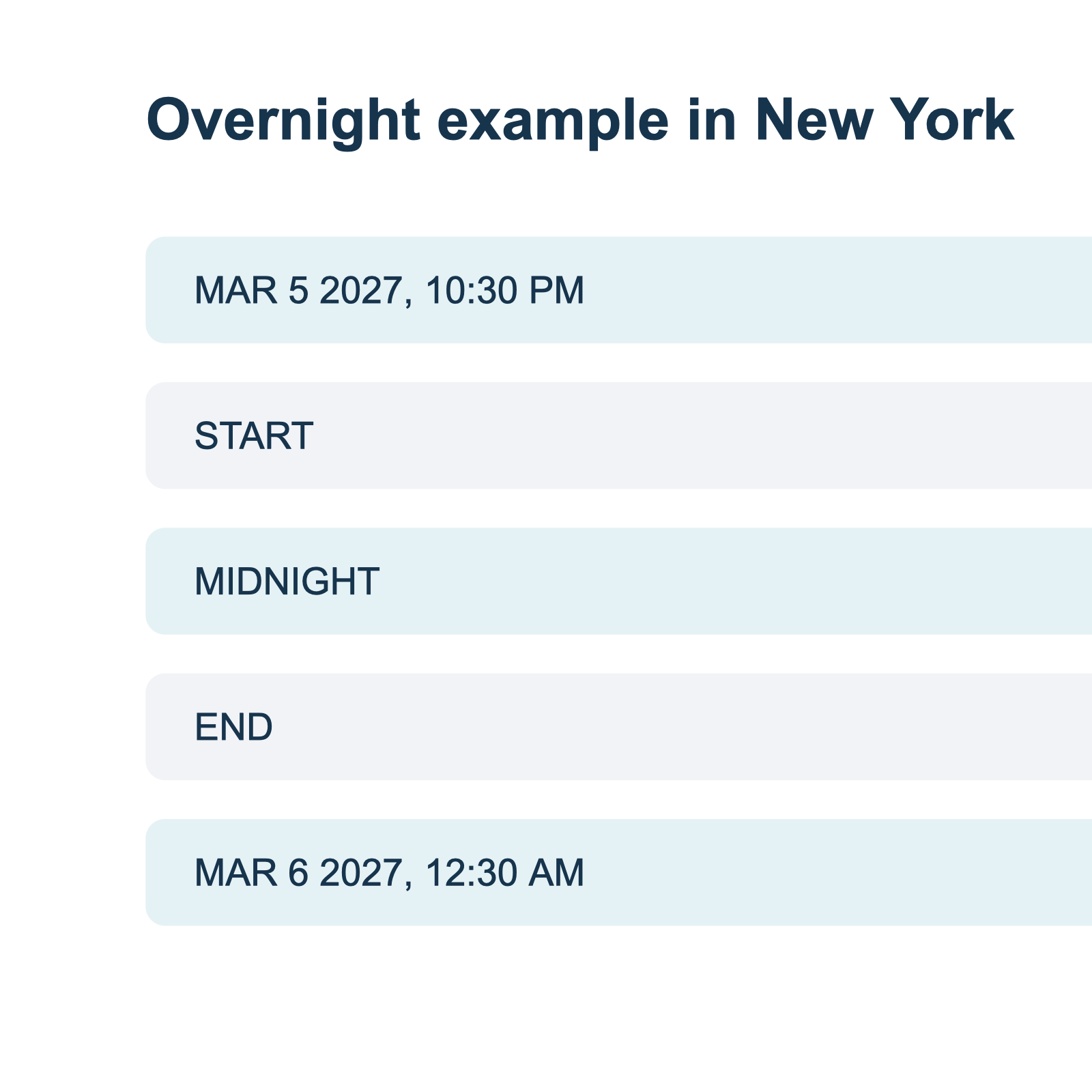
Night market volunteer shift. Starts Friday, March 5, 2027 at 10:30 PM. Ends Saturday, March 6, 2027 at 12:30 AM. Location: Market Hall. Time zone: America/New_York.
The source states both dates. The start belongs to March 5, and the end belongs to March 6. In the stated zone, the interval crosses midnight and is two hours long. The location, time zone, and dates are part of this invented example, not a real event or a promise about an app's extraction.
When entering it, check both the start and end date fields. A form that keeps both dates on March 5 would put the end before the start. A form that changes the end to March 7 would extend the event by a full day. Review the dates and times together before confirming.
The Office for National Statistics date guidance uses written month names in its own content. Writing "March 5" and "March 6" in the record avoids confusing a numerical date with a month/day ordering question. It does not resolve an omitted end date on the original notice.
If the end date is missing
Consider a different fictional phrase: "Friday, 10:30 PM to 12:30 AM." A next-day end is a reasonable possibility, but a safe record should show it as an interpretation until the event's date and context support it. Ask: "Does the shift begin Friday evening and end at 12:30 AM on Saturday?" Include the event name and venue so the answer refers to the right occurrence.
A notice might instead use "Friday night" loosely, or list the start of one session and the end of another. It could also contain a typo. If a current schedule explicitly names the dates, compare the organizer, venue, and session before relying on it. A similarly named event from a previous year is not confirmation.
Do not equate midnight with noon. 12:00 AM conventionally denotes midnight in many interfaces, but the date attached to a printed "midnight" can still be unclear. Ask for a date and a 24-hour time when a deadline or travel arrangement depends on the distinction. If the source says only "doors at midnight," keep that separate from the program's start and end.
Separate the event zone from the display zone
For an online event or travel, the organizer's local time and your own calendar display can differ. A named time zone supplies context that a bare offset or abbreviation may not. Confirm the organizer's zone when the source does not state it, especially near a change to daylight saving time.
Apple's Calendar guidance for Mac explains how an event can use a time zone different from the calendar's display zone. Google Calendar's time-zone documentation describes its use of UTC and warns that changes in zone rules can affect event display. Those are destination-specific instructions. They do not show which zone a particular flyer intended.
A crossing of midnight is not automatically a daylight saving transition. Check the actual date and location separately. In places that change their clocks, a repeated or skipped hour can make a stated time ambiguous even when the date looks clear. The daylight saving check covers that case.
Before confirming a calendar entry
Compare the entry against the notice in this order:
- Confirm that the title and location identify the intended session.
- Read the start date and start time as one value.
- Read the end date and end time as a second value.
- Check the event time zone and the zone used to display it.
- Keep doors, travel, reminders, and registration deadlines in their appropriate fields.
- Leave missing details unresolved until you have evidence or make a clearly labeled personal choice.
If a screenshot has a numeric date such as 03/04, resolve its date order before checking the overnight boundary. The numeric date guide shows how two plausible readings can remain open. If the year is missing, use the missing-year check.
Keep the notice available
A source-to-structured-document workflow can keep the original notice, its extracted details, and your questions together. Recap's documented model gives the reader a document and parallel Calendar, Workspace, and Learning next steps. The specific client and availability still determine which controls can be used.
Before any handoff, compare the proposed calendar fields with the source and your confirmed time zone. If the calendar shows a different local date, verify whether that is a display-zone conversion or a different event before saving it. A change in the displayed date may be expected across time zones, but it must refer to the same instant.
For the calendar fields to review, see the screenshot-to-calendar workflow and image-to-calendar field guide.
Continue in Recap
Turn this source into a Recap Document
Make it easier to read, then send time-based details to Calendar, export it to Workspace, or start PBL Learning.