

A registration deadline screenshot often contains two different commitments: when you must apply and when you will attend. Put each stated date in the right place, then choose a separate personal reminder if you need time to prepare. Do not turn the event date into an application cutoff or invent a closing hour when the notice gives only a day.
This guide uses a fictional workshop notice to separate those decisions. The method is a review worksheet for your own calendar, not a claim that an extraction tool knows an organizer's unstated deadline. Keep the original notice accessible so you can check dates and conditions before registering.
Identify the deadline's verb
Look for the action attached to the date. "Applications close," "pay by," "confirm attendance," and "workshop begins" describe different things. A notice can contain all of them. Read the surrounding sentence instead of collecting every date into one undifferentiated event.
Write the action in the title of your planning item. "Submit workshop application" is clearer than "Workshop" when the date is a cutoff. If you use a calendar event to mark a task-like deadline, preserve that meaning in its notes. Do not imply that the calendar entry itself submits an application.
Check whether the notice states a timezone, a required document, or a confirmation step. Those details can affect what you must finish before the cutoff. Preserve them as source facts rather than adding a generic preparation list that the organizer never requested.
Separate a fictional notice into three records
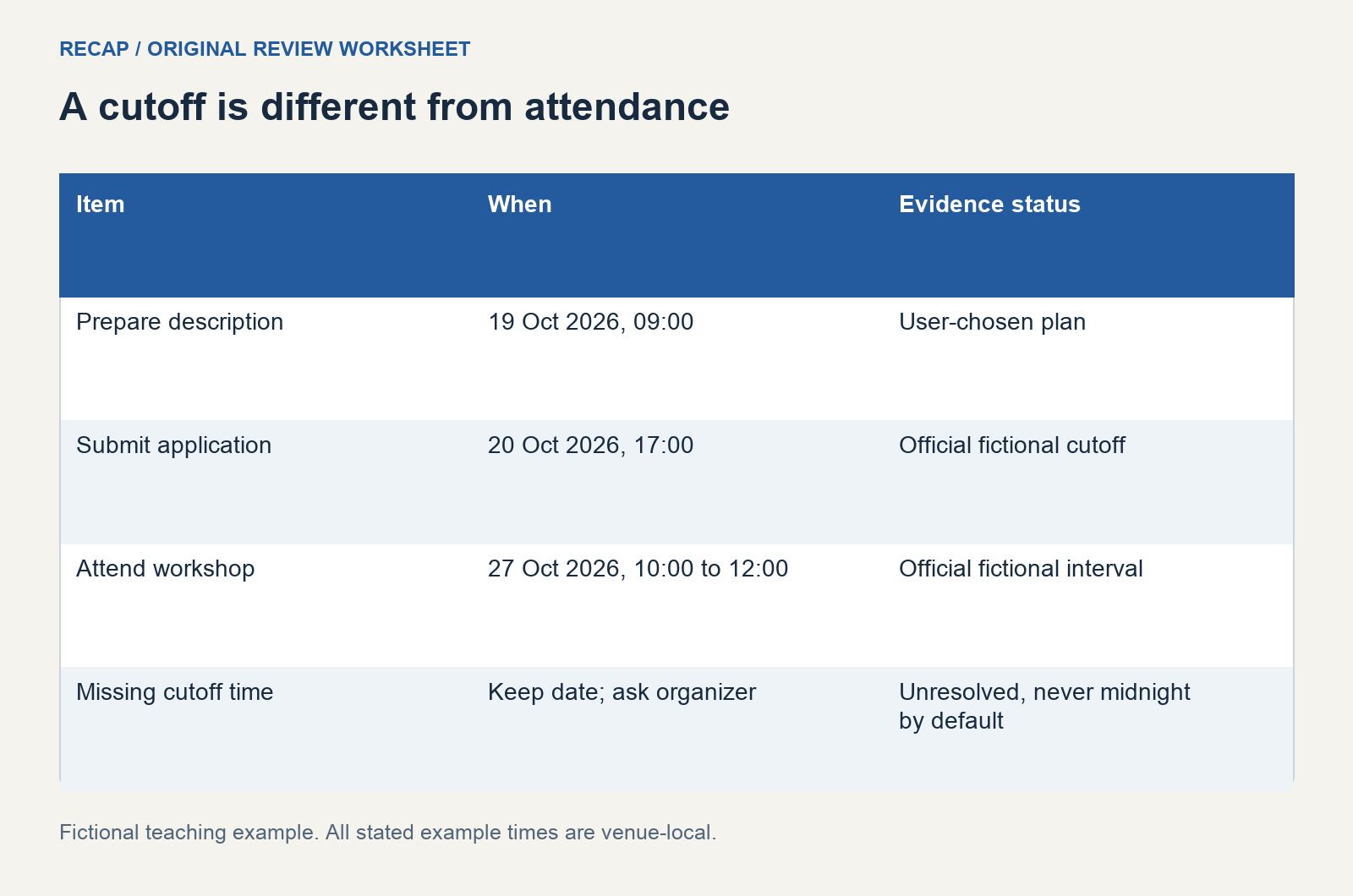
Our fictional notice says: "Applications close Tuesday 20 October 2026 at 17:00 venue-local time. Workshop: Tuesday 27 October, 10:00 to 12:00. Include a one-page project description."
The official cutoff and the attendance interval are both explicit. A preparation reminder is optional and chosen by the reader.
| Item | Date and time | Where it comes from |
|---|---|---|
| Submit application | 20 October, 17:00 | Official fictional cutoff |
| Attend workshop | 27 October, 10:00 to 12:00 | Official fictional attendance details |
| Prepare project description | 19 October, 09:00 | User-chosen planning time |
The last row does not become an organizer requirement simply because it appears beside the other two. Label it as your plan. In a real notice, retain the organizer's actual timezone instead of copying the venue-local assumption used for this example.
Handle a date without a cutoff time
Consider another fictional notice: "Registration closes 20 October." It gives a date, but it does not establish whether the form closes at noon, at the end of office hours, or at midnight in a particular timezone. Preserve the date and ask for the missing cutoff when your decision depends on it.
An all-day calendar marker can make the date visible without pretending you know the hour. Google's event creation help describes creating an all-day event. Use its notes to record "cutoff time not stated" and the organizer question you need answered. The date-only deadline guide separates this visibility marker from a true cutoff.
If you choose to prepare or submit earlier, record that as your personal plan. Earlier action may be practical, but it does not resolve the missing official time. This distinction also helps when sharing the notice: other people should be able to tell which details came from the source.
Choose a reminder that fits the work
A reminder should prompt an action you can actually take. If registration requires a project description, a notification at the exact cutoff may arrive too late to help you write it. You can choose an earlier preparation time and another check before submitting, based on your own availability.
Keep these choices separate from the official deadline. Google's notification guidance treats notifications as settings for your calendar use. A notification is not evidence that the organizer will hold a place or keep a form open.
Check which calendar and account the item belongs to, then inspect its reminder settings. If the entry is all-day, its notification behavior can differ from that of a timed event. Verify the setting in your actual destination rather than relying on the reminder timing from a previous item.
Record completion separately from attendance
Saving the application cutoff does not prove you submitted the form. When you finish registering, keep the confirmation evidence where you can find it. Record whether your application is received, accepted, waitlisted, or still pending using the wording of the actual receipt.
An attendance event can remain provisional until the organizer confirms your place. Keep that status visible instead of making a registration reminder look like a confirmed booking. If the event requires a later payment or attendance confirmation, record that separate action when the source states it.
Do not put sensitive application details in a shared calendar. A short title and a private source link can preserve the workflow without exposing your form contents. Check who can see descriptions before pasting booking references or personal information into an entry.
Review an extended deadline without moving the event
Suppose a fictional update says: "Applications now close 22 October at 17:00. Workshop details unchanged." Compare it with the original notice. The application cutoff changes; the workshop still takes place on 27 October.
Find the deadline entry before editing. If you also created a preparation reminder, decide whether it should move based on your own plan. The organizer's extension does not instruct you to postpone your preparation. You may prefer to complete it on the original day.
Use the schedule change review template to retain old and new cutoff values. If the revision does not mention timezone or attendance, check whether the original details remain applicable rather than replacing them with assumptions. Record any ambiguity that would affect submission.
Check the saved calendar and the source
After saving, inspect the application item and the attendance event independently. Verify their titles, dates, intervals, and notes. Make sure the deadline did not inherit the workshop's duration, location, or attendee list merely because both came from one screenshot.
Then compare the saved items with the notice once more. If a field came from your own planning choice, label it. If a field is missing from the source, leave the uncertainty visible. A clean-looking event should not hide an unanswered registration question.
The date and time extraction guide covers ambiguous date wording, while Screenshot to Calendar explains the source-processing use case. Keep the readable notice and the deadline record together until the action is complete. The useful result is an application cutoff you can verify, a distinct attendance plan, and evidence of whatever registration step you actually finished.
Continue in Recap
Turn this source into a Recap Document
Make it easier to read, then send time-based details to Calendar, export it to Workspace, or start PBL Learning.