

A flight itinerary can show a departure in one local time and an arrival in another. Both clock readings may be correct, even when the difference between them does not look like the flight's duration. Before adding the flight to your calendar, keep each date, place and time together with its verified time zone.
The itinerary below is fictional. Use the operating airline's current confirmation for your booking and check its status again before travel.
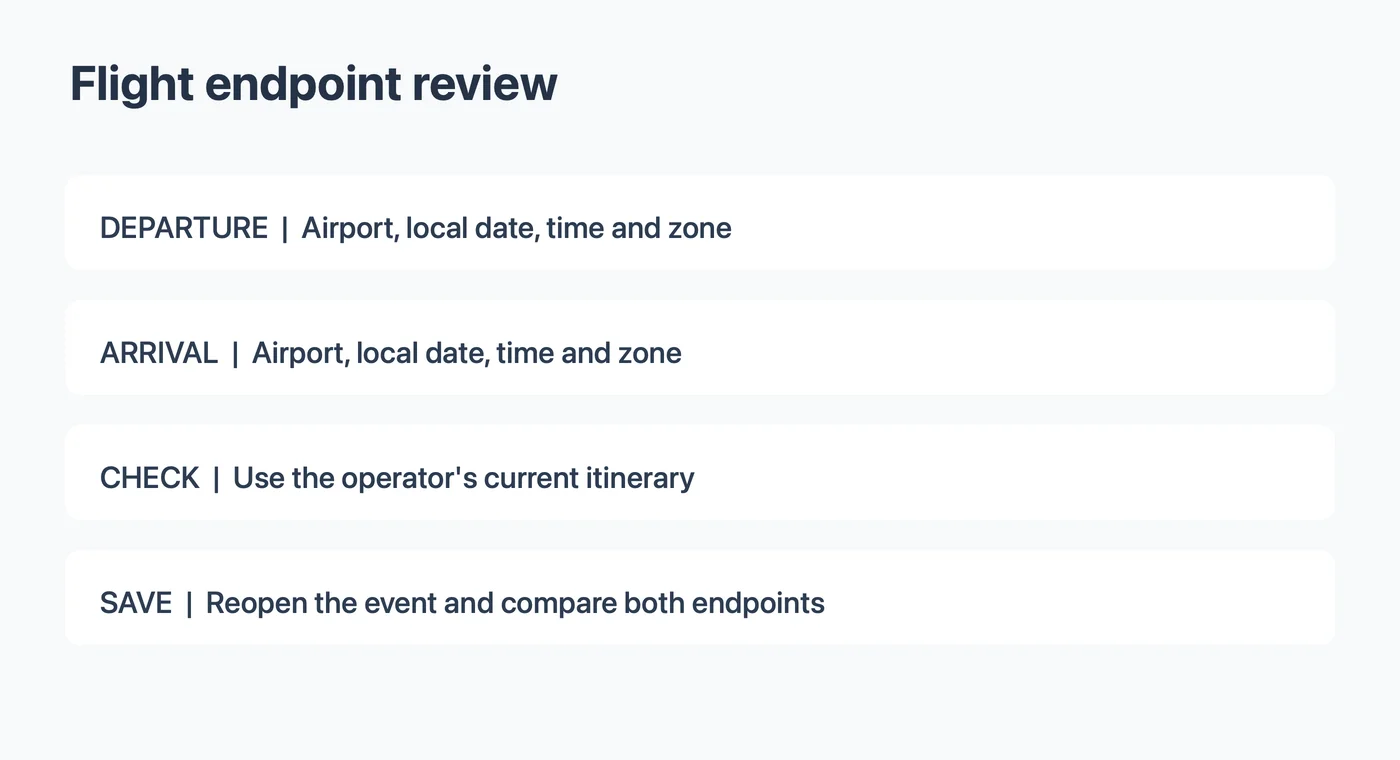
Record each end of the journey
Find the departure airport, departure date and time. Then find the arrival airport, arrival date and time. Copy the labels as well as the values. Booking dates, boarding times and scheduled departures can appear in the same message but describe different things.
| Field | Departure | Arrival |
|---|---|---|
| Airport and city | Copy from itinerary | Copy from itinerary |
| Local date | Include year | Include year; check for next-day arrival |
| Local clock time | Preserve AM or PM | Preserve AM or PM |
| Time zone | Verify for the departure location and date | Verify separately for the arrival location and date |
| Current status | Check the operating airline | Check for a revised arrival if available |
Do not treat an empty time-zone field as permission to use your current location. A traveler creating the event at home may be in neither the departure nor the arrival zone. If the reservation uses an abbreviation, identify the intended zone from the provider's information and travel date. See the time-zone abbreviation checklist for a way to keep uncertain values visible.
Worked example: a fictional flight
Imagine an invented booking with the following text:
AB 204 departs Harbor City on September 18, 2027 at 10:30 AM local time and arrives Lake City on September 18 at 1:15 PM local time.
The cities, flight number and times are fictional. The wording provides two dates and two local clock readings, but it does not specify the actual time zones. Your register should say “zone not confirmed” at both ends until you verify them. It would be a mistake to calculate a duration by simply subtracting 10:30 from 1:15 and present the result as the flight duration.
If the provider later supplies verified zones, use the departure zone with 10:30 AM and the arrival zone with 1:15 PM. Then inspect the event in the calendar you use. A calendar displaying your home zone may show a different clock time from the airline's local departure time while still representing the same moment. Compare the event details and zones, not just the month-view label.
| Item | Stated in fictional source | Review status |
|---|---|---|
| Departure | September 18, 10:30 AM, Harbor City local | Zone needs confirmation |
| Arrival | September 18, 1:15 PM, Lake City local | Zone needs confirmation |
| Boarding | Not stated | Do not invent it |
| Flight duration | Not stated | Do not derive it from local clocks alone |
Create the event using verified zones
Some calendars support a different time zone for each endpoint. On a computer, Google Calendar documents separate start and end zones. Enter the verified departure date, time and zone as the start and the verified arrival date, time and zone as the end, following the controls in your calendar. Then save and reopen the event to check both ends.
Apple Calendar on Mac documents individual event time-zone support. The available controls and display can differ by app and device. If you cannot represent both ends accurately, use the calendar's documented controls or record clear separate departure and arrival reminders. Do not silently replace the arrival's local clock time with a time in the departure zone.
For a long journey, verify the arrival date as well as the time. A flight that crosses midnight or the international date line may have a different local arrival date from the date on which it departed. Use the booking's stated date, and ask the airline if it is unclear. Do not infer the date merely from the apparent order of the clocks.
Check boarding and check-in separately
A calendar entry for the flight is not a substitute for check-in. A notice may include a check-in opening, check-in deadline, boarding time and departure time. Each can apply to a different action. Label them separately if you choose to create reminders.
American Airlines' check-in guidance describes its own check-in rules and airport exceptions, while other operating airlines set their own requirements. Read the instructions that apply to your itinerary. Your reminder alert is a personal planning choice, not the airline's deadline.
For connecting travel, create a separate row for each leg and check the transfer point. The airline may change gates or schedules, and its partner guidance advises checking the operating airline for the latest details. A screenshot is a record of what was visible when it was captured, not a live status feed.
Review a flight screenshot
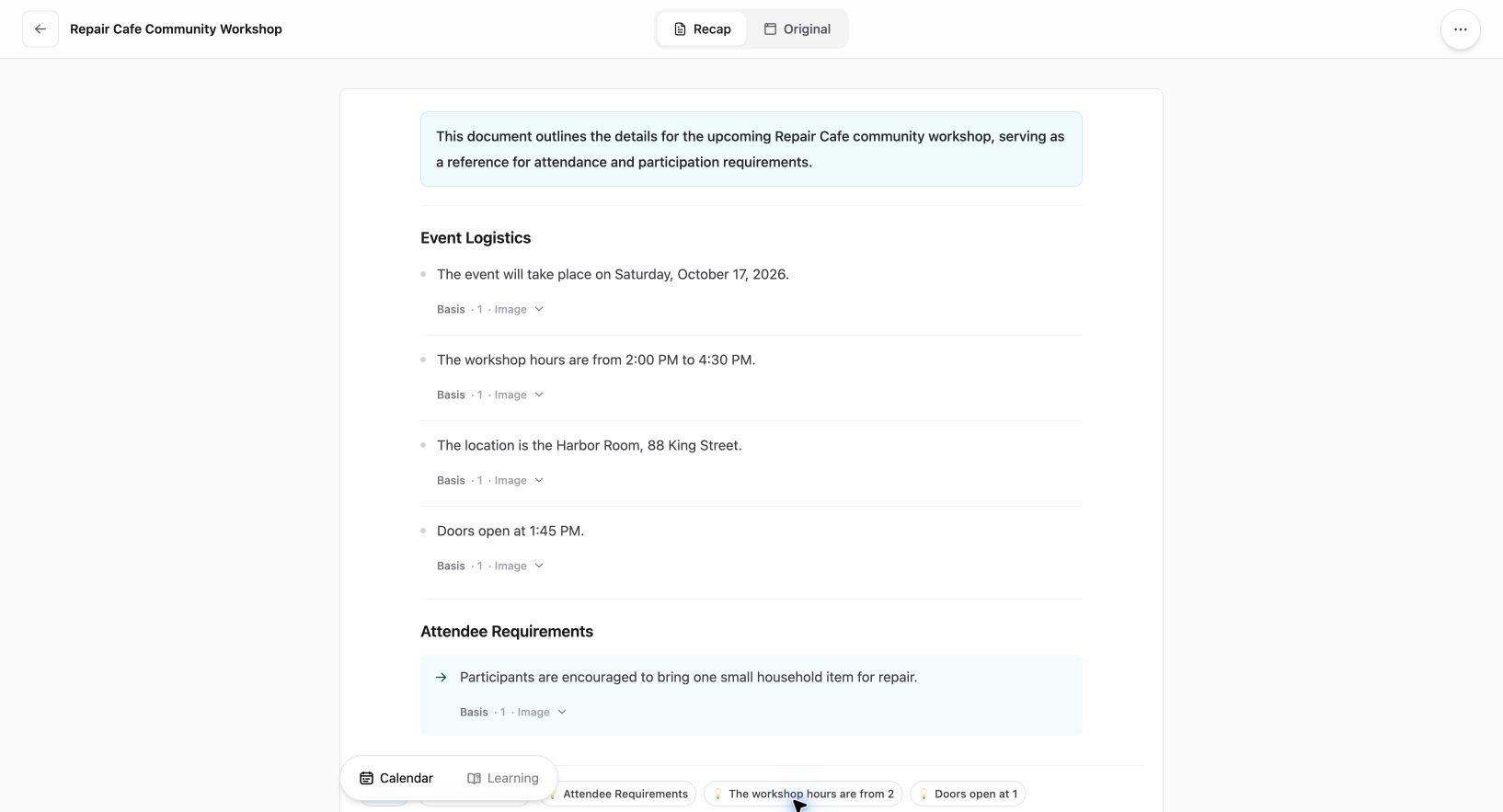
Current Web interface shown with an existing fictional workshop source; this is not a travel extraction example.
If the itinerary is an image, retain the original while you create a readable record. Recap's screenshot-to-calendar tool starts with a source; review the resulting document against the confirmation. If you open a Calendar Sheet, compare the proposed title, dates and times with your source. Correct or cancel it if a value is uncertain, and verify the time-zone settings and the saved event in your own calendar.
The image-to-calendar field guide provides a wider review checklist. A generated document is a useful place to read source details, but it does not confirm a flight's status or change a reservation. Do not assume it has extracted both endpoint zones correctly without checking.
Before sharing an itinerary image, remove booking references, passenger names and other information that does not need to be shared. A shared calendar may also reveal details in event titles or notes. Keep the full booking in an appropriate private place.
Final comparison before travel
Open the current operating airline itinerary and your saved calendar event side by side. Check the departure airport, date, local time and zone; repeat for arrival. Confirm whether a later message changed the schedule, and review boarding and check-in instructions separately.
When the calendar looks different from the ticket, first check which zone the calendar is displaying. If the event details still do not agree with the current booking, correct them or leave the event unsaved until you can resolve the difference. The goal is a calendar that points to the right moments while preserving the airline's local information.
Learn more about the source-first result in what a Recap Document contains.
Continue in Recap
Turn this source into a Recap Document
Make it easier to read, then send time-based details to Calendar or start PBL Learning.