

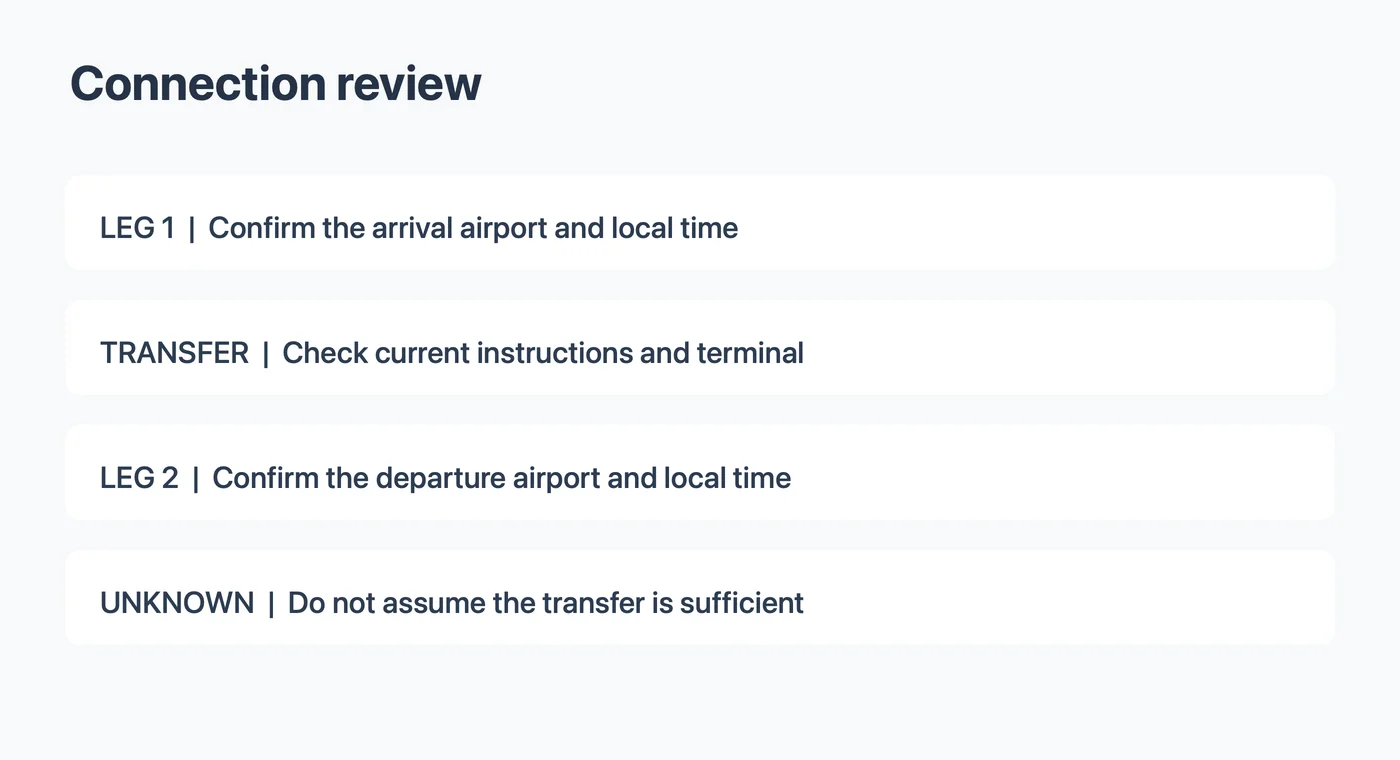
A connecting itinerary has at least two flights and a transfer between them. A single screenshot can make the trip look like one long event, but each leg has its own departure, arrival, airport and local time. Reviewing each leg separately helps you spot a missing date or an unclear connection before you put anything on your calendar.
This guide uses a fictional example. Check the operating airlines' current itinerary and instructions for your own trip, especially close to departure. Check flight status with the operating airline.
Start with one row per flight
For each leg, copy the flight identifier, operating airline, departure airport, arrival airport, scheduled local date and time at each end. Include the year and verify the relevant time zones. Then record the transfer airport and the period between the first arrival and the second departure as a separate review item.
| Review field | First leg | Second leg |
|---|---|---|
| Operating airline and flight | Copy the current reservation | Copy the current reservation |
| Departure airport and local date/time | Record together | Record together |
| Arrival airport and local date/time | Record together | Record together |
| Start and end time zones | Verify each endpoint | Verify each endpoint |
| Terminal or gate | Record only if stated; check for changes | Record only if stated; check for changes |
| Unresolved details | Note conflicts or missing values | Note conflicts or missing values |
If the two legs use different operating airlines, the current information for each flight may come from a different source. American Airlines' partner-airline guidance recommends checking the operating airline for up-to-date departure times, gates and delays. It also notes that a connection may require a terminal change or additional procedures. The exact requirements depend on the trip.
Worked example: a fictional connection
Imagine this invented itinerary:
AB 204 departs Harbor City on September 18, 2027 at 8:00 AM and arrives Lake City at 10:00 AM. CD 312 departs Lake City at 11:45 AM and arrives Hill City at 2:15 PM. All times are local to the named airport.
These cities, flight numbers and times are fictional. They do not describe a real route, and no time zones are supplied in the example.
| Item | Source wording | What remains to check |
|---|---|---|
| First leg | Harbor City 8:00 AM to Lake City 10:00 AM | Endpoint zones and current status |
| Connection | Arrival 10:00 AM; next departure 11:45 AM at Lake City | Actual transfer requirements and current gate information |
| Second leg | Lake City 11:45 AM to Hill City 2:15 PM | Arrival date, endpoint zones and current status |
The first arrival and second departure are shown at the same fictional airport on the same date. Their displayed gap is one hour and 45 minutes. That arithmetic does not establish that the connection is sufficient. The traveler still needs the provider's actual instructions and any relevant airport procedures. If the reservation omits a date or names two different airports in the same metropolitan area, leave the transfer unresolved until verified.
Check the transfer point
Compare the arrival airport of the first leg with the departure airport of the second. Similar city names do not prove they are the same airport. Look for terminal details, whether baggage handling is addressed, and whether the itinerary has instructions for the transfer. Do not invent baggage or immigration rules from a generic checklist.
A calendar entry can carry a note such as “Check the operating airline for the current gate.” Avoid recording a speculative gate as a confirmed fact. Gate information and flight status may change after a screenshot is captured. When a provider issues a change, compare its current itinerary with each event and update your calendar yourself.
A planned connection interval is different from a deadline to board. If the ticket gives an explicit gate or boarding instruction, record it under its own label. If it does not, consult the operating airline rather than assuming a universal number of minutes.
Choose calendar entries
One event per leg makes changes easier to review. Give each a clear title such as “AB 204: Harbor to Lake” and preserve the relevant airport names. Enter each endpoint using its verified local date, time and zone. If a leg crosses midnight, check the stated arrival date rather than assuming it is the same date as departure.
On a computer, Google Calendar supports separate start and end zones. Apple Calendar on Mac documents time-zone support. Calendar applications differ, so verify what your own editor supports and reopen each saved event. A month view may display both times in your current viewing zone rather than the local zone printed by the airline.
A separate personal reminder for the transfer can be helpful, but label it as your own reminder. It should not suggest that the connection time or gate has been guaranteed. Avoid putting booking codes or passenger details into a calendar shared with people who do not need them.
Handling changes and missing information
When a flight changes, check whether the update applies to one leg or the whole itinerary. Record the source and timestamp of the new information, then compare each calendar event. Do not assume a calendar entry updates itself when an airline changes a reservation.
If an arrival date or zone is absent, check the full reservation or contact the provider. If you have only a cropped image, obtain the missing part instead of guessing. When the two legs appear to overlap, verify both zones and dates before concluding that the connection is impossible; local clock readings alone can be misleading.
Review a screenshot with Recap
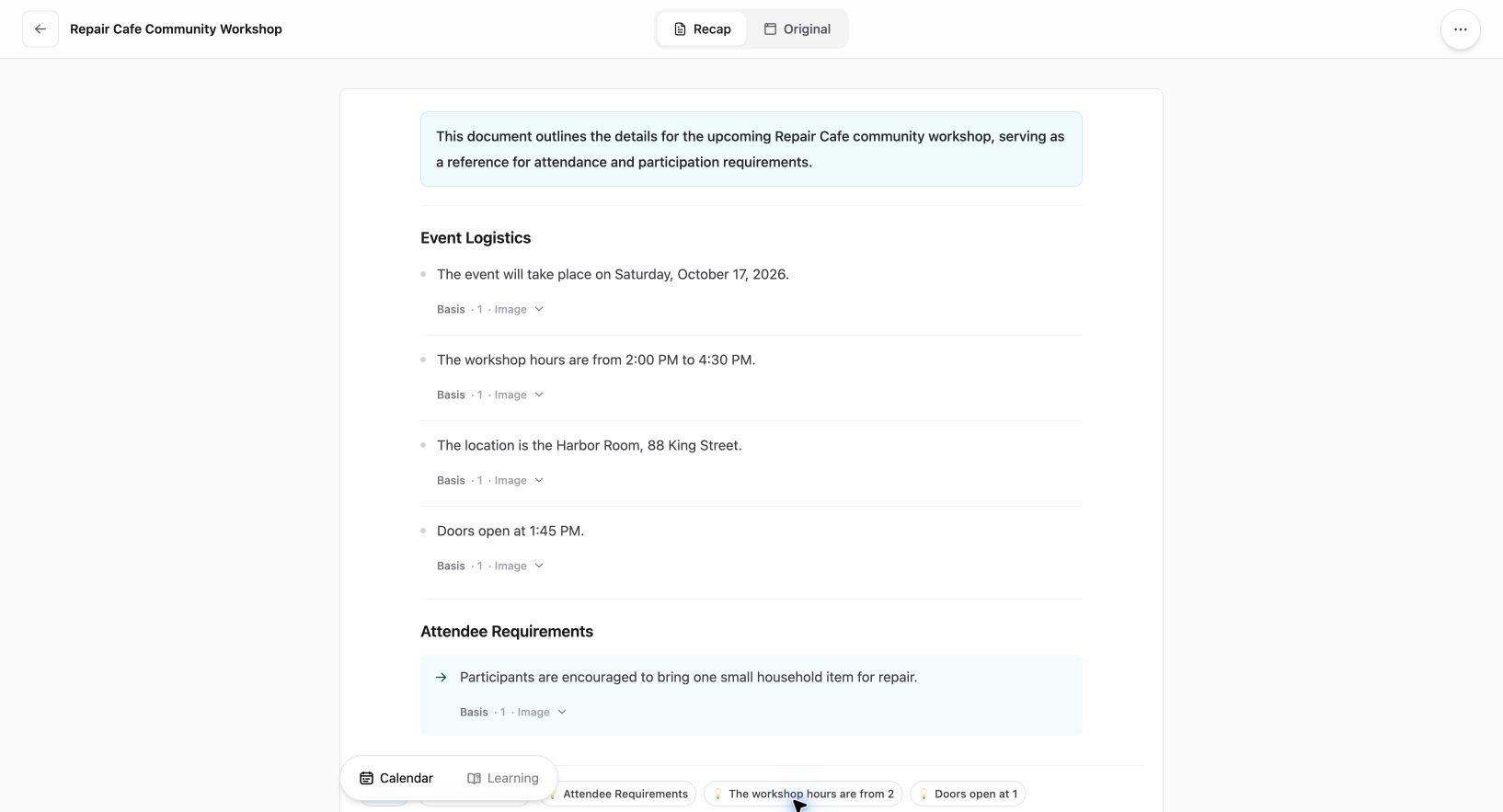
Current Web interface shown with an existing fictional workshop source; this is not a travel extraction example.
A screenshot can be the starting source for a readable document. Compare the Recap Document with the original itinerary and use the per-leg register above to check what is present and what is missing. The screenshot-to-calendar tool and image-to-calendar field guide explain how to review event details.
If you open a Calendar Sheet, inspect the proposed title, date and time before sending; edit or cancel an uncertain proposal. Verify the saved event and time zone in the destination calendar. This does not establish that every leg will be extracted or that a changed flight will update automatically.
Mask booking references and names before sharing an image. Keep access to the original reservation and the operating airlines' current information.
Final check
Before travel, compare each leg's airport, local date and time with the latest itinerary. Check the transfer airport and any stated terminal or boarding instructions. Reopen your calendar events to confirm the zones and make any necessary corrections. Leave an unresolved item visible until the provider supplies the answer; a blank field is easier to revisit than a guessed connection presented as fact.
For another example of separating multiple items in one source, see two sessions on one notice. Learn more about Recap Documents.
Continue in Recap
Turn this source into a Recap Document
Make it easier to read, then send time-based details to Calendar or start PBL Learning.