

When a notice lists two sessions, give each session its own review row before creating calendar entries. Two printed dates establish two listed occurrences. They do not, by themselves, establish a weekly recurrence, a shared duration, or a requirement to attend both.
Preserve the session labels, dates, start and end details, and attendance instructions. Then decide which sessions you intend to attend. A calendar's repeating-event controls can be useful when the source states a repeat rule, but they should not fill gaps in the notice.
Read the sessions independently
Consider this fictional notice: "Portfolio clinic. Session A: November 10, 2026, 10:00 to 11:00. Session B: November 17, 2026, starts at 10:00; finish to be confirmed. Online access instructions follow after registration. Choose the session that suits you."
The dates happen to be seven days apart. The notice still says to choose a session and gives different duration information for each. It does not say that the clinic continues weekly, that both sessions cover the same material, or that a single registration covers both.
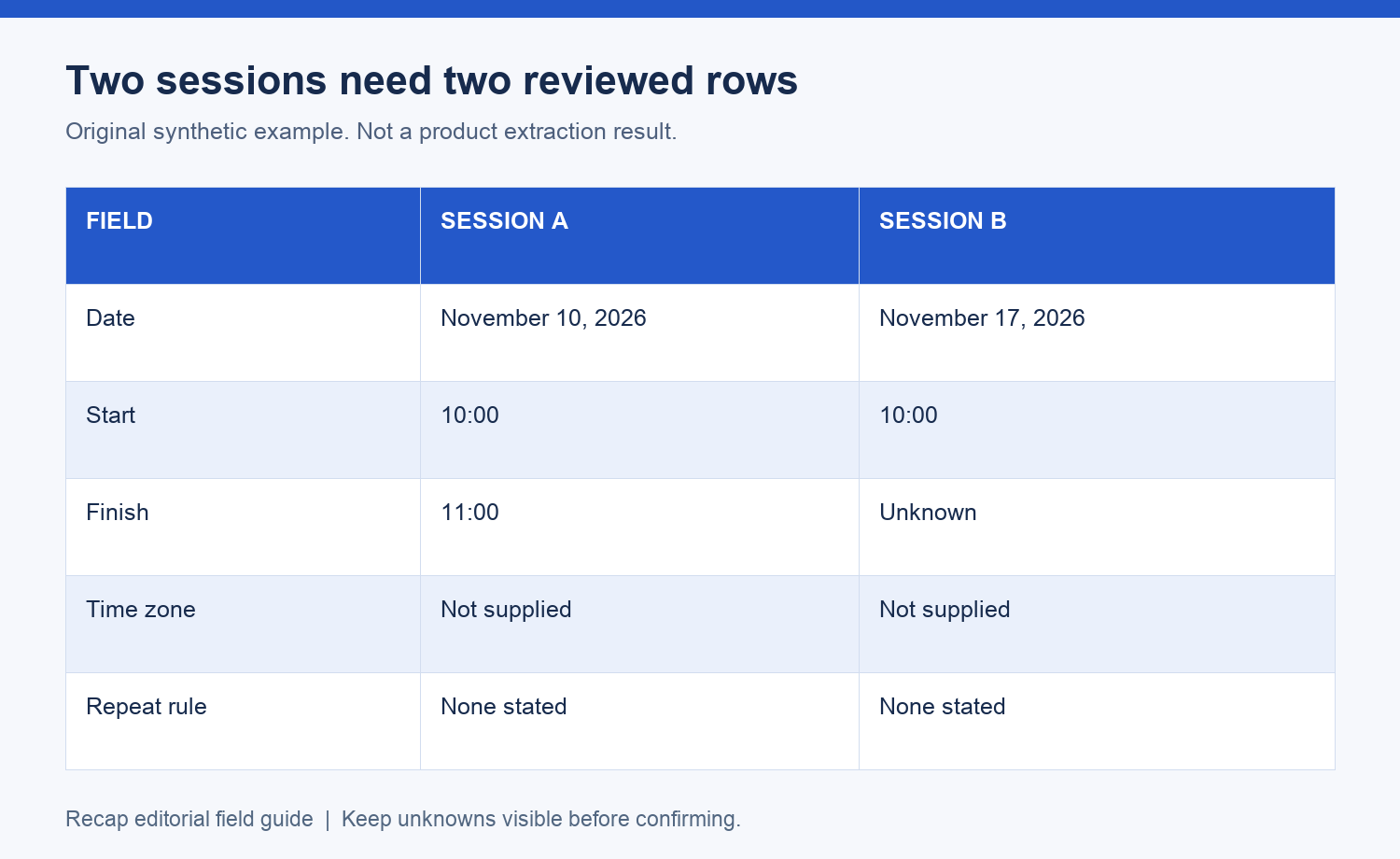
Use a small occurrence record:
| Field | Session A | Session B |
|---|---|---|
| Date | November 10, 2026 | November 17, 2026 |
| Start | 10:00 | 10:00 |
| Finish | 11:00 | Unknown |
| Time zone | Not supplied | Not supplied |
| Access | Instructions after registration | Instructions after registration |
| Attendance | Choose if suitable | Choose if suitable |
| Repeat rule | None stated | None stated |
These are original synthetic details for the example, not an extraction test. The calendar review template provides a fuller record when you also need locations, source revisions, or a personal reminder.
Keep shared context without copying assumptions
The notice gives one title and one instruction about access. You can retain those shared statements in both rows. The different end-time information must remain different, however. Copying Session A's finish into Session B would introduce a value the source never supplied.
The same check applies to physical venues. A two-session flyer may use a shared heading with a different room beside each date. Keep each local detail attached to its own session. If the layout makes it unclear whether a statement applies to both, preserve the uncertainty and ask.
Record the source section or image area for each row. A single flyer can support both rows while still containing different details. You do not need to create a fictional second source to explain that relationship.
Decide what you are attending
The example says to choose a session. Your attendance decision is therefore separate from the list of available dates. Mark the row you intend to attend and keep the other as an option until you no longer need it.
If you are unsure whether both are required, ask before reserving both as firm commitments. A useful question is: "For the portfolio clinic, should attendees choose either November 10 or November 17, and does each session need its own registration?" Include a source link or title when possible.
Do not infer that two sessions have identical content from their shared title. They might be alternatives, stages of a course, or sessions for different groups. The source must establish that relationship if it affects your decision.
Choose separate entries or an explicit series
For two irregular or alternative sessions, separately reviewed entries keep the differences visible. Create only the entries that serve your actual plan. If you keep an optional session in your calendar, label it as optional so a later glance does not turn it into a commitment.
Both Apple's repeating-event guide and Google's recurring-event guide document recurrence controls. Use a series when you have a supported repeat pattern and stopping point. Two dates alone do not supply that rule.
If a notice explicitly says "every Tuesday for six weeks," record the stated start, repeat pattern, end condition, and any exceptions before using those controls. If it only lists two Tuesdays, retain the list. A neat series in a calendar can otherwise create extra dates that the organizer never announced.
Resolve the missing details per session
In the fictional notice, both time zones are unconfirmed and Session B has no finish. Ask for the event zone and the second session's expected end. Do not assume the first answer covers a later rescheduled session unless the organizer makes the scope clear.
The missing-end-time guide explains how to label a personal hold while the organizer finish remains unknown. A hold can help your planning, but the provisional duration should not be written into the source-fact column.
When joining instructions arrive, check whether they apply to the selected session. A confirmation for November 10 may not be valid for November 17. Keep private access details out of public worksheets, and avoid forwarding another attendee's link as if it were a public registration route.
Review later changes without updating the wrong occurrence
If a later message changes one date, identify the session label before editing. "The clinic is now at 11:00" is incomplete if you hold two rows. Ask which occurrence changed and whether the finish moved too.
For entries in an existing repeating series, inspect the destination's scope prompt. Google's guide documents choosing which events an update applies to. The source should justify that scope; do not change future occurrences simply because the editor offers the option.
Keep a brief correction record with the changed value, source reference, and affected session. This makes it possible to explain why the two entries now differ. It also helps avoid adding a duplicate when you intended to revise an existing event.
Keep the original source available
Recap turns one source into a structured readable document, then offers Calendar, Workspace, and Learning as parallel next steps. The screenshot-to-calendar page gives an image-oriented starting point. Review any prepared calendar details against the specific session before confirming an action.
The image field guide covers the broader field check. A document can preserve the full notice and both session rows while your attendance decision remains open. Exporting the document or exploring it in Learning does not require treating both dates as confirmed appointments.
After creating entries yourself, inspect the calendar dates separately. Confirm that the selected session has the correct title and reviewed timing, the optional session is clearly labeled if retained, and no extra weekly occurrences appeared. Keep the organizer's response with the record when it resolves a missing field.
Continue in Recap
Turn this source into a Recap Document
Make it easier to read, then send time-based details to Calendar, export it to Workspace, or start PBL Learning.