

A hotel confirmation usually gives you a stay date, a check-in time and a check-out time. Those details do not necessarily describe one continuous appointment. The stay may be useful as an all-day calendar entry, while check-out is a specific deadline. A check-in start time usually describes when a room may become available, not the exact moment you must arrive.
Review the reservation before adding any of those values to your calendar. The examples below are fictional; use your property's current confirmation for your own dates and conditions.
Separate the stay from the actions
Start by locating the property name, address, arrival date and departure date. Then look for the stated check-in and check-out times, the local time zone, and any instructions that apply to your arrival. Keep the words beside the numbers: “check-in from 3 PM” and “arrive by 3 PM” describe different obligations.
A useful review table is:
| Field | What to copy | Question to resolve |
|---|---|---|
| Property | Name and address | Is this the booked property, not a nearby branch? |
| Stay dates | Arrival and departure dates | Does the confirmation state both dates and the year? |
| Check-in | Any stated start or arrival window | Is early or late arrival confirmed? |
| Check-out | Any stated deadline | Does a confirmed exception apply to this booking? |
| Local time zone | Property location and verified zone | Does the calendar event use the right zone? |
| Source | Booking confirmation and latest changes | Is there a newer message from the property? |
If an item is absent, mark it unknown. Do not take a familiar time from another hotel and insert it into this booking.
Marriott's guidance on early check-in and late check-out explains that information varies by hotel and that early check-in is subject to availability. That is useful context for a Marriott booking; it is not a universal rule for every property or a guarantee for your reservation.
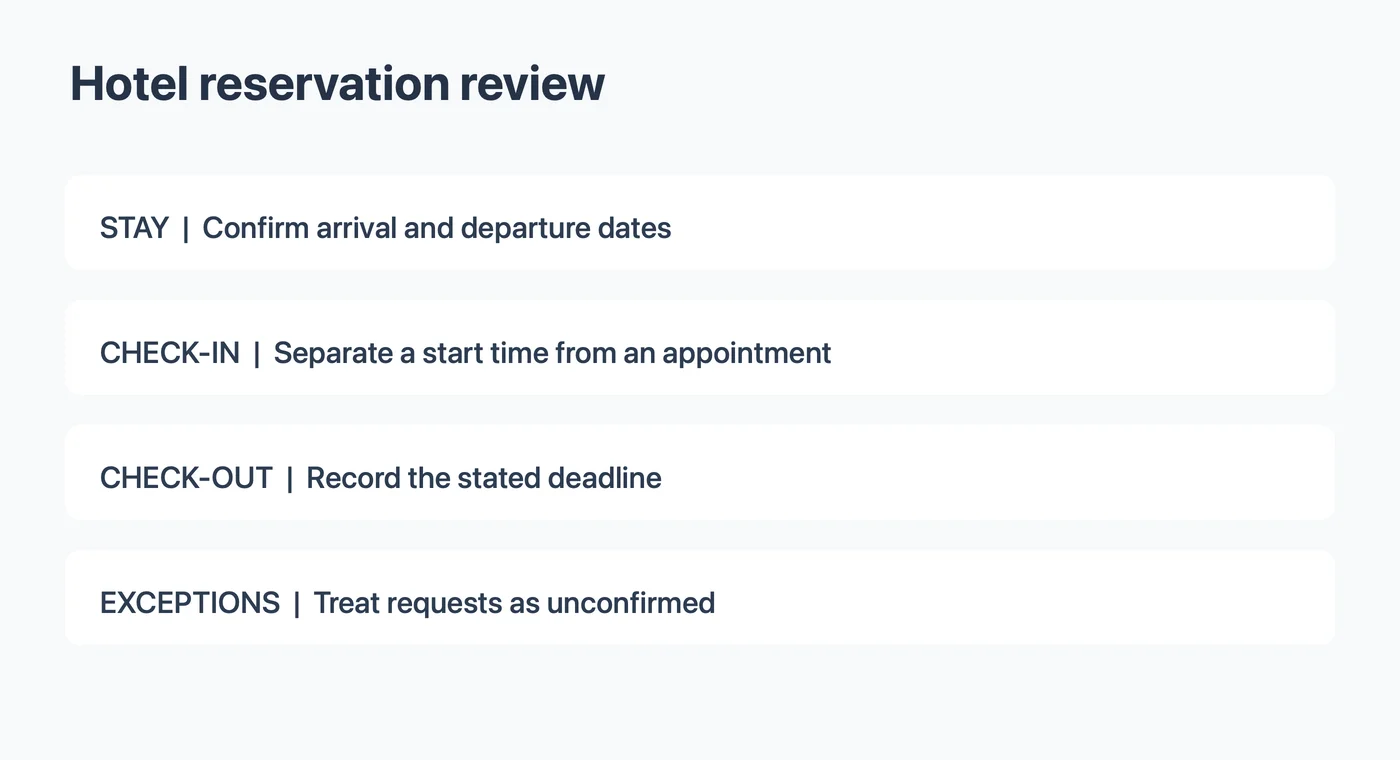
Worked example: a fictional reservation
Suppose an invented confirmation says:
Harbor House, November 7 through November 9, 2027. Check-in begins at 3:00 PM. Check-out by 11:00 AM. For arrival after 9:00 PM, contact the property.
The property, dates and times are made up for this example. A traveler could record the stay as an all-day item, add a check-out reminder for November 9 at 11:00 AM local time, and keep the late-arrival instruction in a note. If the traveler expects to arrive at 10:00 PM, the next step is to contact the property; the screenshot does not confirm that late arrival is accepted.
| Item | From the fictional source | Personal decision |
|---|---|---|
| Stay | November 7 to November 9 | Add a stay note if it helps with planning |
| Check-in | Begins November 7 at 3:00 PM | Do not treat 3:00 PM as a mandatory appointment |
| Late arrival | Contact the property after 9:00 PM | Ask the property and retain its answer |
| Check-out | November 9 by 11:00 AM | Add a timed reminder if useful |
| Time zone | Not stated in the example | Verify the property location and zone |
This table separates what the confirmation says from your calendar choice. It also leaves the time zone unresolved instead of assuming that the city where you are making the entry is the city of the hotel.
Check the dates in an all-day entry
All-day and multi-day events are convenient for marking where you will stay, but calendar interfaces can represent the end boundary differently. After saving, inspect the event in the destination calendar and make sure the visible dates match the reservation. Avoid interpreting a calendar's visual span as a change to the booking.
If you prefer two separate markers, create one for arrival and one for departure. Give them distinct names such as “Hotel stay begins” and “Hotel check-out.” A stay marker provides context; a timed check-out reminder can tell you when you need to act.
Do not infer a check-out hour from the number of nights. If the confirmation lists only departure date, the deadline remains unknown until you check the property's policy or ask the hotel. An all-day note can record the date without pretending that a specific hour has been verified.
Review the local time zone
The property's time zone matters when you make the entry from another location. Confirm the city and date first, then choose the appropriate zone in your calendar. A screenshot that says only “3 PM” does not explain which time zone was intended unless the surrounding reservation makes that clear.
Google Calendar's computer instructions explain event time zones and local display. Apple Calendar on Mac documents time-zone support for individual events. Check the controls available on your own device, then reopen the event and compare it with the property confirmation. A calendar may display the same event differently when your viewing zone changes.
Handle early and late requests separately
If you request early check-in, record it as a request until the hotel confirms it. Do the same for late check-out. A message saying the request has been received is not necessarily a confirmed exception. Keep the hotel's reply with the reservation and update your reminder only when you have a clear answer.
An expected arrival time can also be a personal plan rather than a hotel requirement. If a hotel asks to be notified after a certain hour, create a reminder to contact it, not a fictional fixed check-in appointment. If the instructions are unclear, ask the property directly.
From screenshot to reviewable document
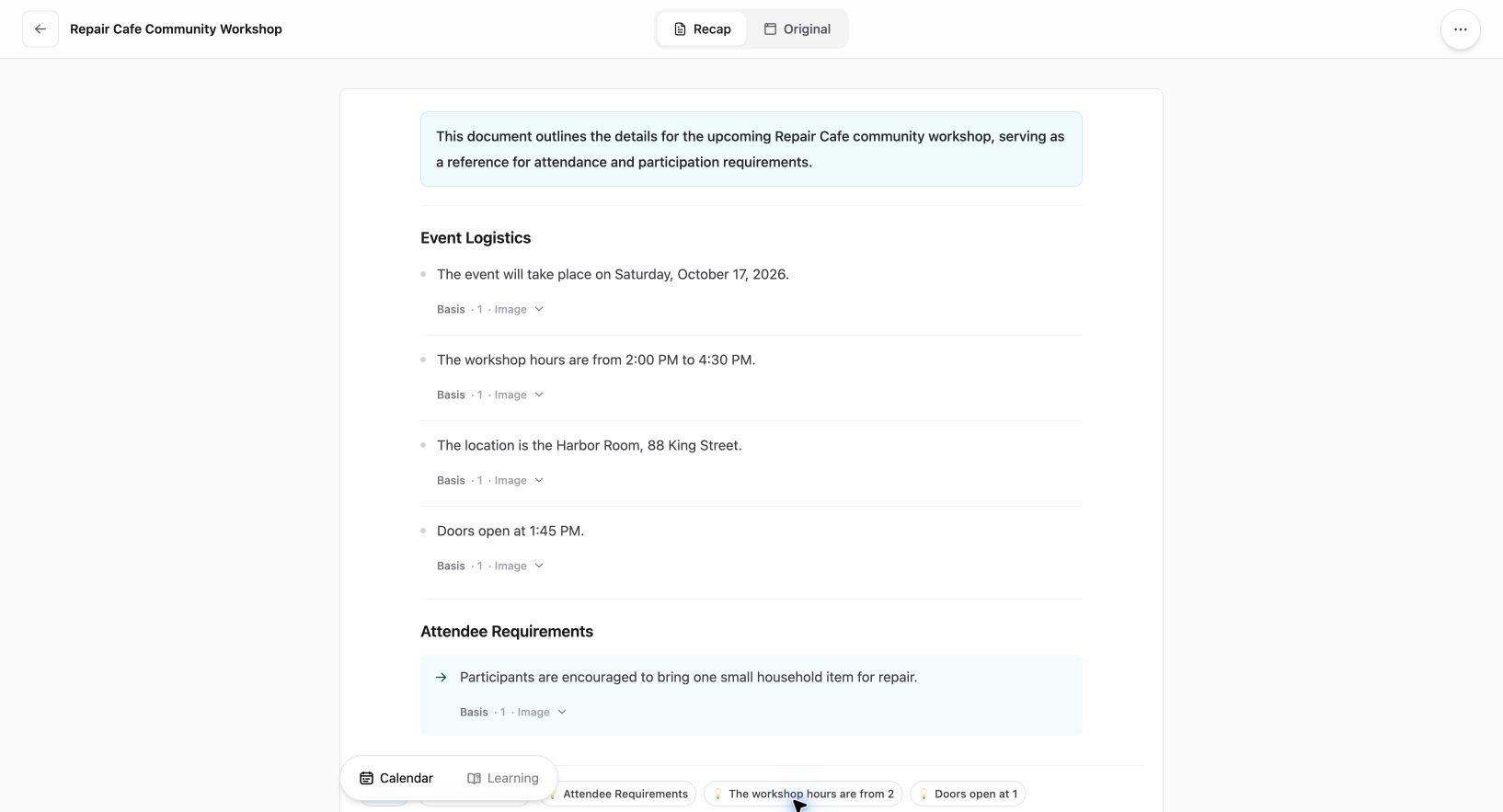
Current Web interface shown with an existing fictional workshop source; this is not a travel extraction example.
If your confirmation is an image, keep the original available while reviewing it. The screenshot-to-calendar tool starts with an image source. A Recap Document can organize a source into readable information. Compare the generated text against the reservation, particularly the two dates and any words such as “from,” “until” or “by.”
When you open a Calendar Sheet, inspect its title, date and time against the source and correct or cancel it before sending. Check the resulting event and time zone in your own calendar. For a general field checklist, see the image-to-calendar guide. A screenshot cannot prove that a later change has been incorporated.
Booking references, guest names and payment details may be sensitive. Mask details before sharing a screenshot and check whether a shared calendar exposes event notes to other people.
Before your stay
Reopen the latest confirmation and compare the property, dates and any explicit check-in or check-out times with your calendar. Check that an early or late request has actually been confirmed. Keep the property contact information accessible, and update your own reminders if the booking changes.
If an hour or date is missing, leave it open until the property supplies it.
When a notice omits an end time, see reviewing a missing end time.
Continue in Recap
Turn this source into a Recap Document
Make it easier to read, then send time-based details to Calendar or start PBL Learning.