

A flight confirmation can contain several times that look like deadlines: check-in opens, check-in closes, boarding starts, the gate closes, and the plane departs. They do different jobs. Before adding one to your calendar, identify which action it governs, who set it, and whether the notice actually gives a date and time.
The example below is fictional. Follow the operating airline's current instructions for your own trip. Airports, routes, travel documents and baggage requirements can change what applies to your journey.
Start with the operating airline's current notice
Find the latest itinerary or airline message for the flight. If you booked through another company, check which airline operates the flight and use its instructions for that flight. A screenshot is useful as a reference, but it freezes the information at the moment it was captured. Recheck the airline's current information when travel is near.
The distinction matters. American Airlines' check-in guidance, for example, describes different deadlines for some trips and airports and says other operating carriers set their own times. Those numbers should not be carried over to another airline or itinerary without checking.
Keep three things beside the date while you review:
- The operating airline and flight or reservation identifier, kept private when sharing screenshots.
- The departure airport and scheduled departure date.
- The source of the check-in instruction and when you obtained it.
If the airline sent a newer update, compare it with the earlier screenshot before choosing a calendar value. A later message may explain a change; its timestamp alone does not prove that every field in an older itinerary has changed.
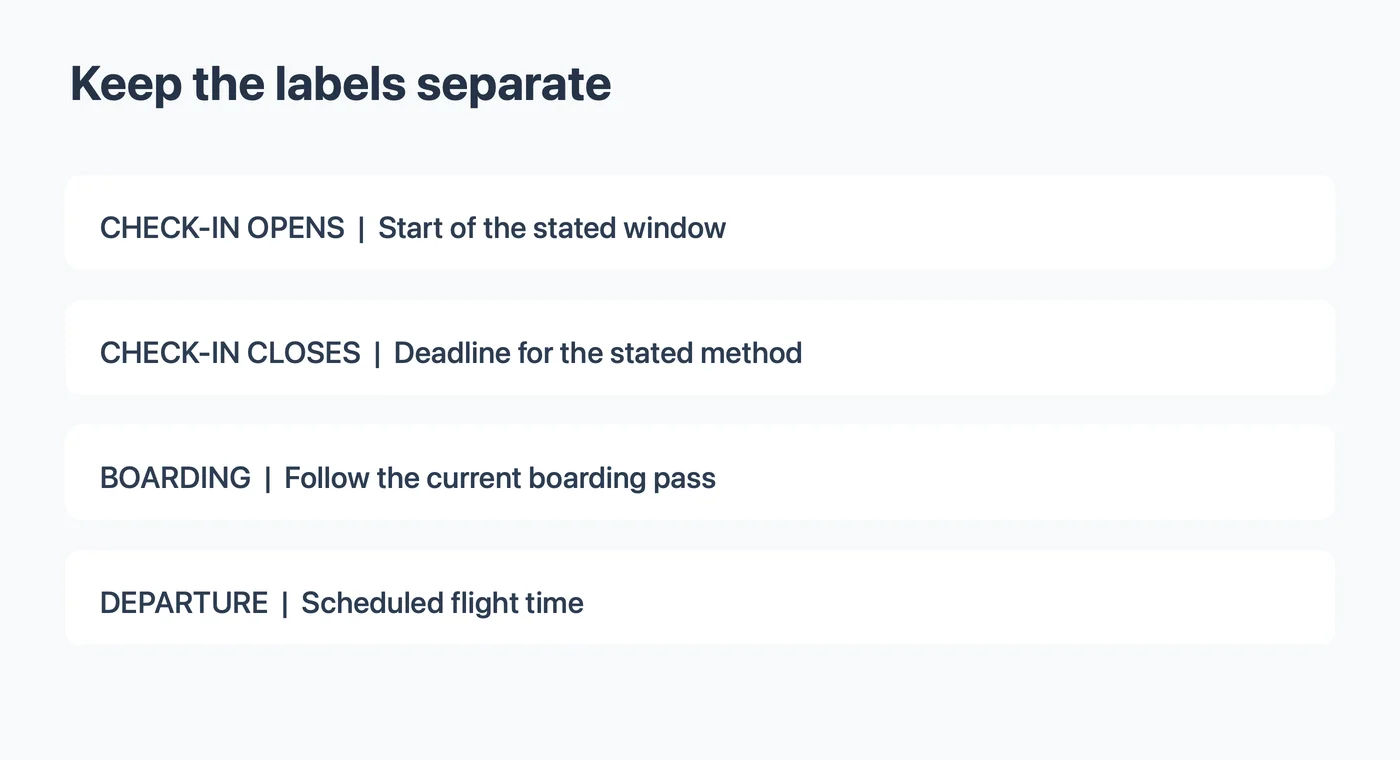
Separate five different times
| Field | What it tells you | What to check |
|---|---|---|
| Check-in opens | The beginning of an available check-in period | Is it online, at the airport, or both? |
| Check-in closes | The last stated time for a particular check-in method | Does it apply to this route, airport and airline? |
| Bag drop deadline | The deadline to hand over checked baggage | Is it separately stated for your airport? |
| Boarding or gate time | When to be at the gate or when boarding begins | Is this a start time or a final deadline? |
| Departure | The scheduled flight departure | Is it the current schedule and local date? |
A check-in opening time is not the same as a closing time. Similarly, a recommended airport arrival time gives you planning guidance; it is not automatically the deadline for online check-in. Save each detail under its own label so a calendar reminder does not turn a recommendation into an invented rule.
Worked example: one fictional notice
Imagine a synthetic itinerary that says:
Flight AB 204, departure September 18, 2027 at 10:30 AM from Harbor City. Online check-in closes September 18 at 9:00 AM local time. Boarding time will appear on the boarding pass.
The airline, flight number, city and times above are invented for this example. They are not instructions for a real flight.
| Review item | Value in the fictional notice | Decision |
|---|---|---|
| Flight | AB 204 | Use as an identifier, not proof of current status |
| Departure | September 18, 10:30 AM | Separate flight entry if useful |
| Online check-in closes | September 18, 9:00 AM local time | Candidate deadline; check the year and zone before saving |
| Boarding | Not provided | Leave blank and check the boarding pass later |
| Bag drop | Not provided | Consult the operating airline; do not infer it from online check-in |
If the booking states the city but does not make the intended time zone clear, verify it with the airline or its itinerary before setting the event. A calendar showing 9:00 AM in your current location may represent a different moment from 9:00 AM at the departure airport.
Choose a useful calendar entry
Once the deadline is confirmed, you can create a timed event such as “Complete online check-in for AB 204.” Include the date, the verified local time zone, and a brief note that identifies the source. Choose an alert that gives you enough time to act. An alert is your own planning choice; it does not change the airline's deadline.
If the airline gives an opening window and a separate closing deadline, decide whether you need an alert for the opening, the closing time, or both. Naming each event clearly makes a crowded travel day easier to scan. If you use a single reminder, write down which end of the window it represents.
On a computer, Google Calendar supports separate event time zones. Apple Calendar on Mac also documents time-zone support for individual events. The exact controls depend on the calendar and device, so inspect the event after saving and compare it with the airline's stated local time.
Do not rely on a calendar entry as your only copy of the instruction. Keep access to the original itinerary or airline app. A gate change or a flight delay may make a screenshot and an earlier calendar entry stale. Check the operating airline for current details on the day of travel; American Airlines gives that advice for partner flights.
When the deadline is missing
A notice may state only “check in before departure” or may show a countdown without explaining the time zone. Record that the deadline is unknown. Then open the airline's official guidance for your route or contact the airline if the source does not resolve it. Do not assume that an online check-in deadline is also the deadline for checked bags, international document checks or gate arrival.
If a date is present but the year is not, check the reservation before creating a timed event. If the message gives a relative interval, preserve the exact wording and verify the relevant reference time. A change to the flight's departure could affect the result of a calculation, and some airlines list airport-specific exceptions.
Using a screenshot as your starting point
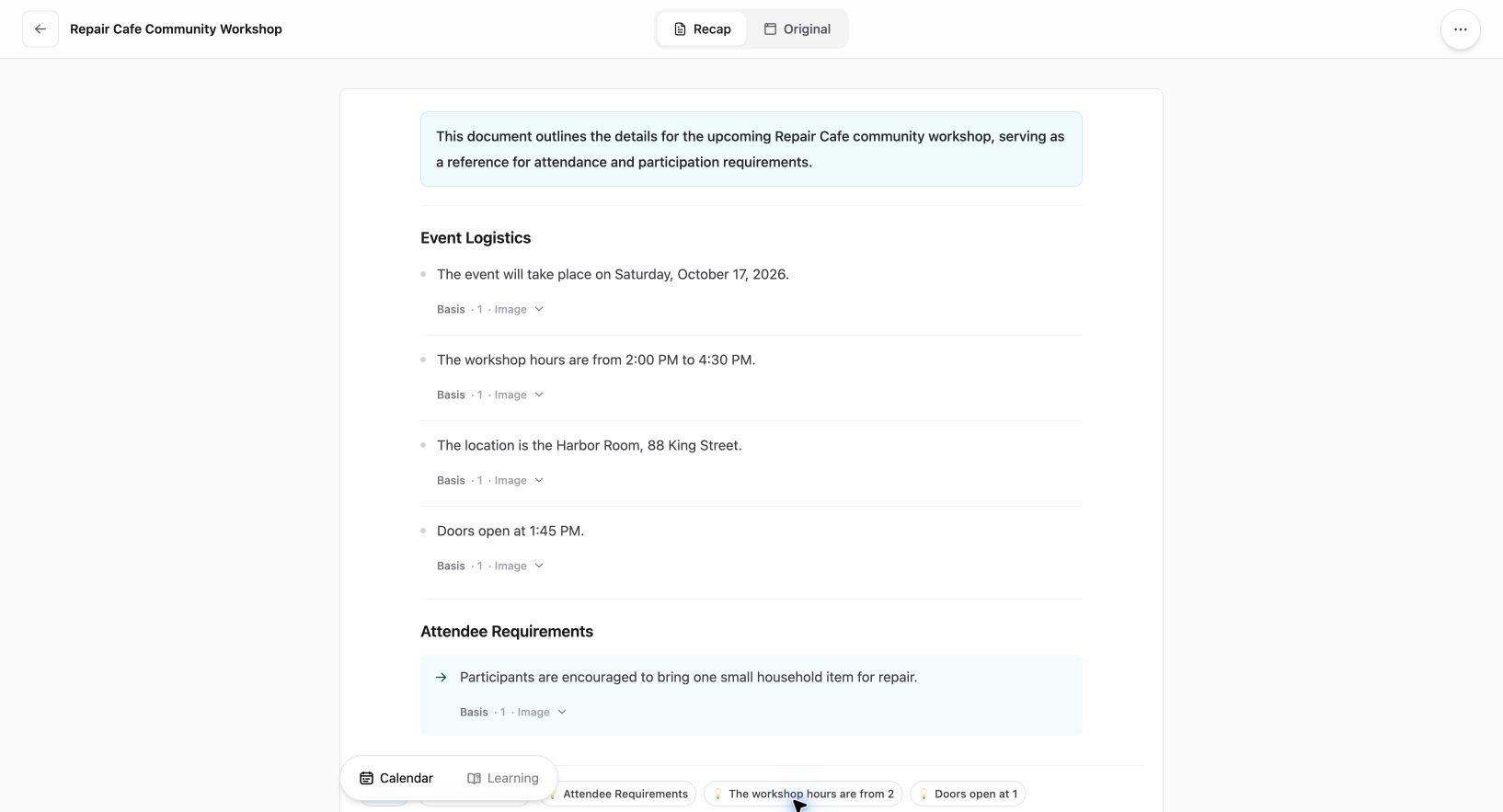
Current Web interface shown with an existing fictional workshop source; this is not a travel extraction example.
A readable document can make the labels and the surrounding context easier to inspect. With Recap, start with one source and review the resulting document against the original screenshot. If you open a Calendar Sheet, compare the title, date and time with your source, and correct or cancel it before sending. Verify the time zone in your destination calendar; controls vary by client. Treat any missing detail as unresolved until you verify it. The screenshot-to-calendar guide and the field-by-field review guide explain the wider review process.
Before sharing a screenshot, consider whether it exposes a booking code, passenger name, ticket number or other personal information. Remove or mask details you do not need to share, and keep the original available for your own verification.
Final check before travel
Check whether the event title says check-in closes, boarding begins, or departure. Compare its date and time zone with the current airline notice. Confirm the calendar alert is your chosen buffer, not an airline policy. Finally, revisit the airline's latest flight information close to departure and update your own calendar when needed.
For date-only deadlines, see choosing an all-day deadline entry. Learn more about Recap Documents.
Continue in Recap
Turn this source into a Recap Document
Make it easier to read, then send time-based details to Calendar or start PBL Learning.