

A travel itinerary can put a flight, a train and a hotel stay on one screen. Each item needs a different kind of calendar entry. A departure is a timed journey; a check-in window may be a range of possibilities; a hotel stay spans dates even when the confirmation does not give an arrival time.
Use this review template before turning a screenshot or confirmation into calendar entries. It keeps the source wording next to your decision, so you can tell what the reservation actually says, what you chose for your own schedule, and what still needs checking. The examples are fictional and do not represent real bookings or provider policies.
Copy the itinerary review register
Make one row for each reservation or action, rather than one row for the entire trip. Add rows for each flight leg, train journey, accommodation and deadline you want to track.
| Field | What to record |
|---|---|
| Item | Flight leg, rail journey, hotel stay or a specific deadline |
| Source and captured date | The reservation, message or screenshot you reviewed and when it was captured |
| Provider and identifier | Operating provider, flight or train number, or hotel name; keep booking codes private |
| Exact source wording | The relevant date, time and location as written |
| Start and end | Each stated date and time, kept separate |
| Local time zone | The verified zone for each endpoint, or “not confirmed” |
| Unknowns or conflicts | Missing year, unreadable location, later change or conflicting message |
| Calendar decision | Separate event, all-day note, reminder, or no entry yet |
| Recheck | Where and when you will check for updates |
The register is not a replacement ticket. It is a record of what you used to make a calendar decision. Keep the actual reservation accessible, especially for details that change frequently.
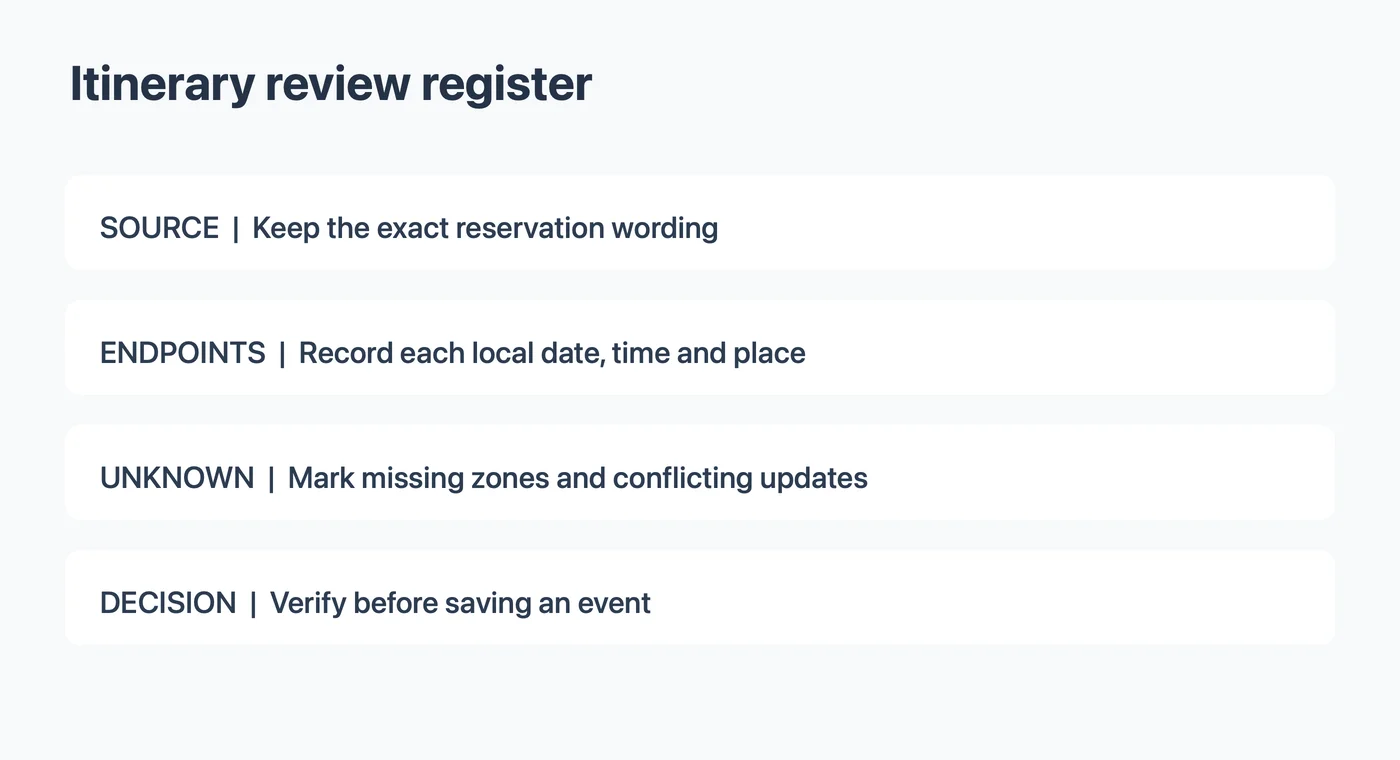
Step 1: Identify the item and the current source
Read the title and provider before copying a date. A screenshot may contain a booking date, a trip date and a payment date together. A message sent on Tuesday about a train on Friday does not make Tuesday the travel date. If a reservation was updated, compare the latest confirmation with the earlier version and record what changed.
For a flight, distinguish the company that sold the ticket from the airline operating the leg. American Airlines' partner guidance advises checking the operating airline for current departure times, gates and delays. A screenshot you saved before departure may not contain a later gate change.
For a hotel, identify the actual property and reservation. Check-in hours, early-arrival arrangements and check-out requirements are property-specific. Marriott's guidance explains how to find property times and notes that early check-in depends on availability. Do not turn a requested early check-in into a confirmed appointment unless the property confirms it.
Step 2: Copy the source wording before interpreting it
Keep the words “arrives,” “departs,” “check-in opens,” “check-in closes,” and “check-out” with their values. A number without its label can become the wrong appointment. If the screenshot shows “arrive by 9:00” and “departs 10:30,” preserve both. One is an instruction to the traveler and the other is the scheduled journey.
Record an unclear field as unclear. A time without a year, an airport code you cannot identify, or a cut-off line at the edge of a screenshot needs a check against the reservation. A blank in the register is safer than a complete-looking event built on an assumption.
If two versions disagree, note both and check the provider's current status. The newest screenshot is not necessarily the newest reservation if it was taken from an old message. Look for the provider's update or confirmation rather than resolving a conflict solely by the file's creation date.
Step 3: Keep start and end locations with their local times
A journey can start and end in different time zones. Do not compare two clock readings as though they are in one zone. First identify the departure date, place, local time and zone, then do the same for the arrival. An arrival date may differ from the departure date. The booking is the source for the scheduled dates; the calendar's display is another representation of those instants.
On a computer, Google Calendar documents separate start and end time zones for an event. Apple Calendar on Mac documents its own time-zone controls. The interface on your device may differ. After entering a journey, inspect the saved event in the destination calendar and compare each endpoint with the provider's local values.
If a zone is missing or ambiguous, check the current itinerary or ask the provider. A time-zone abbreviation can be ambiguous, and today's offset may not apply on the travel date. See the time-zone abbreviation checklist for a way to record unresolved abbreviations.
Worked example 1: a flight and a check-in deadline
The following source text is invented solely to demonstrate the register:
Flight AB 204. Depart Harbor City on September 18, 2027 at 10:30 AM local time. Arrive Lake City on September 18 at 1:15 PM local time. Online check-in closes at 9:00 AM departure-city time. Boarding details will be shown later.
| Item | Source facts | Still to verify | Possible decision |
|---|---|---|---|
| Flight | Departure 10:30 AM; arrival 1:15 PM; both September 18 | Actual departure and arrival zones | One flight entry after both zones are confirmed |
| Online check-in | Closes 9:00 AM in departure-city time | Operating airline, rule and zone | Separate timed reminder with a personal alert |
| Boarding | Details to follow | Boarding pass or current airline information | No invented time |
This example intentionally does not supply real cities or time zones. It shows why the zone column cannot be filled from the clock value alone. If you later receive a boarding time, record it as its own field; do not overwrite departure with it.
The deadline also applies to the action named in the notice. It is not automatically the bag-drop deadline. American Airlines' published check-in guidance distinguishes check-in, airport arrival and airport-specific exceptions. Follow the rules for the airline and airport in your own booking.
Worked example 2: an overnight train and hotel
Imagine a second synthetic confirmation:
Train R12 departs North Station on November 6, 2027 at 10:40 PM and arrives South Station on November 7 at 7:10 AM. The hotel reservation is November 7 through November 9. Check-in begins at 3:00 PM; check-out is by 11:00 AM.
| Item | Source facts | Still to verify | Possible decision |
|---|---|---|---|
| Train | November 6, 10:40 PM to November 7, 7:10 AM | Local zones and current train status | Timed journey with both dates |
| Hotel stay | November 7 through November 9 | Property address and any late-arrival instructions | All-day stay note or two dated reminders |
| Hotel check-in | Begins November 7 at 3:00 PM | Whether a later arrival needs notice | Reminder if useful, without assuming a fixed appointment |
| Hotel check-out | By November 9 at 11:00 AM | Any confirmed exception | Timed reminder with your own alert |
The train's arrival is on the following calendar date because the fictional source says so. If the date were absent, the register would say “arrival date not confirmed.” An overnight-looking time alone is not enough to choose a date. For station procedures, read the carrier's guidance for the specific service; Amtrak's boarding page lists exceptions for particular services and stations.
A hotel check-in start is different from a required arrival time. A stay shown as an all-day span can provide context, while a separate check-out reminder can carry a specific time. Choose the arrangement that helps you act, then confirm the date boundaries in your calendar.
Decide which information belongs in an event
Before copying details, consider who can see the calendar. A family member may need the hotel address and check-out time, while a shared work calendar may only need a busy period. Your reservation can remain in the provider's app or another private place; the event does not need every identifier to be useful.
Make a separate note of any action that needs an answer from another person. For example, a late-arrival request may be pending even though the room is booked. Add a reminder to follow up if useful, then record the property's response and the date it was received. Do not change a tentative request into a confirmed time merely because you made a calendar entry for it.
For a longer trip, review the register again after changes. A new flight may alter the first night's expected arrival, but it does not by itself change the hotel reservation. Check both providers independently and update only the fields that have actually changed. Keep the original and revised details distinguishable until the itinerary is clear.
You do not need to make an event for every line in a reservation. A timed journey belongs on the calendar if its start and end help you plan. A check-in deadline may deserve a separate reminder. A confirmation number can remain in a secure reservation rather than the event title, especially if the calendar is shared.
Use a descriptive title, such as “Train to South Station” or “Hotel check-out.” Put the source link or a short note in the event only if you are comfortable with the calendar's sharing permissions. Avoid pasting passport details, full payment information or other sensitive data into an event visible to a group.
Set alerts according to your own needs. An alert one day earlier is a personal buffer, not evidence that the provider requires an action at that time. If your app automatically inserts a default alert, check it before saving.
Review a screenshot with Recap
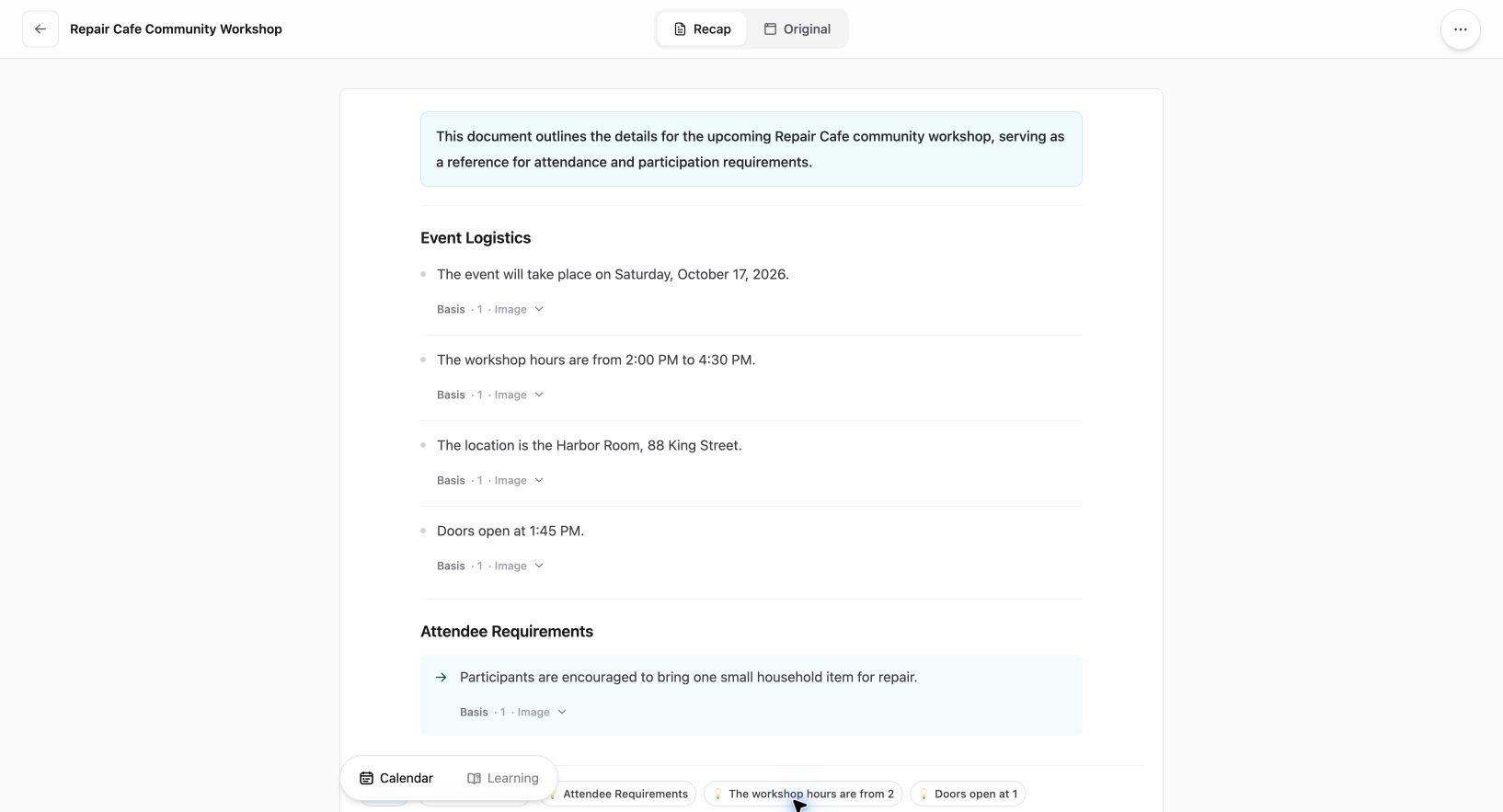
Current Web interface shown with an existing fictional workshop source; this is not a travel extraction example.
You can use a screenshot as a source and review the resulting readable document beside the original. When a source supports a Calendar action, open the review sheet and compare the proposed title, dates and times with your reservation. Edit or cancel if they do not match. Then verify the event and time zone in the calendar you use. A review sheet does not establish that a provider's booking is current.
The field-by-field guide covers event details, and what a Recap Document contains explains the source-to-document step. Use one source per review and keep a separate register row for each item you choose to add.
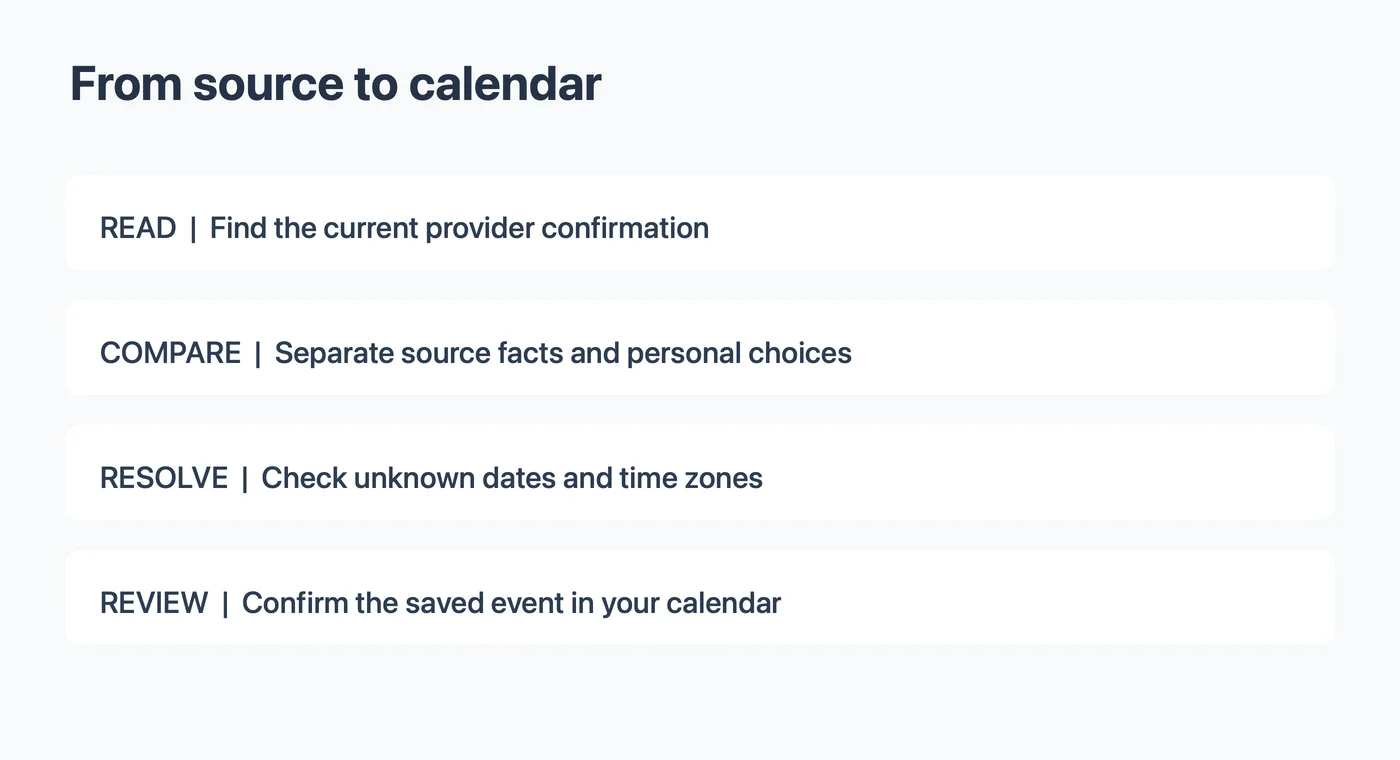
Recheck before you leave
A calendar entry is a snapshot of your plan. Close to travel, open the provider's current information and compare the flight or train status, station or terminal, and any stated deadlines. If something changes, update the event yourself and preserve the new source. Do not assume that changing a reservation automatically updates every calendar copy.
Before you finish, check that each row has a clear action: save a verified event, make a personal reminder, or leave the item unresolved. Leave unresolved items in the register until the provider confirms them, and record the date of that confirmation.
A source-to-structured-document tool can help you organize an individual source before reviewing its details.
Continue in Recap
Turn this source into a Recap Document
Make it easier to read, then send time-based details to Calendar or start PBL Learning.