

When a rescheduled event arrives as a screenshot, find the original calendar entry before adding another one. Compare the event identity, old date, replacement time, and organizer. Then decide whether you should edit your own entry, respond to an updated invitation, or ask which event the message refers to.
The difficult part is often the relationship between the screenshot and something already saved. A clear new time does not prove which old entry it replaces. This review method uses a fictional workshop to make that distinction visible. The examples are original teaching material, not a test of extraction accuracy or evidence that software can reconcile a calendar automatically.
Keep the original and revised notices together
Save the old invitation beside the rescheduling message. Include the source or sender context needed to identify the workshop, but keep personal contact details private. If you no longer have the original notice, inspect the existing calendar entry and record which fields you can verify.
Use a compact record with four columns: field, existing entry, revised notice, and decision. Record absent details as absent. A message that changes the start time without mentioning the end may require clarification. It does not establish a new duration by itself.
The schedule change review template provides the full record. For this case, begin with identity rather than timezone. A timezone conversion can be mathematically correct while applying to the wrong workshop.
Work through a fictional reschedule
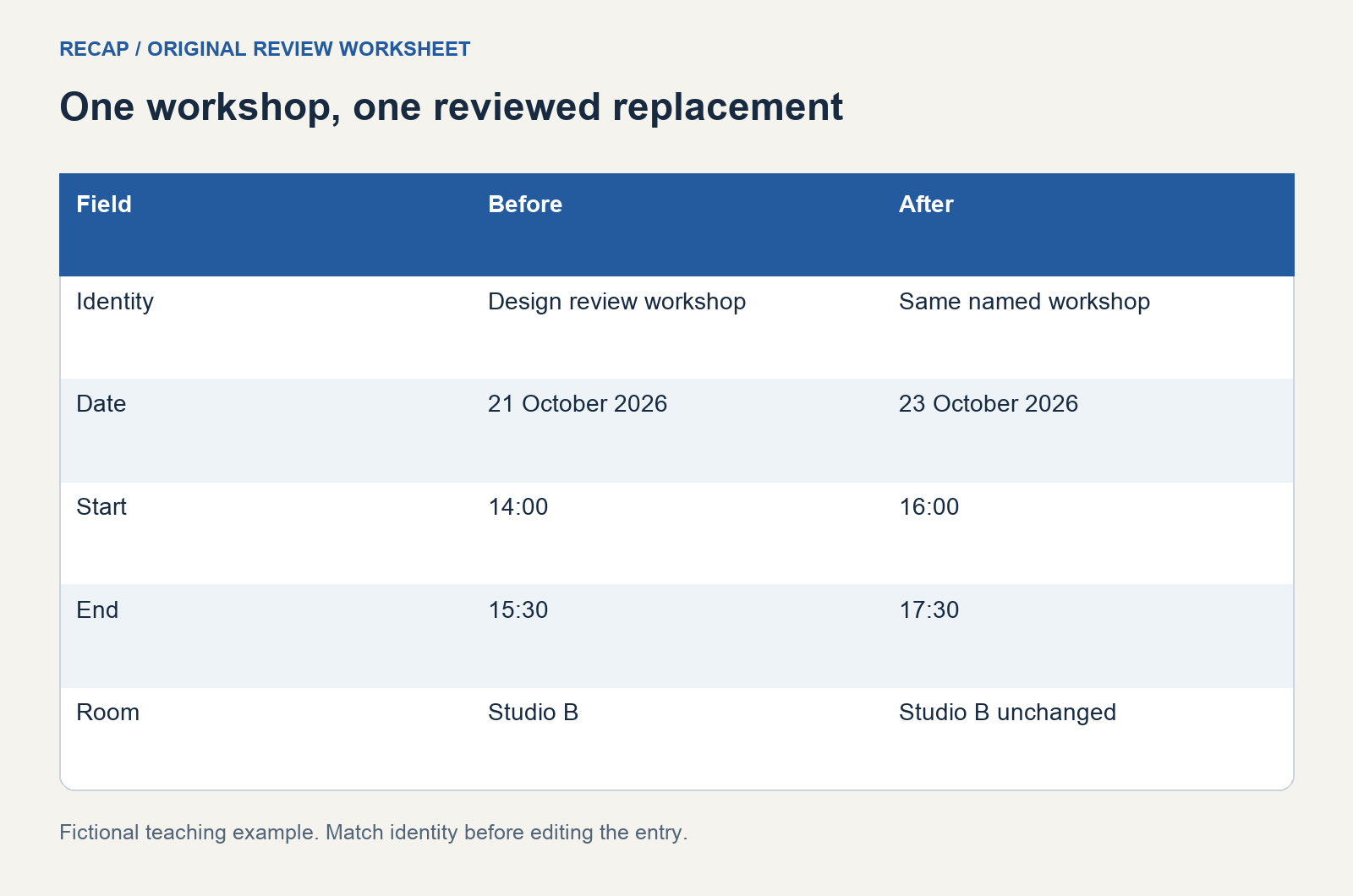
The original notice says: "Design review workshop, Wednesday 21 October 2026, 14:00 to 15:30, Studio B." Your personal calendar has that entry. The new screenshot says: "The 21 October workshop moves to Friday 23 October, 16:00 to 17:30. Studio B is unchanged."
| Field | Existing entry | Revised notice | Reviewed decision |
|---|---|---|---|
| Identity | Design review workshop | Refers to the 21 October workshop | Same workshop |
| Date | 21 October 2026 | 23 October 2026 | Replace the date |
| Start | 14:00 | 16:00 | Replace the start |
| End | 15:30 | 17:30 | Replace the end |
| Location | Studio B | Unchanged | Keep Studio B |
| Scope | One workshop | One named workshop | Edit one entry |
All times in this fictional example are venue-local. In your own record, retain whatever timezone the source states. If it states none, write down the unresolved timezone rather than using this example's assumption as a default.
Match the identity before changing the date
Search the calendar for the workshop name and inspect the original date. Compare location, organizer, and session reference when available. Do not rely on a similar title alone, particularly when the same organizer runs several sessions.
Consider a second fictional message: "Friday's workshop moves to 16:00." Your calendar has a design workshop and a writing workshop that Friday. The message provides a time but no decisive identity. The correct record has two candidates and an open question. Ask which workshop changed before editing either one.
Keep the sender's statement distinct from your interpretation. "Probably the design session" belongs in an uncertainty note. It should not become the confirmed title of a new event. A visible source link makes it easier to resolve the ambiguity when the organizer replies.
Check whether you own the entry
A personal entry copied from a flyer is different from an invitation that an organizer controls. Before editing, inspect the calendar account and invitation status. An edit to your personal copy may be entirely appropriate; an organizer-owned invitation may need an updated invitation or a response.
Google documents proposing a new time as an invitation action. That is useful when you are suggesting an alternative, but it is different from recording a confirmed organizer reschedule. Read the notice carefully enough to know which situation you are in.
For an entry you can edit, use the instructions for your destination. Apple's Calendar for Mac event guide covers modifying event details. These are calendar-native actions. This article does not describe a Recap button that updates an existing entry.
Review the full interval and nearby commitments
When the date changes, review both start and end. Replacing the start while leaving an old end can create an invalid or unintended interval. In the worked example, the organizer supplied both new values, so the review can confirm them without guessing.
Check timezone, location, and any arrival requirement separately. If the new venue is in a different city, a previously adequate timezone note may no longer be enough. Use the timezone review checklist when the notice crosses locations or time conventions.
Then look at nearby commitments. A correct reschedule can still create a conflict in your own day. Record the conflict as a planning decision you need to make; do not change the organizer's supplied time to remove it. If you decide to ask for an alternative, preserve the original revised time in the source record.
Confirm the right occurrence
If the workshop is part of a repeating series, identify the affected date explicitly. A message that names one session supports a one-session change unless it says otherwise. Google's recurring-event help explains that saving a change includes selecting its scope within the series.
Pause at that choice. Read the scope in the notice, then read the scope in the calendar dialog. They should agree. Do not apply a room or time change to future sessions merely because the interface offers a broad option. A concise record such as "23 October session only" helps you evaluate the prompt.
Check for duplicates after the edit
After saving, inspect the new date and search by the workshop title again. Check the old slot too. Your personal calendar should reflect the change you reviewed, rather than two active copies of the same commitment.
If another old entry remains, inspect its account and ownership before removing it. It might be a stale personal duplicate, or it might be an invitation whose organizer has not updated it. Record the distinction instead of applying the same cleanup action to both.
Finally, verify reminders and notes relevant to your attendance. A separate travel task or reminder may still point to the old date. Updating your calendar does not prove that another app changed. Make any additional edits deliberately, using the same source record as evidence.
For images that are hard to read, start with the Screenshot to Calendar page to understand the source-processing use case. Keep your change worksheet beside the readable result. The review is complete when the event identity is resolved, the destination shows the intended interval, and any remaining organizer question is written down.
Continue in Recap
Turn this source into a Recap Document
Make it easier to read, then send time-based details to Calendar, export it to Workspace, or start PBL Learning.