

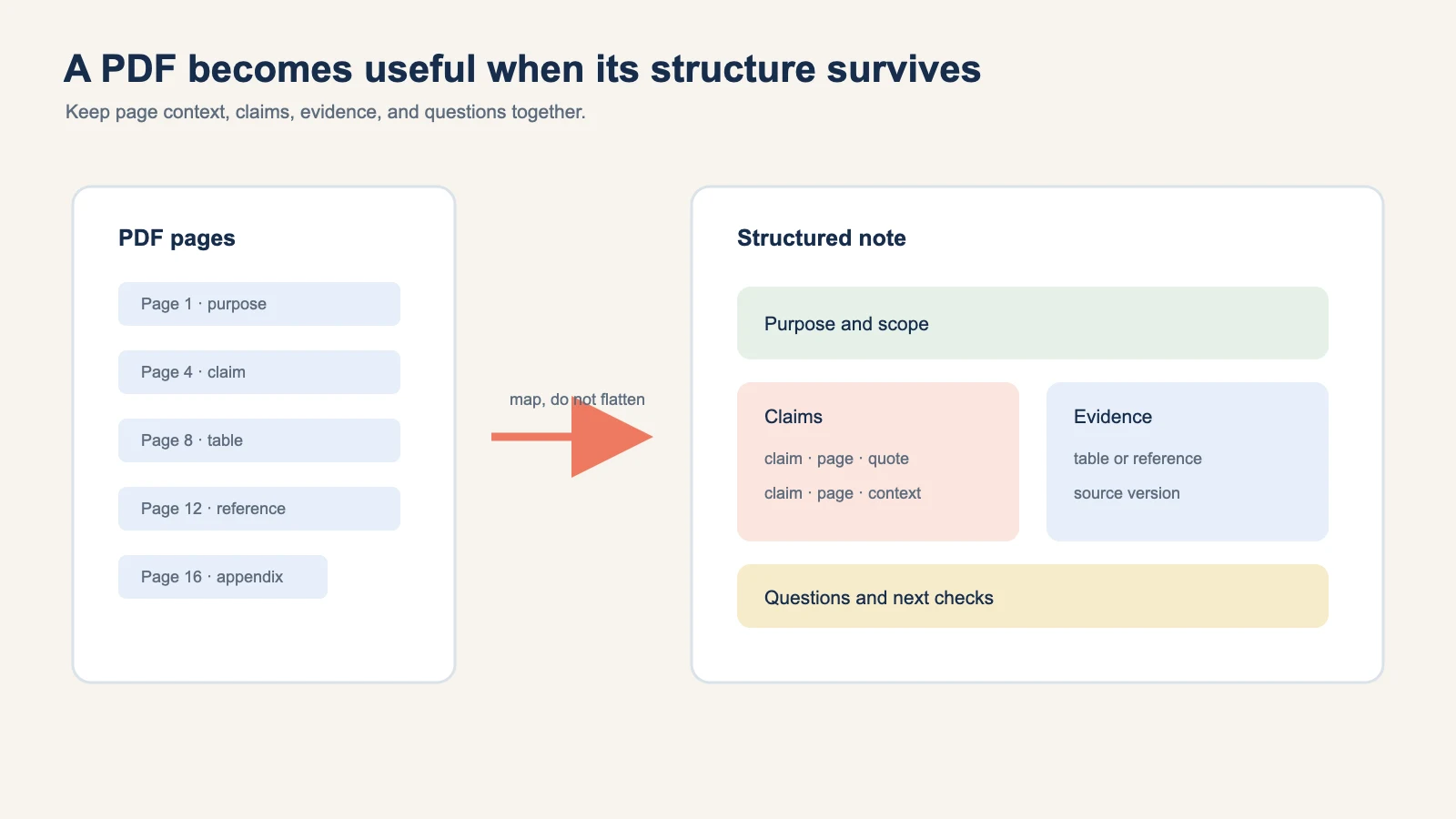
PDFs are easy to file and surprisingly hard to reuse. A page can hold a heading, a table, a footnote, and a reference that only make sense together. If you copy the text into a blank note, you may keep the words while losing the structure that gives them meaning.
Turning a PDF into structured notes means preserving that context. The result should help a reader answer four questions: What is this document for? Which claims matter? Where did each claim come from? What should happen next? The source-to-structured-document tool is designed for this intermediate step, while What is a Recap Document? shows how a source can become a readable result before it moves to Calendar, Workspace, or Learning. The broader method is in From Raw Source to Structured Document.

Start with the PDF's identity
Record the title, publisher, author when listed, revision or publication date, and the URL or filename. Add the page range you intend to use. A report with a revised edition is not the same source as an older download, even when the first page looks familiar.
The PDF format is built to preserve a document's visual layout across systems. Adobe's PDF overview describes this purpose. That visual stability is useful evidence, but it also means that a page number, table heading, or callout can carry meaning that a plain text extraction will not preserve.
Use this identity card:
| Field | Example value |
|---|---|
| Title | Name printed on the title page |
| Version | Revision date or edition |
| Scope | Pages 4 to 12, section 2 |
| Origin | Official publisher URL or file path |
| Review question | What decision or lesson does this support? |
Map the page structure before writing prose
Read the table of contents and section headings first. Make a page map with one line for each section that matters. Add a short purpose label such as “definition,” “claim,” “method,” “table,” or “exception.”
This map prevents two common errors. First, it stops a long introduction from hiding the small section that answers your question. Second, it keeps a table attached to the explanation that defines its columns.
For a public practice source, the NIST AI Risk Management Framework PDF is a useful example because it has a clear purpose, named functions, and a reference list. You can process only the pages relevant to your task and keep the page numbers in the notes. Do not present a selected section as if it were the whole framework.
Extract claims with their evidence
For each important claim, capture four pieces:
- Claim: a short sentence in your own words.
- Evidence: quotation, table row, figure, or definition from the PDF.
- Location: page number and section heading.
- Use: why the claim matters for the current task.
Keep quotation marks for exact wording. Keep your interpretation in a separate field. If you simplify a technical sentence, note that it is a paraphrase. This makes later corrections smaller and protects the distinction between a source's position and your own recommendation.
When the PDF is also a learning source, study a difficult PDF with better questions after preserving its claims and page-level evidence.
If a table contains a value, copy the column heading, unit, and footnote along with the row. If a chart has a legend, keep it beside the observation. A number without its unit is not a useful fact.
Treat scans and diagrams as evidence
Some PDFs have a text layer. Others are scans, slides, or diagrams. Check whether you can search the page before assuming that a blank result means the content is absent. For a scan, keep the page image for any claim that depends on typography, layout, or a chart.
Do not redraw an exact chart from memory. If you need to compare values, create a new coded table and cite the PDF page. Label the new table as your transcription, not as the source's original graphic.
Keep uncertainty visible
PDFs contain ambiguities that fluent notes can hide:
- a footnote changes the scope of a headline claim;
- a revision date is missing;
- a scan makes one value unreadable;
- a table continues on the next page;
- a recommendation is described without a decision owner.
Put these in an Open questions section. “Needs page 8 confirmation” is more useful than a guessed value. The NIST AI Risk Management Framework emphasizes documenting context and managing risk. In a PDF workflow, that means making gaps visible where a reader can resolve them.
Shape the notes for the next job
Choose a document mode after the page map is stable:
- Action: list requirements, owners, deadlines, and exceptions.
- Decision: compare options, assumptions, and trade-offs.
- Understanding: explain concepts, examples, and questions.
- Reference: preserve definitions, links, and stable facts.
A policy PDF may need an Action result for a rollout and a Reference result for future lookup. A research report may need Understanding notes for a learner and a Decision table for a team. The source does not dictate one shape.
When strong dates appear, keep them separate from ordinary prose. Google Calendar's event resource documents start, end, all-day, location, and time zone as distinct fields. That is a useful model for notes too. A PDF deadline is not the same as the date a review meeting is suggested.
Review before you export
Use this short review before sending the notes to a person or another tool:
- Is the source URL or filename present?
- Can each claim be traced to a page and section?
- Are table headings, units, and footnotes intact?
- Are paraphrases marked as paraphrases?
- Are unknowns and conflicting pages visible?
- Does the next step match the document mode?
If the notes need a shared home, use source-to-workspace after the review. If the PDF raises a question worth exploring, use source-to-PBL Learning so evidence and reflection remain connected. If the source contains a confirmed deadline, review the Calendar path rather than copying a date into a task without context.
The source-grounded document quality checklist expands this review into a five-pass check for traceability, scope, gaps, structure, and next action.
A repeatable PDF routine
For your next PDF, follow this order:
- Record identity, version, URL, and scope.
- Map the headings, tables, and references.
- Capture claims with page-level evidence.
- Mark scans, gaps, and conflicts.
- Choose Action, Decision, Understanding, or Reference.
- Review the notes before exporting or sending.
Structured notes do not make the PDF smaller. They make its useful shape visible. Keep the source beside the result, and a reader can move from a short explanation to the exact page that supports it.
Continue in Recap
Turn this source into a Recap Document
Make it easier to read, then send time-based details to Calendar, export it to Workspace, or start PBL Learning.