

You find a sentence on the third page of a PDF, but the number printed at the bottom is 1. Which number belongs in your note? Record the printed page number and the physical position in the file until you know which one your citation style and reader need.
A PDF can contain a cover, front matter, and main text with separate numbering. Its navigation control may also use a page label rather than a simple count from the first physical page. Adobe's page-label documentation explains that navigation numbers can differ from printed numbers and that changing labels does not add a visible number to the page.
Try a small synthetic fixture
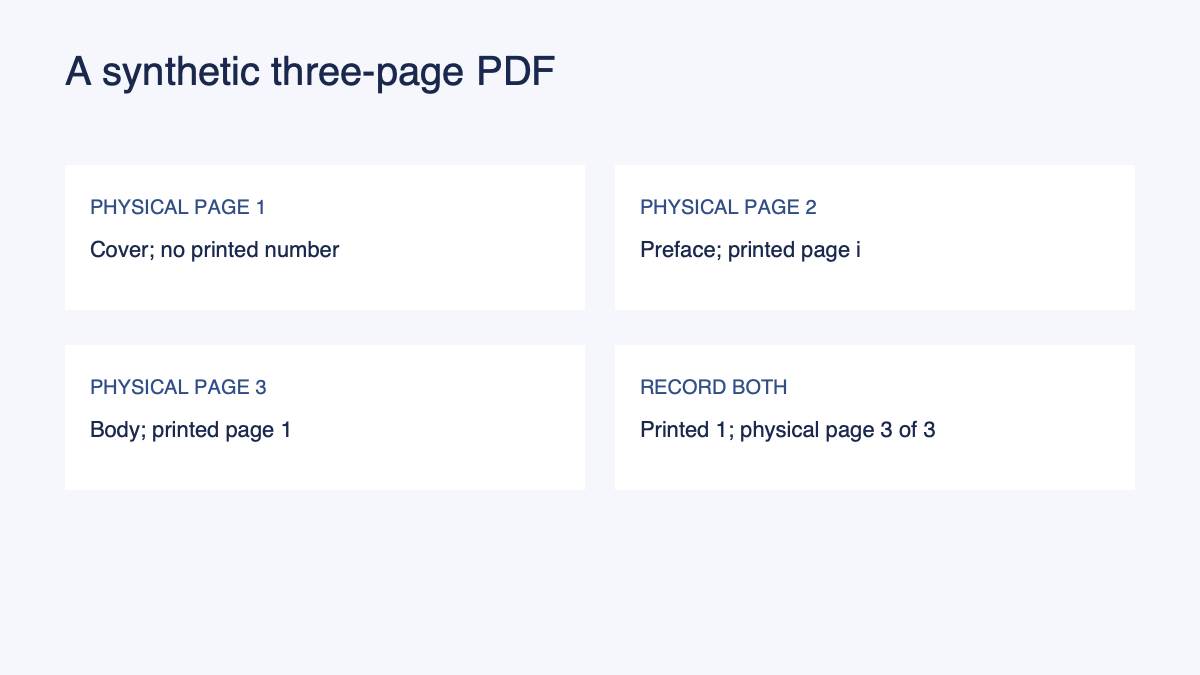
For this example we created a three-page PDF. Its content is fictional and exists only to make the numbering difference visible. The first page is an unnumbered cover, the second is a preface with a printed lowercase Roman “i,” and the third has a printed “1” below the sentence “The workshop begins at 10:00.” The third physical page is the first numbered page of the main text.
| Physical position in file | Printed number | Content |
|---|---|---|
| 1 of 3 | None | Synthetic fixture cover |
| 2 of 3 | i | Synthetic preface |
| 3 of 3 | 1 | Synthetic body and workshop sentence |
The fixture was generated for this work and read back with a PDF text extractor. The extractor returned three pages, the preface text and “i” on physical page 2, and the body sentence and “1” on physical page 3. That verifies the file's text and page order. It does not prove that every PDF viewer will show the same navigation label.
To reproduce the check in a document editor, create a cover without a footer, a preface with the footer “i,” and a body page with the footer “1.” Export those three pages as a PDF. Open the exported file, count from its first page, and find the body text and printed footer on physical page 3. Your editor may add page labels of its own, so record what your viewer actually displays as a separate observation.
For a note about the sentence, a useful working locator is: “printed page 1; third physical page of the PDF.” A reader can use the printed number for the document's own pagination and the position to find it quickly. When you prepare a formal citation, follow the applicable style guide rather than treating this working notation as a universal citation format.
Check the number in four passes
First, identify the exact file. Record its title, author or issuing organization, and the version or date shown on the document. If you opened a link, keep the URL. If you received a file directly, preserve a descriptive file name and the date you received or accessed it. A second edition may use different pagination.
Second, find the passage and look at the page itself. Is a page number printed in a header or footer? Is it a Roman numeral, an Arabic number, or a prefixed label such as A-1? Some scans crop the edge, so a missing visible number may be a limitation of the copy. Do not assume that the first numeral on the page is its page number; it might be a figure, table, or section number.
Third, note the viewer's indication. Some interfaces show a physical count such as “3 of 3.” Others can display the document's logical page label, sometimes alongside the physical position. The W3C PDF page-numbering technique describes how PDF page labels can make a viewer's controls match the document's numbering. It is a documented accessibility technique, not a guarantee that every PDF has labels or every viewer displays them identically.
Fourth, return to the passage using the locator you recorded. Close or navigate away from the page, then find it again using the printed number and file position. If a colleague will use the note, ask them to try the same version. A locator that only makes sense in your current window is harder to reuse.
When the viewer and page disagree
Suppose your reader is told to go to “page 1.” If they type 1 into a viewer that counts from the cover, they may land on the cover. If the viewer uses a logical label, the same input may take them to the main text. Write down what you observed instead of assuming the control behaves the same way everywhere.
A practical register might say:
| Field | Record |
|---|---|
| File | Synthetic three-page PDF fixture |
| Passage | Workshop begins at 10:00 |
| Printed page | 1 |
| Physical position | Third page of three |
| Version | Original synthetic fixture, created for this example |
| Remaining check | Confirm the formal citation format required by the reader |
If there is no printed page number, say so. A section heading, figure label, or paragraph description may be more reliable. Do not invent page numbers from a different edition. The MLA Style Center's guidance on digital editions says to cite the version consulted and omit page numbers when the digital edition does not provide them. Other citation systems can differ, so consult the one required for your work.
Separate page labels from visible numbering
A visible footer is part of what appears on the page. A PDF page label is metadata that a viewer may use in navigation. A physical page position is the page's order in the file. These can agree, but they are separate pieces of information.
Changing a navigation label does not necessarily change the visible footer. Likewise, adding a footer does not necessarily update the document's page labels. If you maintain the PDF, use the relevant editor's instructions and verify both after making changes. If you only received the PDF, retain the discrepancy in your notes rather than altering the source to make your own numbering fit.
Scanned pages introduce another practical check. Text extraction can miss a footer or read a number incorrectly. Inspect the image of the page itself when the printed label matters. If the image is unclear, mark the number as uncertain. A page that contains several printed pages in a single PDF page also needs an explicit description of which printed page contains the passage.
Keep the locator with the claim
One paragraph of notes can combine claims from several pages. Attach a locator to each claim that may be checked independently. If a table begins on one page and its footnote is on the next, record both. The footnote may limit the population, dates, units, or interpretation of the table.
Use the evidence locator template for a reusable record of source, location, note status, and open questions. The source-grounded document checklist is useful for a wider review. If you are starting from a PDF, the source-to-structured-document guide describes a source-first route to a readable document.
Before sharing a note, confirm that the recipient can open the same edition. A private link can fail even when your page number is accurate. If access is unavailable, ask the owner for a permitted way to share the source or point the reader to a public edition and check its pagination separately.
Questions that commonly come up
Which number should go in a citation?
Use the number and format required by your style guide for the version you consulted. Keep the physical position as an additional finding aid when it helps the reader navigate the file.
Is “page 3 of the PDF” always the same as printed page 3?
No. Front matter and page labels can make the two differ. Check the visible page and the viewer's controls in the file you actually read.
Can I cite a page from a different edition?
A page number from another edition may not identify the same passage. Consult that edition before citing it, or use the locator provided by the version you read and follow your required citation style.
Continue in Recap
Turn this source into a Recap Document
Make it easier to read, then send time-based details to Calendar, export it to Workspace, or start PBL Learning.