

When an event notice uses a time zone abbreviation, check which region it means before converting the time. A string such as CST can refer to different zones. Your computer's time zone does not resolve the organizer's intended meaning, and a conversion tool can produce a precise result from the wrong assumption.
Keep the printed time and abbreviation together in your notes. Ask for the event's city or named zone and confirm the date. Once the organizer has clarified those details, compare the resulting local display with the original notice before saving an event.
Separate the clock time from the zone
This fictional invitation reads: "Online portfolio review. November 12, 2026, 9:00 CST. Joining link after registration." It does not identify a city, country, UTC offset, or full zone name. The review record should therefore retain "9:00 CST" as source wording and mark the event zone as unconfirmed.
IANA's time zone reference explicitly discusses ambiguous letter abbreviations, including CST in North America and China. Ask the organizer which meaning applies. An invitation forwarded across regions may reach people who read the same letters differently.
The organizer's address or language can be a clue to investigate. It is not a substitute for confirmation. An online event can be hosted from one city for an audience in another, and a copied flyer can retain an abbreviation from an older announcement.
Use a small clarification record
Copy these fields before you convert:
| Field | Value in the fictional notice | Review state |
|---|---|---|
| Event date | November 12, 2026 | Stated |
| Clock time | 9:00 | Stated |
| Zone wording | CST | Stated but ambiguous |
| Organizer city or named zone | Not supplied | Ask |
| Confirmed event time | Pending answer | Do not normalize yet |
| My local display | Pending confirmed event zone | Do not calculate yet |
The calendar review template includes the same separation alongside other event fields. Keeping the unknown in its own cell prevents a guessed zone from spreading into the start, end, and reminder calculations.
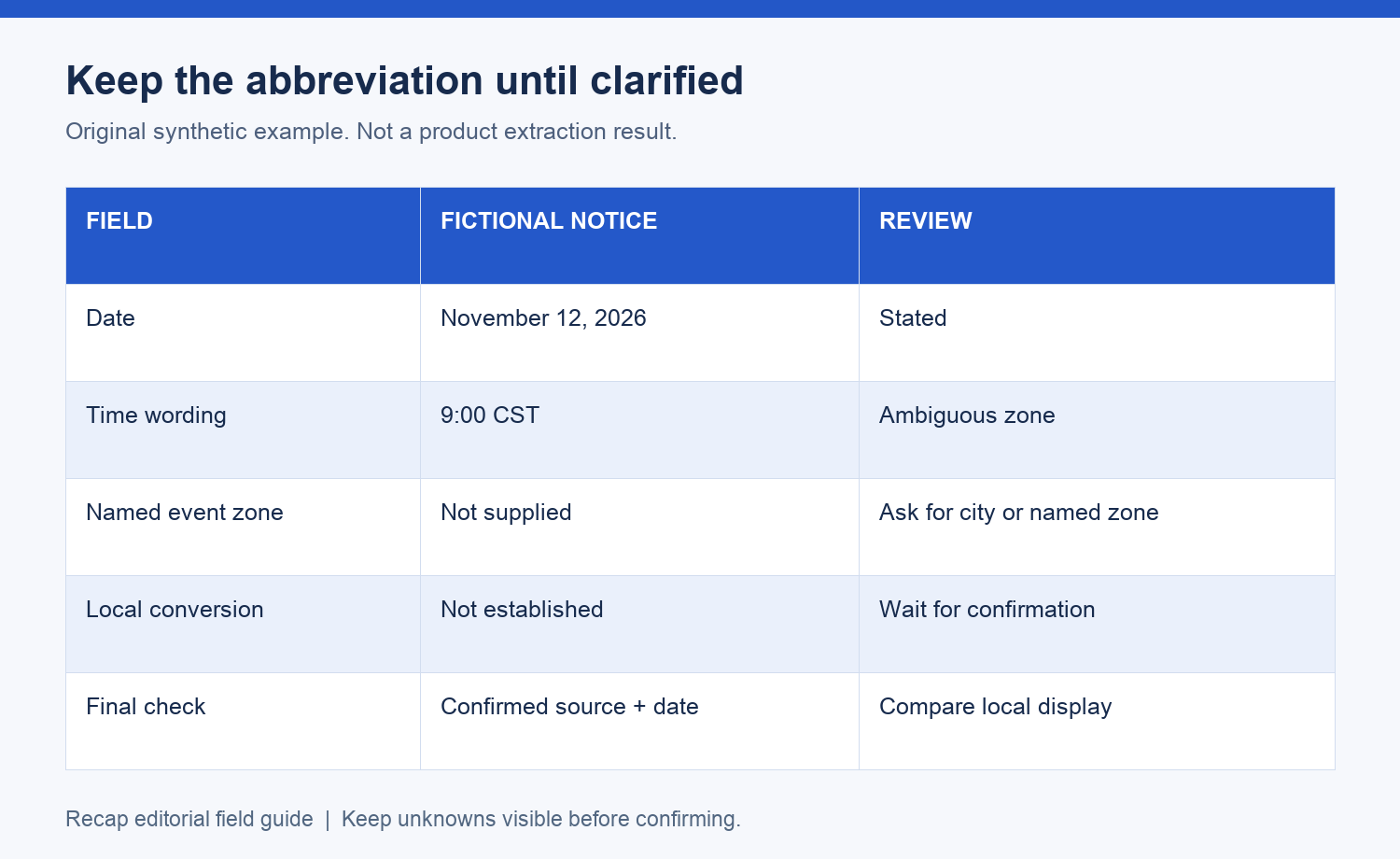
No conversion is shown because the fictional notice has not established a single instant. That is a complete review result: the next action is a specific question, not a guessed calendar value.
Ask for the event's named zone
A useful question is: "For the November 12 portfolio review listed as 9:00 CST, which city or named time zone should attendees use?" If the organizer replies with a city, preserve that answer beside the original wording. If they send a revised invitation, check that it names the same session.
Also ask whether the time follows the organizer's local clock for future sessions. A single offset may explain one occurrence without defining a recurring schedule. Do not extend one answer to dates that were not covered by the question.
IANA maintains time zone data as rules change. For an event some distance in the future, a named zone gives you a clearer reference than a remembered offset. It still does not remove the need to review a later organizer correction or the destination's displayed time.
Understand event zone and display zone
The event's zone describes the schedule the organizer intends. Your calendar's display zone controls how you see that schedule. A different clock value in your local calendar can be a correct conversion, so compare the date as well as the hour.
Google's time zone guide documents selecting a zone for an event and viewing events in local time. Those are manual Google Calendar controls. This article does not claim that Recap currently sends directly to Google Calendar.
Before saving manually, inspect the event zone selector and the displayed start. After saving, reopen the event. If it appears on another date locally, check whether that follows from the confirmed zone. Retain both the source time and your reviewed local display in the notes when that helps you attend.
Watch for another ambiguity in the date
An abbreviation is not always the only unresolved field. A notice may say "Friday" without a date, omit the year, or use a numeric date that could be read in two orders. Do not solve the zone and leave a hidden date assumption untouched.
Ask for a full date when it is unclear. If a forwarded message includes both the original date and a later comment, identify which sentence belongs to the organizer. The time on your message receipt describes delivery, not necessarily the event's location or schedule.
For a screenshot, keep the surrounding header that identifies the event and its organizer when you have permission to store it. An isolated crop of "9:00 CST" has less useful context. You may need to return to the original page to resolve the question.
Check recurring and one-off notices differently
For a one-off event, confirm the particular date and zone. For a repeating invitation, verify the schedule rule as well. Two occurrences on opposite sides of a clock change should not be assumed to keep the same offset unless the organizer says so.
If the source lists only two dates, preserve two rows. The two-session review explains why that is not enough evidence to invent a weekly recurrence. A calendar editor's repeat controls are a choice you make, and the source should support that choice.
Keep the source useful while you wait
Recap prepares a readable Recap Document from a source, with Calendar, Workspace, and Learning available as parallel next steps. Start from the screenshot-to-calendar page if the invitation is an image. A readable document can preserve the question while you wait for clarification.
Review any prepared time against the source and the organizer's answer before confirming a calendar action. The image field guide provides a broader check for titles, dates, places, and secondary times. When an answer arrives, add its source reference to the same record and update the event yourself if needed.
Keep the original abbreviation in the note even after resolving it. A later reader can then understand why the saved event uses a particular zone. If the organizer revises the zone again, compare the revised notice with that record before changing the calendar entry. Check the event title as well, since the same organizer may be running several sessions on nearby dates.
Continue in Recap
Turn this source into a Recap Document
Make it easier to read, then send time-based details to Calendar, export it to Workspace, or start PBL Learning.