

A deadline that names a date without a cutoff time can be kept visible as an all-day calendar entry. The entry should preserve the missing cutoff, and any alert should be labeled as your own reminder. An all-day display does not prove that the organizer accepts submissions until midnight.
Start by separating the deadline from any later event date. Then decide when you want to act, how you want to be reminded, and which question still needs an answer. These are different fields even when your calendar shows them close together.
Read the date with its label
This fictional notice says: "Workshop registration closes November 20, 2026. Workshop takes place December 3, 2026. Joining instructions will be emailed after registration." It gives a registration date and an attendance date. It supplies no cutoff hour, time zone, or workshop start.
The deadline record should say "Registration closes November 20; cutoff time and zone unconfirmed." The attendance record should say "Workshop December 3; time unconfirmed." Keeping those statements separate avoids using the larger, more prominent workshop date as the registration deadline.
Do not infer the cutoff from another website's usual practice. A form might close at an organizer's office time, at a named hour, or earlier when places fill. None of those possibilities is established by the fictional source. Ask if the distinction affects whether you can register.
Give each planning date a job
| Date or time | Meaning | Who supplied it? |
|---|---|---|
| November 20, 2026 | Registration closing date | Fictional notice |
| Exact cutoff and zone | Unknown | Await organizer |
| December 3, 2026 | Workshop date | Fictional notice |
| November 18 reminder | My chosen date to register early | Personal planning choice |
| Workshop start | Unknown | Await joining instructions |
The November 18 reminder is an example choice, not a recommended universal buffer. Pick a date that reflects what you must prepare. If registration requires approval, a document, or a payment decision, your own preparation may need to start earlier.
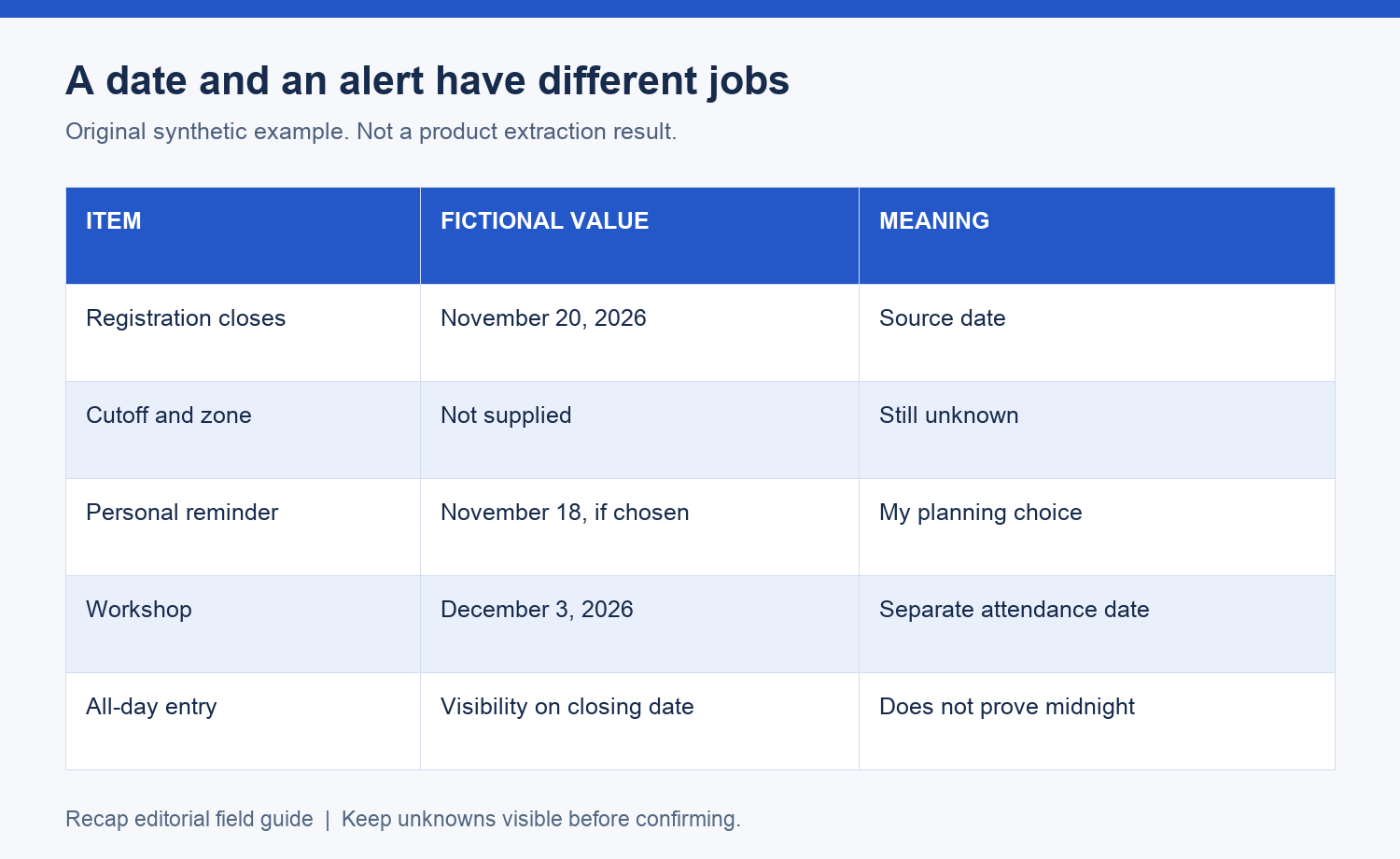
Use the calendar review template to keep this record beside the source. The worksheet can hold both dates without turning them into two confirmed appointments.
Use an all-day entry for visibility
Both major calendar guides describe all-day entries. Apple's all-day event guide documents the all-day section. Google's event creation guide documents its All day option. Those controls help represent a date without selecting an event hour.
When entering the deadline manually, use a title that identifies the action. "Register for workshop; cutoff unconfirmed" is useful when you scan the day. Put the source reference and the unresolved zone in the notes. Keep the later attendance date in a separate note or separately reviewed entry.
An all-day entry is a representation you choose. It does not mean the registration takes the whole day, and it does not reserve a timed work session for completing the form. If you want a work block, choose one separately and explain that it is your plan.
Review alerts separately
Do not assume that an all-day entry will alert you at the hour you expect. Inspect the notification controls in the destination you use. If you need a reminder before the day of the deadline, choose and check it explicitly.
For example, a personal reminder on November 18 could prompt you to open the registration page and check what is required. That reminder does not change the November 20 source date. A second reminder on the closing date might be too late if the cutoff is earlier in another zone.
Keep reminders proportionate to what you need to do. An alert that merely says "Workshop" can be mistaken for attendance. A title that says "Complete workshop registration" identifies the next action without requiring you to reopen every note.
Ask for the missing cutoff when it matters
A useful question is: "What exact time and time zone does registration close on November 20?" Include the workshop title or source link so the organizer can identify the right registration. Ask whether a completed form is sufficient or whether another step must be finished by then.
Record the answer with its date and source. If it gives a cutoff in another region, check the calendar date in your own zone before setting a timed reminder. The time zone abbreviation guide explains how to handle an answer that still uses an ambiguous abbreviation.
If the organizer cannot give a cutoff, keep that uncertainty visible and decide whether you can complete the action earlier. Your decision can reduce your own exposure to the ambiguity, but it does not establish a policy the source never stated.
Separate registration from attendance
After registering, check the confirmation for attendance details. A confirmation might supply a session start and joining instructions. Review those against the workshop date before creating a timed entry. Registration delivery and event attendance are distinct outcomes.
Keep a reference to the confirmation in the attendance note when you are allowed to store it. Do not copy private access links into a shared deadline entry. If you share the event with someone else, verify whether that person needs a separate registration.
When registration is complete, update your personal reminder so it does not keep asking you to do finished work. Preserve the original deadline in the source record if it remains useful context. Do not remove the actual workshop entry by confusing it with the registration reminder.
Keep the source readable in Recap
Recap turns a source into a structured document and offers Calendar, Workspace, and Learning as parallel next steps. The screenshot-to-calendar page is a starting point for image notices. A readable document can retain both the closing date and the later workshop date before you decide what belongs in your calendar.
Review a prepared date against the original labels before confirming any calendar action. The image-to-calendar field guide covers the wider field check. If no dependable time exists yet, you can keep or export the document while waiting for the organizer.
After saving an all-day entry manually, reopen it on the closing date and read the title and notes. Confirm that the cutoff is still marked unknown, your chosen reminder is distinguishable from the deadline, and the attendance date has not been substituted. When a confirmed cutoff arrives, revise the appropriate entry and keep the source of that correction.
Continue in Recap
Turn this source into a Recap Document
Make it easier to read, then send time-based details to Calendar, export it to Workspace, or start PBL Learning.