

A structured note is only useful in a vault if it can be found again and its links still make sense. Before moving notes into Obsidian, decide which information belongs in the note body, which information should be a property, and how the note should link to its source.
Obsidian's help center documents properties for notes and supports both Markdown links and wikilinks. Those choices give you room to build a personal network without losing the original material. This guide uses ordinary Markdown in examples so the note remains easier to read outside one vault.
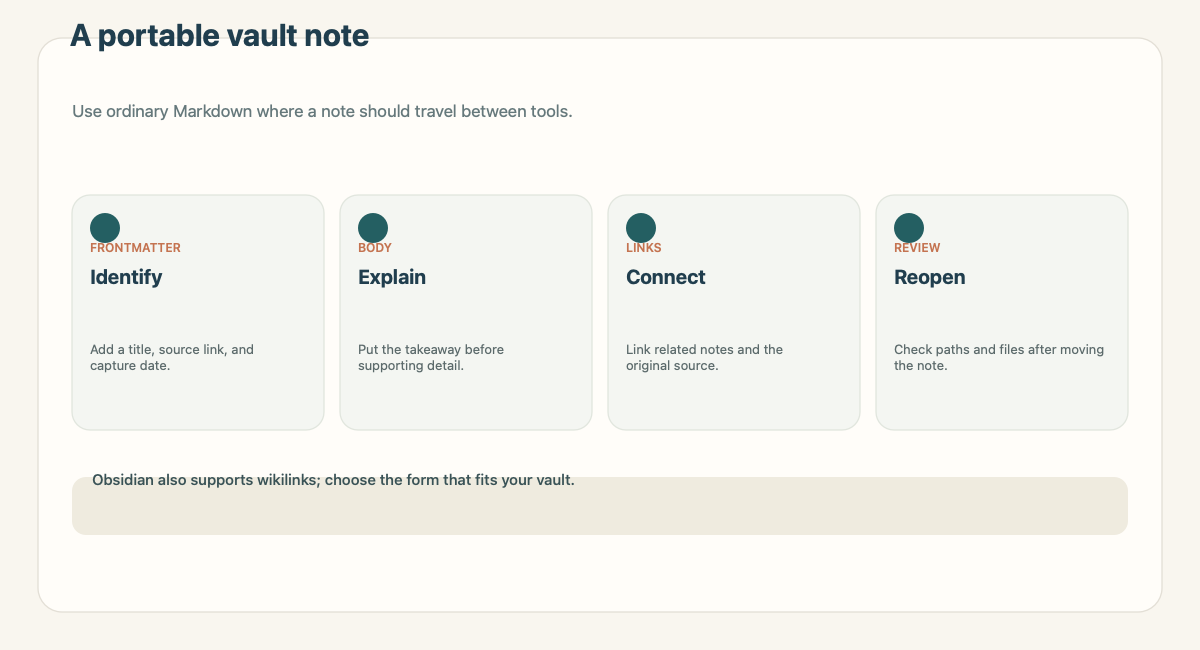
Start with the source, not the folder tree
Before choosing folders or tags, identify the source and the reason for keeping it. A source URL or file reference, a capture date, and a concise claim are a useful start. Add evidence and a next step only when they matter.
A vault can grow into a large collection of folders, tags, and linked pages. The structure should make retrieval easier. It should not force you to decide a permanent taxonomy before you know what the note will be used for. Begin with a predictable file name and a clear heading. Add a folder only when the notes have a shared reason to live together.
Put repeatable details in properties
Obsidian's official Properties guide describes properties as structured data associated with a note. It documents types including text, list, number, checkbox, date, date and time, and tags. Use a property when you may want to sort, filter, or query notes by that value. Keep the explanation in the body when a field is mainly there for a human reader.
A compact note might begin with:
- Title: Vendor renewal notice
- Source: Original notice URL
- Captured: 2026-09-28
- Tags: renewal, vendor
- Summary: The notice lists an October review date.
- Evidence: Renewal section, final paragraph.
- Open question: Confirm whether the date is final.
The example is fictional. Replace the source with a real link and confirm the date before treating it as an instruction. The same information could be stored as frontmatter properties when those fields recur across notes. Keep the property names consistent if you plan to search by them.
Do not turn every sentence into metadata. A property such as “summary” can become difficult to maintain if it contains a paragraph. A short text field is easier to scan; the body can carry the explanation and evidence.
Choose a link format deliberately
Obsidian's internal links documentation shows two supported forms for linking to notes: wikilinks, such as a bracketed note title, and Markdown links with a relative path. The guide also warns that block references are specific to Obsidian and are not part of standard Markdown.
That difference matters when a note leaves the vault. Wikilinks are convenient when you rely on Obsidian's internal navigation. A standard Markdown link can be easier for another tool or person to interpret. There is no universal choice. Use the convention your vault expects, then check the links after moving files.
A link to an external source should stay separate from a link to another note. The first points back to the material that supports a claim. The second connects related ideas. Keeping both makes it easier to tell evidence apart from your own knowledge graph.
Write the note for a future reader
A source-backed note needs enough context to stand on its own. Start with a sentence that states why you saved the material. Add a source link and the part that supports your claim. Mark your interpretation as an interpretation, especially when it leads to a decision.
For a work note, one useful pattern is:
| Section | Question it answers |
|---|---|
| Summary | What should I remember? |
| Source | Where did this come from? |
| Evidence | Which passage supports the summary? |
| Related notes | What else in the vault connects to it? |
| Next step | What should happen, if anything? |
The pattern is a starting point, not an Obsidian feature. Keep sections that help. Drop empty sections instead of leaving a template full of blank fields.
Keep paths and attachments stable
When a note includes images, PDFs, or other files, know where those attachments live. Use consistent names and avoid paths that depend on a temporary downloads folder. If you rename or move a note, review links in the vault and any Markdown links that point to it.
After a transfer, open the note in Obsidian and test its important internal links. The source-context guide shows how to keep the claim and evidence connected. Then open the source URL. If an embedded file is essential, verify that it appears where expected. Obsidian can update internal links when a file is renamed, but the behavior depends on the vault's settings. Check the current link documentation and your own settings before a bulk rename.
Avoid accidental dependence on plugins
Core features are enough for a source, properties, internal links, and ordinary Markdown. A community plugin can be useful, but it adds a dependency that may not exist on another device or in a shared vault. If a note relies on a plugin-generated field or block, say so and test a plain-text copy.
Do not assume that a source note will be private because it is in a local vault, or synced because a folder name suggests it. Review the actual storage and sharing setup for the vault. A note about sensitive work may need a different location from an ordinary reading note.
Review a note before it enters the vault
Use this short check:
- Does the title help you recognize the note later?
- Can you open the source?
- Is the main claim separate from your interpretation?
- Do properties contain values you will maintain?
- Do internal links resolve after the file moves?
- Do attachments remain in a stable location?
A failed link is a repair task, not evidence that the claim is false. A missing source, however, may mean the note needs to be rewritten or marked uncertain.
Where Recap fits
Recap's current product definition puts a structured, readable document before the user's next choice. Workspace is an option when a source belongs with project notes, files, tasks, or a knowledge base. The source-to-workspace page and its workflow guide explain the handoff at that level. The source-to-structured-document page covers the document itself.
This article does not claim that Recap connects directly to an Obsidian vault. If you want to move a result into Obsidian, check the current destination choices in the product and confirm the path that is actually available to your account.
Continue in Recap
Turn this source into a Recap Document
Make it easier to read, then send time-based details to Calendar, export it to Workspace, or start PBL Learning.