

A Notion import is easier to review when the note is prepared before you upload it. That does not mean polishing every sentence or rebuilding your entire workspace. It means deciding what should arrive, where it belongs, and what you will check after the transfer.
Notion supports imports from several file types, including Markdown, plain text, CSV, HTML, and PDF. Its help center also describes limits and mapping behavior for different sources. Before moving a large collection, read the current Notion import guide. The steps below help you prepare a small, source-backed note without assuming that every format or feature will transfer unchanged.
Decide what Notion should receive
Start with the job the page should do. A reference page needs a clear title, concise explanation, and a source link. A tracker needs repeated fields that can be sorted or filtered. A draft for collaboration needs open decisions and context close to the text.
That distinction affects the import format. Notion's official guide describes Markdown files as pages and CSV as a way to create or add database records. A spreadsheet with consistent columns may suit a database. A note with a narrative, examples, and a few links may be easier to review as a page. Neither structure is automatically better.
Avoid turning every detail into a database property. A field is useful when you will search, filter, group, or update it across many records. If a detail appears once and helps the reader understand the note, keep it in the page body.
Prepare the source before export
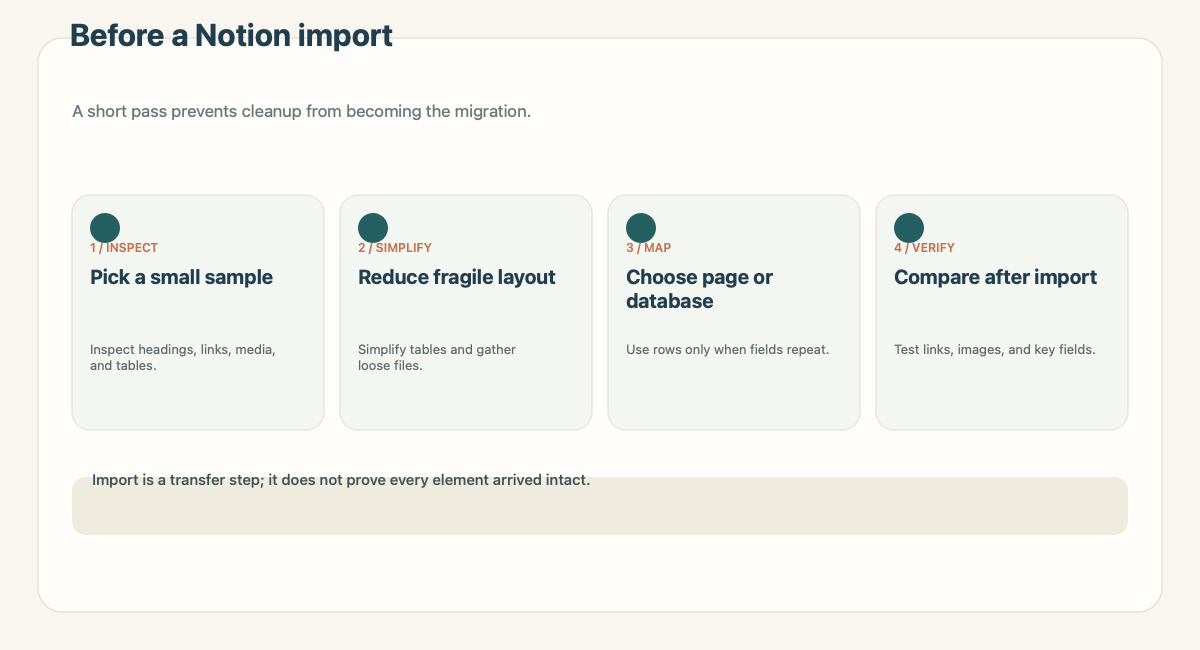
Before importing, keep a short source record with the original URL or file name, the date you captured it, and the section that supports the key claim. If the source is a screenshot, add a caption with its origin. If the source is a web page, keep the canonical page link rather than a search results URL.
Then remove clutter that will be harder to fix after the move. Delete duplicate headings. Turn a long run of blank lines into clear sections. Split a wide table when each row has a different purpose. Give images a short caption that explains why they matter. Keep the source link near the statement it supports.
This is especially useful for a note copied out of an inbox. The capture may contain two different things: a fact from the sender and an action you inferred. Label them separately. A destination page should not make your interpretation look like a quote from the source.
Pick a page or a database
Use a page when the material is mostly explanatory. Use a database when each item shares fields that will help you scan or filter the collection. A mixed case can use a database row for the repeated record and a page for longer detail.
For example, a collection of vendor renewal notices might use a database with vendor, renewal date, owner, and status. The individual page can hold the source excerpt, the reason for the decision, and the unresolved questions. A set of reading notes may be easier to browse as linked pages rather than one enormous table.
Do not create properties only because a CSV can contain columns. First ask whether each column will be maintained and used. Empty fields become a source of drift. If no one can name who updates a status or date, leave it out until there is an owner.
Test the format with one representative note
Choose a note that contains the elements you care about: headings, lists, links, a table, or an image. Import that sample first. The Notion import guide lists supported formats and cautions that behavior differs by importer. The fastest safe test is to compare the result with the source rather than assume a successful upload means a complete transfer. Notion also documents how to export content; for example, non-database pages can be exported as Markdown. Check the current Notion export guide before choosing a format you may need to move again.
Check the hierarchy. Does the title appear once? Did a subheading remain under the right section? If a table became difficult to use, would separate paragraphs or a database be clearer? Open every important link. Look for images and attachments that were not included or that need to be uploaded separately.
If the note is a row in an existing database, inspect the property mapping before importing. Confirm that dates landed as dates and that text fields did not shift into the wrong column. For a CSV import, the column names should describe what each value means, not how the original app happened to label it.
Keep context beside the information
A title like “Budget update” does not tell a colleague where the number came from. Keep a source link or file reference near the claim. Record a captured date when the source can change. If you are using a quote or figure, name the section or page that supports it.
A compact note can use these headings:
| Heading | What belongs there |
|---|---|
| Source | The original location or file |
| Summary | The point a reader needs first |
| Evidence | The passage, value, or image that supports the claim |
| Decision | What is settled and what is still open |
| Next step | An owner and date, if confirmed |
This structure is intentionally small. It leaves room for the actual material without making the note a form to fill out for its own sake. If the source does not say who owns the next step, write “owner to confirm” instead of assigning someone by guesswork.
Review after the import
After importing, compare the destination with the source. Open the note, inspect images and links, and check that the first screen tells a reader why the note exists. For a database, inspect several different rows, including one with a blank field or long value. For a page, test the most important links and scan for formatting that changed meaning.
If the page will guide a decision, ask another person to read the summary and locate its source. If they cannot find the evidence quickly, add a clearer link or short excerpt. If the imported version lost the context, fix it before the page becomes the copy everyone reuses.
A good import has a narrow definition of success: the information landed in the right place, the structure is still useful, and the important claims remain traceable. The transfer message from an app is only one part of that check.
Where Recap fits
Recap's current product positioning puts a structured, readable Recap Document between an incoming source and the user's chosen next step. A user can choose Workspace when the material belongs in an existing knowledge base or project space. That describes a direction in the current workflow, not a claim that every workspace destination is connected automatically.
The source-to-workspace page explains that use case. The source-to-workspace workflow guide gives a destination-neutral handoff rubric, and the source-to-structured-document page covers the document before the destination. Check the destination in the product before relying on any integration or transfer behavior.
A short pre-import checklist
Before moving a note, confirm that:
- The original source is named and can be opened.
- The key claim is separate from your interpretation.
- The destination is a page, database, or document for a clear reason.
- Images, tables, links, and attachments have an expected path.
- Any property has a purpose and an owner.
- A sample import has been checked against its source.
For repeated imports, write down the few checks that caught problems and reuse them. You do not need a migration manual for every note. A small, consistent review protects the details that a future reader cannot recover from the destination alone.
Continue in Recap
Turn this source into a Recap Document
Make it easier to read, then send time-based details to Calendar, export it to Workspace, or start PBL Learning.